
Want to collect important information like team names, t-shirt sizes, meal preferences, or dietary restrictions during ticket purchases? ClickBid’s Custom Questions feature lets you collect the details you need from ticket purchasers and guests, then easily view those responses later.
What Can You Collect with Custom Questions?
Use Custom Questions to gather personalized details such as:
- T-shirt size or color
- Meal or drink preferences
- Allergy or dietary restrictions
- Team name or captain
- Table placement
- Age requirements
- Sponsorship display name
- Swag bag choices
- And more!
💡 Tip: Use Custom Questions for any information you want to collect, track, or report on later.
Create a Custom Question
- Go to Event Tickets > Modify Tickets.
- Click the green pencil icon next to the ticket you want to add the custom question to.

- Scroll down to the Custom Questions section.
- Click Add Question.
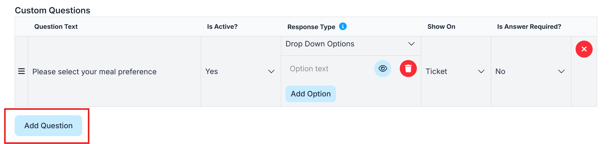
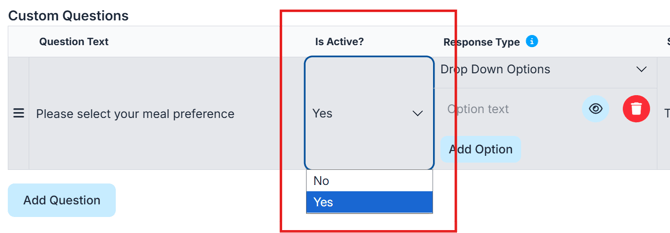
Choose Whether the Question is Active
- Yes — Guests will see and answer the question.
- No — The question will be hidden from guests.
📝 Choose a Response Type
When creating your question, choose how guests will provide their answer.
Option 1: Text Response
- Enter your question in Question Text.
- Guests can type their own answer.
This option works best for open-ended questions, such as:
- “What is your team name?”
- “Do you have any dietary restrictions?”

Option 2: Drop-Down Response
- Enter your question in Question Text.
- Add preset answers under Available Options.
- Guests select one of the available options.
This option works best for structured responses, such as:
- Meal choice
- T-shirt size
- Drink preference
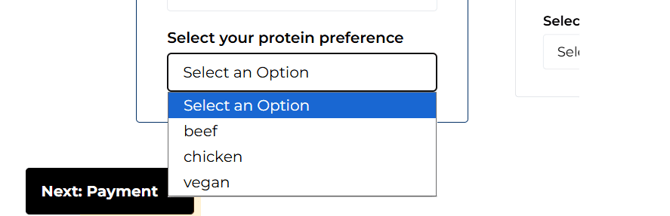
💡Tip: Drop-Down Responses can also be used to automatically assign a Bidder Tag based on the guest's selection.
Automatically Assign Bidder Tags
When using a Drop-Down Response, you can automatically assign a Bidder Tag based on the option a guest selects.
For example, if you ask guests to choose a meal option, you could automatically assign a Beef, Chicken, or Vegan tag to their bidder record based on their selection.
To set this up:
- First, create the unique tags under Bidders > Manage Bidders.
Find more detailed instructions: Custom Bidder Tags - Return to your Drop-Down Response custom question.
- Add your Available Options.
- Select the Bidder Tag you want to assign to each option.
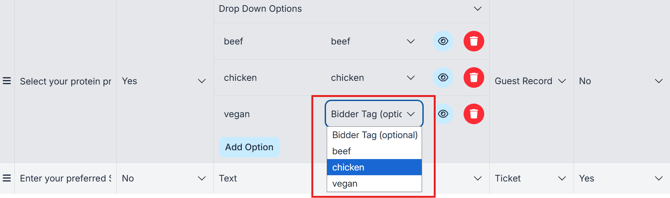
⚠️ Selecting Bidder Tags will only be an option if the tags are created before setting up the Drop-Down Response custom question.
Choose Who Answers the Question
Use the Show On field to decide whether the question applies to the person purchasing the tickets or to each guest associated with the ticket sale.
- Ticket — Only the ticket purchaser will answer the question.
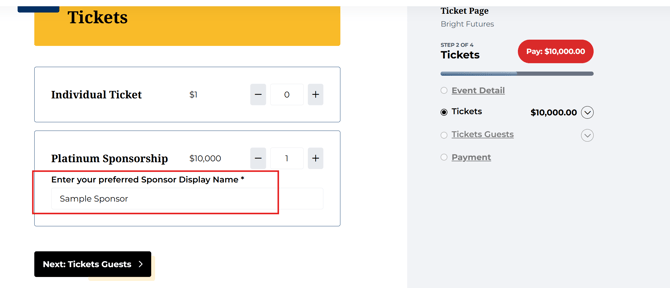
- Guest Record — The question applies to each guest.
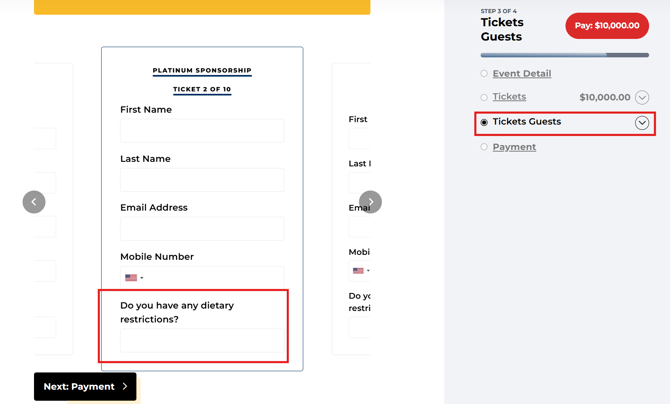
💡Choose Guest Record when you need individual information for every person attending, such as meal choices, t-shirt sizes, or dietary restrictions.
Choose Whether an Answer Is Required
Use Is an Answer Required? to decide whether guests must respond before completing their purchase.
- Yes — Purchaser must answer the question before checking out.
- No — Purchaser can skip the question and allow their guests to fill in later on.
💡 Responses can only be required when the question is shown on the Ticket, since guest details are not required at the time of purchase and can be added at a later time using the Guest Update Link.
Viewing and Reporting on Custom Questions
Custom Question responses are available in several places within ClickBid:
- Event Tickets > View Ticket Sales — View responses for each purchase by clicking the green pencil icon next to each sale.
- CSV Export — Also from Event Tickets > View Ticket Sales, click the blue CSV button to export responses in an excel spreadsheet.
- Event Tickets > Manage Guests — Each custom question appears as its own column in line with each attendee's information.
💡 When multiple custom questions are used, each guest's responses are included in the same row for that ticket in the applicable report or export.
Updating Custom Questions
You can return to Event Tickets > Modify Tickets at any time to view or edit the custom questions associated with a ticket.
⚠️ Certain components can no longer be changed after the questions has a response/has been answered as part of an active ticket sale.