
The Guest Update Link allows ticket purchasers to add or update guest information after purchasing tickets. This is helpful when guests are unknown at the time of purchase. Purchasers can forward the link to their guests to fill out details like name, email, phone number, and meal choice. Any updates made through this link automatically reflect in your admin panel.
⚙️ How to Enable the Guest Update Link
-
Go to Event Tickets > Ticket Page Settings
-
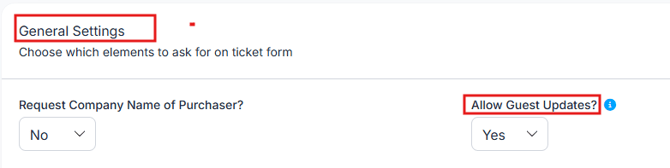
Click on General Settings
-
Set Allow Guest Updates to YES
-
✅ YES: Sends the Guest Update Link to all new ticket purchasers and allows updates to be made
-
❌ NO: No link is sent and updates are blocked (even if a purchaser already has the link)
-
⚠️ Setting this to NO will also deactivate existing guest update pages, preventing edits even if someone still has the link.
📝 How to Customize the Guest Update Email
-
In Event Tickets > Ticket Page Settings, click on Customizable Content
-
Scroll to Guest Update Link Email Message
-
Add custom instructions or verbiage here

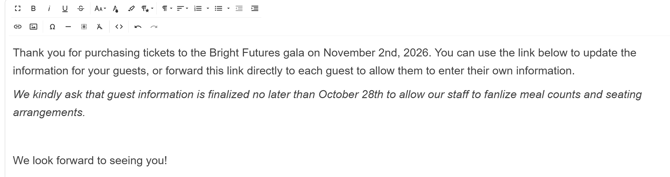
The unique link for each purchaser will auto populate below your composed message.
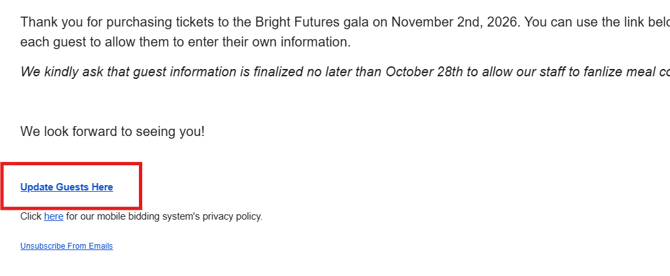
If no changes are made, the default message will be sent: Thank you for purchasing tickets to our event! You may use this link below to update guest information for your guests. You may also forward this link to your guests to have them update their info.
🔁 How to Resend the Guest Update Link
-
Go to Event Tickets > View Ticket Sales
-
Click the blue button next to the ticket purchaser's name (to the far right).
-
Click Email Guest Update Link to resend the email to the purchaser
-
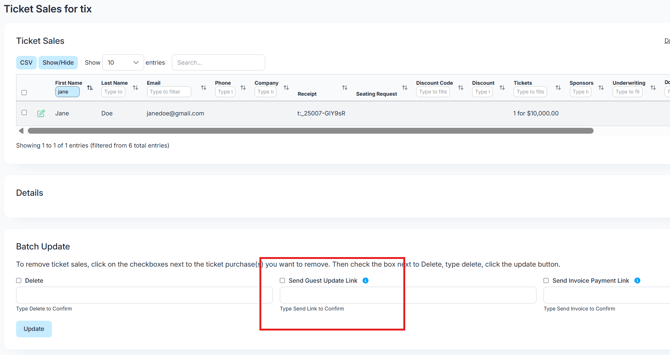
To send in bulk, select multiple ticket sales and use the batch update tool at the bottom
- Click box next to 'Send Guest Update Link'
- Type Send Link
- Then click Update
👤 Using the Guest Update Link
-
The Ticket Purchaser can:
-
Update guest info themselves
-
Forward the link to individual guests
- View how many guests still need to be assigned
-
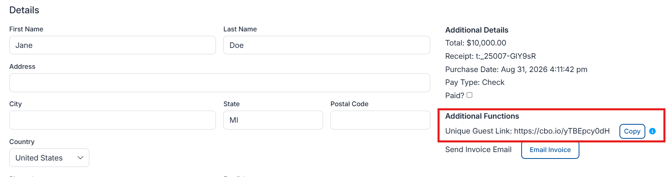
💡As an admin user, you can access the link in the purchase details for any sale under Event Tickets > View Ticket Sales > click the green edit pencil to the left of the purchaser's name.
-
Guests can:
-
Add name, phone, and email
-
Select a meal preference (if applicable)
-
Click Save, updates will appear under Manage Guests
-
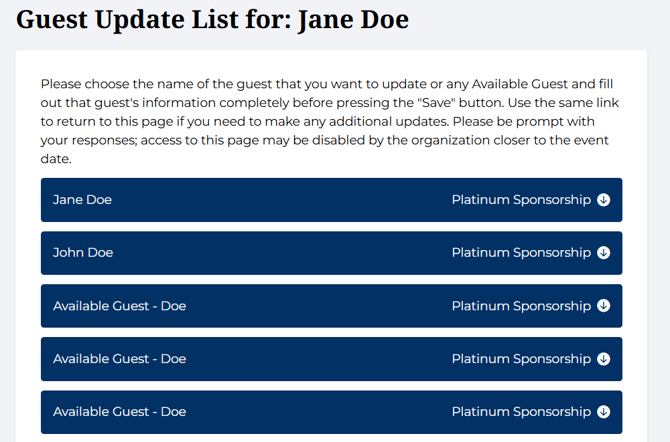
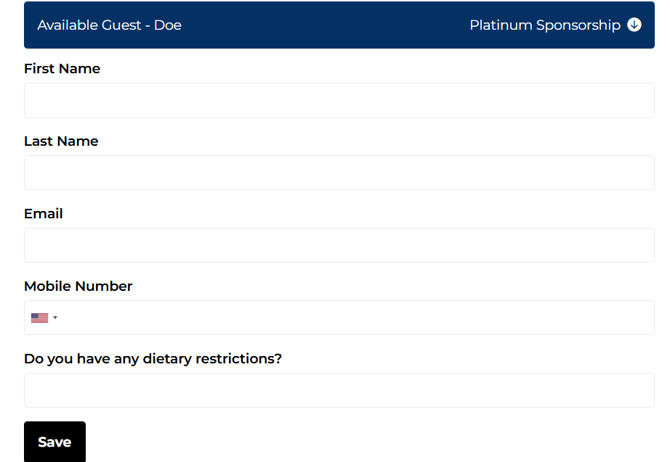
💡 As guest information is updated using the Guest Update Link, changes will be reflected in real time on your Manage Guests page. Encourage guests to provide phone and email for bidding access and automated receipts.
If guests have been converted to bidders, these fields will update in the bidder record: First Name, Last Name, Phone, & Email
⚠️ Once a guest record has been saved, it cannot be removed from the Guest Update link page without being replaced by another guest as some fields are required once the save button is selected.
✍️ Manually Update Guest Info in Admin
If needed, you can update guest information directly:
-
Go to Event Tickets > Manage Guests
-
Click into the field you'd like to change (First Name, Last Name, Email, Phone, etc.)
-
Make edits — changes are saved automatically