---
title: 🔗 Virtuous Software Integration
description: The Virtuous CRM integration has been updated to give event organizers a smoother, more connected experience. Sync contacts, track donations, and view bidder history with ease, all in one place.
---
[Skip to content](https://support.cbo.io/virtuous#main-content)

- [Blog](https://blog.cbo.io/)
- [ClickBid Admin](https://cbo.io/admin/login.php)
Open main navigation
Close main navigation
- [Blog](https://blog.cbo.io/)
- [ClickBid Admin](https://cbo.io/admin/login.php)
- [View our Training Videos](https://training.clickbidonline.com/all-courses/)
[View our Training Videos](https://training.clickbidonline.com/all-courses/)
Welcome to ClickBid's Knowledge Base
- There are no suggestions because the search field is empty.
1. [ClickBid How To Articles](https://support.cbo.io/?hsLang=en)
2. [Integrations + Partners](https://support.cbo.io/integrations-partners?hsLang=en)
3. [Virtuous](https://support.cbo.io/integrations-partners?hsLang=en#virtuous)
# 🔗 Virtuous Software Integration
## ClickBid's Virtuous integration makes it easy to keep your donor database up to date without any manual data entry. Once connected, you can pull your existing Virtuous constituents into ClickBid as bidders, push auction activity and sales back to Virtuous after your event, and even keep records in sync automatically throughout the evening. This guide walks through every section of the integration so you know exactly what each tool does and when to use it.
---
**🔗 Connection**
To connect a ClickBid event to your Virtuous account, go to **Integrations \> Dashboard**. You will see a Virtuous Software logo and a **Connect** button to start the process.
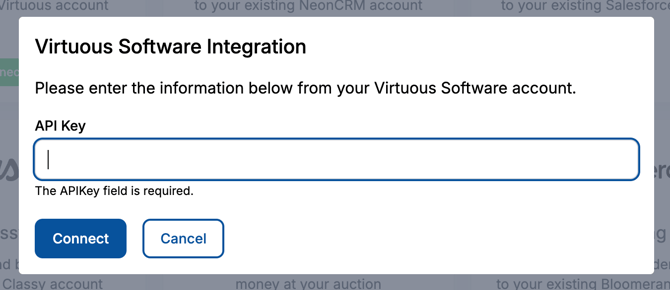
You will need your **Virtuous API Key** to complete the connection. Your API Key is generated inside your Virtuous account by your Virtuous admin. Once you have it, paste it into the **API Key** field and press **Connect**.
After a successful connection, the button will change to a blue **Connected** button. You can press that button at any time to remove the link between ClickBid and Virtuous.
ℹ️ **Info:** Only one API Key field is required to connect, there is no Organization ID step. If your API Key is missing or invalid, you will see "The APIKey field is required." under the input.
---
**⚙️ Settings**
This is your starting point for the integration, configure how and when data flows between ClickBid and Virtuous.
Go to **Integrations \> Virtuous Software \> Settings**.
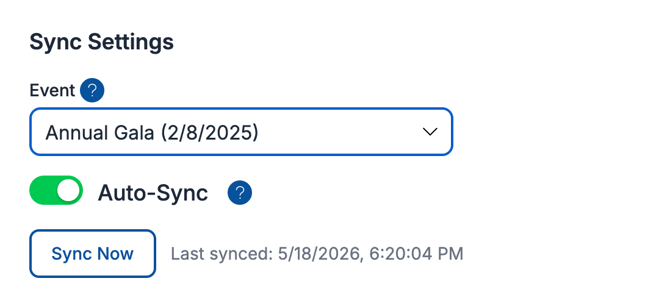
### **Sync Settings**
- **Event**: Select which Virtuous event this ClickBid event is tied to. Sales, attendee, and bidder data will be associated with this event when exported.
- **Auto-Sync**: When enabled, guest and sales data exports to Virtuous automatically in the background. This is useful for keeping your records current during a live event without manual effort.
- **Sync Now**: Triggers a manual sync immediately. Use this if you need to push data right away rather than waiting for the next auto-sync cycle.
### **Sale Export Defaults**
These settings pre-fill the Campaign, Project, and Receipt Amount fields on all sales exported to Virtuous. Setting defaults here saves you from having to select these values individually for each sale.

- **Campaign**: The Virtuous campaign to apply to exported sales (e.g., SBS Campaign, Q2 Recruitment Campaign 2026).
- **Project**: The Virtuous project the funds should be attributed to (e.g., 2025 Fund, Annual Operations).
- **Receipt Amount**: Choose how the sale amount is recorded in Virtuous:
- **Purchase Amount minus FMV**: Records only the tax-deductible portion of the sale.
- **Purchase Amount (full)**: Records the entire purchase amount as the gift value.
💡 **Tip:** Set your Sale Export Defaults before your event begins so exports are categorized correctly in Virtuous from the start.
---
**🗺️ Data Mappings**
Data Mappings control exactly where your ClickBid data lands inside Virtuous when exported.
Go to **Integrations \> Virtuous Software \> Data Mappings**.
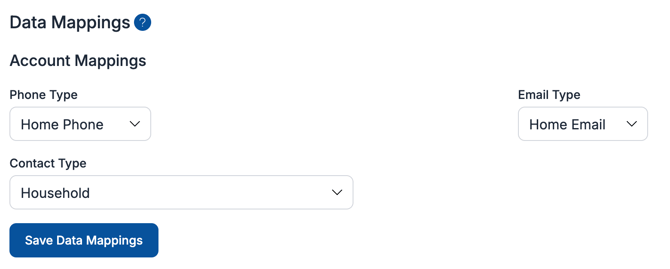
### **Account Mappings**
These settings tell Virtuous which contact fields to populate with ClickBid bidder data.
- **Phone Type**: Choose how bidder phone numbers are saved in Virtuous: Home Phone, Work Phone, Mobile Phone, or Other Phone.
- **Email Type**: Choose how bidder email addresses are saved: Home Email, Work Email, or Other Email.
- **Contact Type**: Choose the Virtuous contact type new bidders will be created under (e.g., Household, Customer, Foundation, Organization, Prospect, Vendor).
Click **Save Data Mappings** after making any changes.
### **Custom Mappings**
Custom Mappings let you route event data to specific custom fields that already exist in your Virtuous account. For example, you could map a ClickBid bidder field to a custom Virtuous contact field.
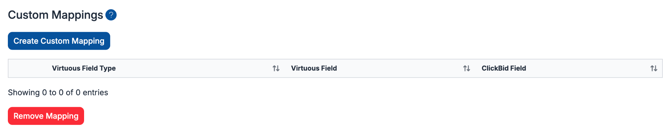
To create a custom mapping, click **Create Custom Mapping** and choose the **Virtuous Field Type**, **Virtuous Field**, and the corresponding **ClickBid Field**. To remove a mapping, select it and click **Remove Mapping**.
ℹ️ **Info:** Custom fields must already exist in Virtuous before you can map to them. Set up any needed custom fields in Virtuous first, then return here to create the mapping.
---
### **Custom Collections**
ClickBid uses two Individual-level **Custom Collections** in Virtuous, one for attendee participation and one for event sales data. These collections must exist in your Virtuous account before syncing can happen.
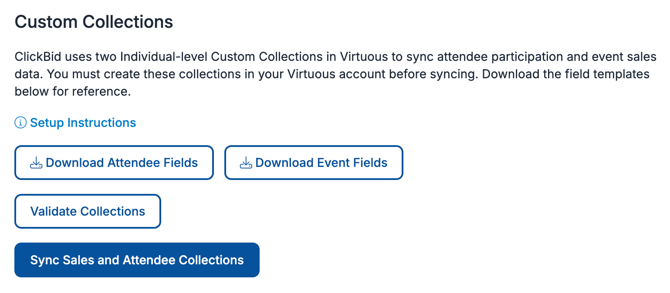
- **Setup Instructions**: Opens step-by-step instructions for building the two Custom Collections inside Virtuous.
- **Download Attendee Fields**: Downloads a reference template listing every field ClickBid will push into the Attendee collection.
- **Download Event Fields**: Downloads a reference template listing every field ClickBid will push into the Event Sales collection.
- **Validate Collections**: Checks your Virtuous account to confirm both Custom Collections exist and contain the required fields. Run this after building the collections in Virtuous to catch any missing fields before you sync.
- **Sync Sales and Attendee Collections**: Pushes the current event's attendee and sales data into the matching Virtuous Custom Collections.
⚠️ Run **Validate Collections** before attempting **Sync Sales and Attendee Collections**. If a required field is missing in Virtuous, the sync will fail or produce incomplete records.
---
**📥 Import Bidders**
Import Bidders lets you pull your existing Virtuous constituents into ClickBid as bidders so they don't have to register themselves.
Go to **Integrations \> Virtuous Software \> Import Bidders**.
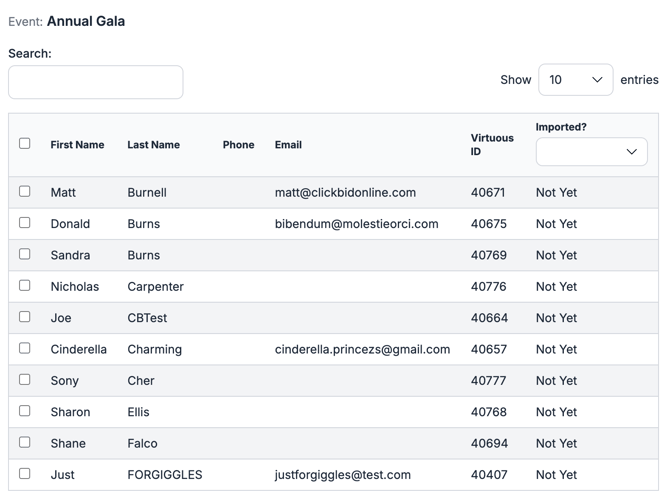
ClickBid displays all constituents from your connected Virtuous account. You can filter by event and search by name or email to find specific donors.
1. Select the **Event** you want to pull constituents from using the dropdown.
2. Use the **Search** field to filter the list if needed.
3. Check the box next to each constituent you want to import.
4. Click **Import**.
ℹ️ **Info:** The **Imported?** column shows which constituents have already been brought into ClickBid, so you can avoid creating duplicates.
---
**📤 Export Bidders**
Export Bidders sends your ClickBid bidder records to Virtuous, either as new contacts or linked to existing ones.
Go to **Integrations \> Virtuous Software \> Export Bidders**.
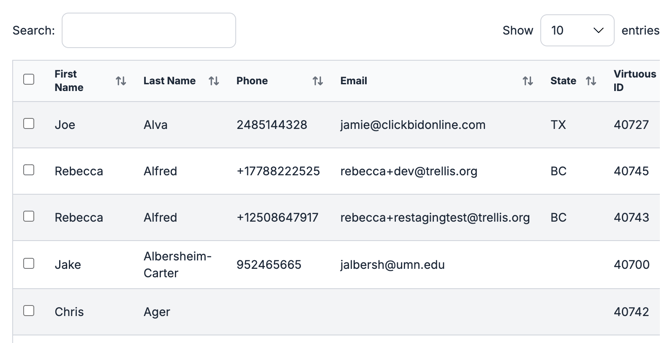
ClickBid lists all bidders in your event. For each bidder, use the **Operation** dropdown to choose what action to take:
- **Add New Contact in Virtuous**: Creates a brand-new contact record in Virtuous using the bidder's information.
- **Link to Existing Virtuous Contact**: Connects this bidder to a contact record that already exists in Virtuous.
- **Update Virtuous Contact Email**: Updates the email address on the linked Virtuous record with the bidder's current email.
- **Update Virtuous Contact Phone**: Updates the phone number on the linked Virtuous record.
- **Update Both Phone & Email**: Updates both contact fields at once.
- **Remove Link**: Disconnects this bidder from their linked Virtuous record.
- **Add/Update Virtuous Contact**: A combined action that creates the contact if no match exists, or updates the linked contact if one already does.
Once you've set the operation for each bidder you want to act on, check the boxes next to those rows and click **Export/Update**.
💡 **Tip:** Bidders who were imported from Virtuous will already have a Virtuous ID and won't need to be exported as new contacts.
---
**💰 Export Sales**
Export Sales sends completed auction sales and donations from ClickBid into Virtuous as transaction records.
Go to **Integrations \> Virtuous Software \> Export Sales**.
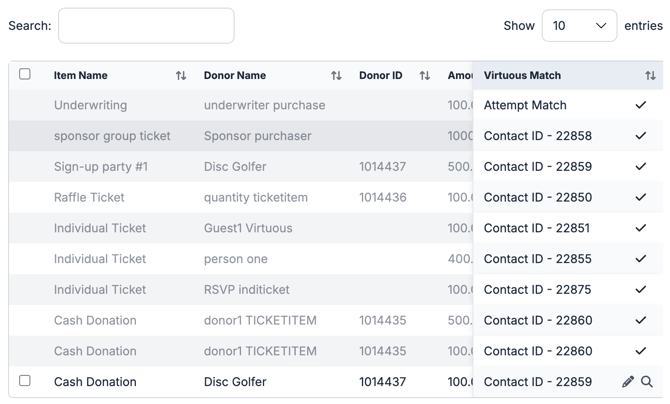
ClickBid lists all sales from your event, including the item name, donor name, donor ID, amount, fair market value, date, phone, email, and pay type. The **Virtuous Match** column shows whether a Virtuous contact has been identified for that donor.
1. Review the **Virtuous Match** column. If an existing Virtuous contact is shown, the sale will be added to that record. If no match is found, ClickBid will create a new Virtuous contact for that donor when you export.
2. Check the box next to each sale you want to export.
3. Click **Export Sales**.
💡 **Tip:** Any defaults you set under **Settings \> Sale Export Defaults** (Campaign, Project, Receipt Amount) will be applied automatically to each sale you export here.
⚠️ **Warning:** After exporting, use the Activity Log to confirm all records were processed successfully before closing out your event.
---
**🪑 Export Guests**
Export Guests sends your event ticket holders to Virtuous as contact records.
Go to **Integrations \> Virtuous Software \> Export Guests**.
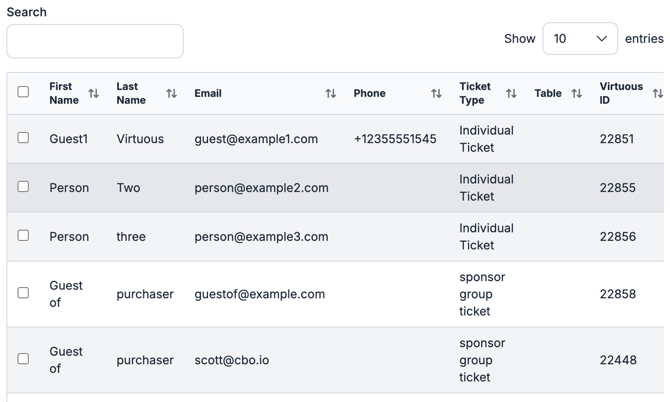
ClickBid displays your event guests with their first name, last name, email, phone, ticket type, table assignment, and Virtuous ID. Guests are matched to existing Virtuous contacts by email address. If a matching email is found, the guest will be linked to that contact rather than creating a duplicate.
1. Check the box next to each guest you want to export.
2. Click **Export**.
ℹ️ Guests must have a **last name** and **email address** to be exportable. Rows missing either field will be skipped.
ℹ️ This feature is designed for event ticket holders (guests), not bidders. Use **Export Bidders** for your auction participants. ClickBid will work with Virtuous's API to ensure that an exported guest will match with an exported bidder via email matching.
---
**📋 Activity Log**
The Activity Log gives you a complete record of everything that has been sent to Virtuous from ClickBid.
Go to **Integrations \> Virtuous Software \> Activity Log**.
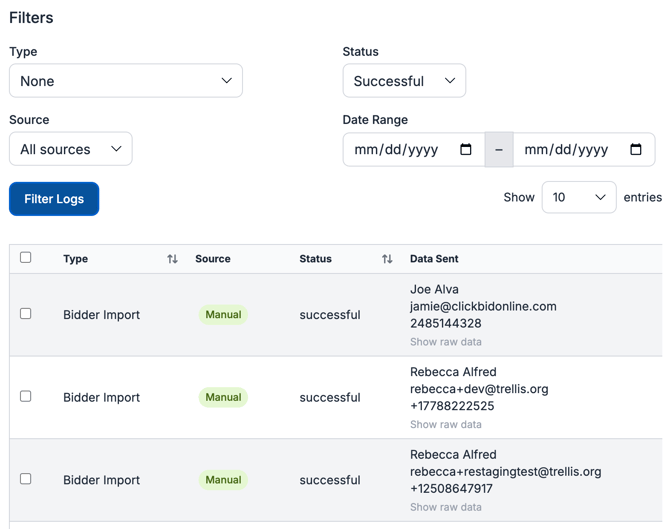
Each entry shows the **Type** of action, the **Source** (Auto Sync or Manual), the **Status** (Successful, Failure, or Pending), the **Data Sent**, Virtuous's **Response**, and the **Date**. Click **Show raw data** on any row to expand the full payload for that entry.
You can filter log entries using the controls at the top of the page:
- **Type**: Bidder Export, Sale Export, Bidder Import, Auto Sync, Recurring Donation Sync, Attendee Export, Collection Sync, Attendee Custom Field Sync, or Sale Export Cleared.
- **Status**: Successful, Failure, or Pending.
- **Source**: All sources, Auto Sync, or Manual.
- **Date Range**: Limit results to a specific window.
Click **Filter Logs** to apply your selections.
Log entries are kept for 3 months and then removed automatically. You can also remove entries manually by selecting them and clicking **Remove Log**.
ℹ️ **Info:** If an export shows a **Failure** status, check the Response column for details. Common causes include a missing Virtuous contact match, a Custom Collection that hasn't been built yet, or a required field that wasn't filled in.
#### ⚠️Auction items must be **closed (not invisible)** in order to appear in the **Export Sales** list. All **paid** items, including donations and ticket purchases, will appear in Export Sales. **Unpaid** items will not be included.
---
**✅ Summary**
The Virtuous integration gives you a complete toolset for connecting your ClickBid event to your donor database,before, during, and after your event. You can import existing constituents as bidders, keep records in sync automatically throughout the evening, and push all sales, guest data, and attendee participation back to Virtuous when the event wraps up. The Activity Log makes it easy to verify that everything transferred correctly.
- [Account & Setup](https://support.cbo.io/account-setup?hsLang=en#main-content)
- [Users & Logging In](https://support.cbo.io/account-setup?hsLang=en#users-logging-in)
- [Billing/Renewal](https://support.cbo.io/account-setup?hsLang=en#billing-renewal)
- [Organization Account](https://support.cbo.io/account-setup?hsLang=en#organization-account)
- [Event Settings](https://support.cbo.io/account-setup?hsLang=en#event-settings)
- [Auction Settings](https://support.cbo.io/account-setup?hsLang=en#auction-settings)
- [Welcome Page](https://support.cbo.io/account-setup?hsLang=en#welcome-page)
- [Get Started](https://support.cbo.io/get-started?hsLang=en#main-content)
- [Pre-Event Prep](https://support.cbo.io/get-started?hsLang=en#pre-event-prep)
- [Creating a New Event](https://support.cbo.io/get-started?hsLang=en#creating-a-new-event)
- [Event Day Toolkit](https://support.cbo.io/event-day-toolkit?hsLang=en#main-content)
- [Paddle Raise](https://support.cbo.io/event-day-toolkit?hsLang=en#paddle-raise)
- [Live Auction](https://support.cbo.io/event-day-toolkit?hsLang=en#live-auction)
- [Silent Auction](https://support.cbo.io/event-day-toolkit?hsLang=en#silent-auction)
- [Butler](https://support.cbo.io/event-day-toolkit?hsLang=en#butler)
- [Volunteer Training](https://support.cbo.io/event-day-toolkit?hsLang=en#volunteer-training)
- [Messaging](https://support.cbo.io/messaging?hsLang=en#main-content)
- [Text & Emails](https://support.cbo.io/messaging?hsLang=en#text-emails)
- [Chat Bidders](https://support.cbo.io/messaging?hsLang=en#chat-bidders)
- [Welcome Text, Text Bidders, & Email Bidders](https://support.cbo.io/messaging?hsLang=en#welcome-text-text-bidders-email-bidders)
- [Tickets & Sponsorships](https://support.cbo.io/tickets-sponsorships?hsLang=en#main-content)
- [Tickets, Sponsorships & Underwriting Overview](https://support.cbo.io/tickets-sponsorships?hsLang=en#tickets-sponsorships-underwriting-overview)
- [Reporting & Data](https://support.cbo.io/tickets-sponsorships?hsLang=en#reporting-data)
- [Manage Ticketed Guests](https://support.cbo.io/tickets-sponsorships?hsLang=en#manage-ticketed-guests)
- [RSVP & Invoicing](https://support.cbo.io/tickets-sponsorships?hsLang=en#rsvp-invoicing)
- [Items](https://support.cbo.io/items?hsLang=en#main-content)
- [Items Overview & Setup](https://support.cbo.io/items?hsLang=en#items-overview-setup)
- [Quantity Items / E-Commerce](https://support.cbo.io/items?hsLang=en#quantity-items-e-commerce)
- [Item Donation Form and Donors](https://support.cbo.io/items?hsLang=en#item-donation-form-and-donors)
- [FMV & Tax](https://support.cbo.io/items?hsLang=en#fmv-tax)
- [Peer to Peer and Donation Campaigns](https://support.cbo.io/peer-to-peer-and-donation-campaigns?hsLang=en#main-content)
- [Peer to Peer and Donation Setup](https://support.cbo.io/peer-to-peer-and-donation-campaigns?hsLang=en#peer-to-peer-and-donation-setup)
- [Recurring Donations](https://support.cbo.io/peer-to-peer-and-donation-campaigns?hsLang=en#recurring-donations)
- [Text to Give](https://support.cbo.io/peer-to-peer-and-donation-campaigns?hsLang=en#text-to-give)
- [Embed Your Donation Form](https://support.cbo.io/peer-to-peer-and-donation-campaigns?hsLang=en#embed-your-donation-form)
- [Appeal Display](https://support.cbo.io/peer-to-peer-and-donation-campaigns?hsLang=en#appeal-display)
- [Bidders](https://support.cbo.io/bidders?hsLang=en#main-content)
- [Bidder Setup](https://support.cbo.io/bidders?hsLang=en#bidder-setup)
- [Donor Thank You Letters](https://support.cbo.io/bidders?hsLang=en#donor-thank-you-letters)
- [Bidder Registration Custom Questions](https://support.cbo.io/bidders?hsLang=en#bidder-registration-custom-questions)
- [Reporting & Data](https://support.cbo.io/reporting-data?hsLang=en#main-content)
- [Event Reporting](https://support.cbo.io/reporting-data?hsLang=en#event-reporting)
- [Credit Card Processing & Payments](https://support.cbo.io/credit-card-processing-payments?hsLang=en#main-content)
- [Credit Card Processing & Payments](https://support.cbo.io/credit-card-processing-payments?hsLang=en#credit-card-processing-payments)
- [FAQs](https://support.cbo.io/credit-card-processing-payments?hsLang=en#faqs)
- [Merchant Account & Merchant Report](https://support.cbo.io/credit-card-processing-payments?hsLang=en#merchant-account-merchant-report)
- [Web Content / Event Landing Pages](https://support.cbo.io/web-content-event-landing-pages?hsLang=en#main-content)
- [Design & Customization](https://support.cbo.io/web-content-event-landing-pages?hsLang=en#design-customization)
- [Accepting Donations From Your Landing Page](https://support.cbo.io/web-content-event-landing-pages?hsLang=en#accepting-donations-from-your-landing-page)
- [EventStream Video Streaming](https://support.cbo.io/eventstream-video-streaming?hsLang=en#main-content)
- [Virtual Live Auction and Paddle Raise](https://support.cbo.io/eventstream-video-streaming?hsLang=en#virtual-live-auction-and-paddle-raise)
- [EventStream FAQ](https://support.cbo.io/eventstream-video-streaming?hsLang=en#eventstream-faq)
- [Integrations + Partners](https://support.cbo.io/integrations-partners?hsLang=en#main-content)
- [Neon One](https://support.cbo.io/integrations-partners?hsLang=en#neon-one)
- [Raiser's Edge NXT](https://support.cbo.io/integrations-partners?hsLang=en#raisers-edge-nxt)
- [Bloomerang](https://support.cbo.io/integrations-partners?hsLang=en#bloomerang)
- [Salesforce for Nonprofits](https://support.cbo.io/integrations-partners?hsLang=en#salesforce-for-nonprofits)
- [Charityproud](https://support.cbo.io/integrations-partners?hsLang=en#charityproud)
- [Classy](https://support.cbo.io/integrations-partners?hsLang=en#classy)
- [TravelPledge](https://support.cbo.io/integrations-partners?hsLang=en#travelpledge)
- [Double the Donation](https://support.cbo.io/integrations-partners?hsLang=en#double-the-donation)
- [HGA Fundraising](https://support.cbo.io/integrations-partners?hsLang=en#hga-fundraising)
- [Public API](https://support.cbo.io/integrations-partners?hsLang=en#public-api)
- [Zapier](https://support.cbo.io/integrations-partners?hsLang=en#zapier)
- [Virtuous](https://support.cbo.io/integrations-partners?hsLang=en#virtuous)
- [Charity Experiences](https://support.cbo.io/integrations-partners?hsLang=en#charity-experiences)
- [Donorperfect](https://support.cbo.io/integrations-partners?hsLang=en#donorperfect)
- [Little Green Light](https://support.cbo.io/integrations-partners?hsLang=en#little-green-light)
- [FAQs](https://support.cbo.io/faqs?hsLang=en#main-content)
- [FAQs](https://support.cbo.io/faqs?hsLang=en#faqs)
[](https://try.cbo.io)
ClickBid Training Hub
Copyright © 2026, ClickBid Event Fundraising
```json
{
"@context" : "https://schema.org",
"@type" : "VideoObject",
"caption" : {
"@type" : "MediaObject",
"contentUrl" : "https://support.cbo.io/media-transcripts/213188924756/en.vtt",
"inLanguage" : "en",
"name" : "en Captions"
},
"contentUrl" : "https://22025730.fs1.hubspotusercontent-na1.net/hubfs/22025730/video_assets/213188924756/inherited/web_optimized.mp4",
"dateModified" : "2026-05-19T15:33:31.691Z",
"duration" : "PT14M3S",
"height" : 1080,
"name" : "Virtuous Integration Walkthrough with ClickBid",
"thumbnailUrl" : "https://22025730.fs1.hubspotusercontent-na1.net/hubfs/22025730/Virtuous%20Integration%20Walkthrough%20with%20ClickBid.mp4/medium.jpg",
"uploadDate" : "2026-05-19T15:32:37.676Z",
"width" : 1920
}
```