
The Underwriting section of your ClickBid ticket page is a flexible way to offer donors the chance to cover specific event costs or purchase fixed-price items, like merchandise or services, without including attendance.
This guide walks you through:
-
Setting up underwriting items
-
Managing availability and sold-out messaging
-
Previewing changes
-
Running test purchases
-
Capturing additional info from buyers
Add an Underwriting Item
Follow these steps to create and customize your underwriting options:
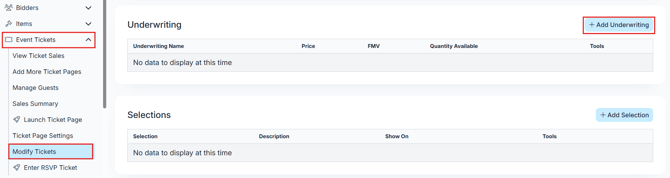
1. Go to Event Tickets > Modify Tickets
2. Click Add Underwriting
Complete Underwriting Item Details
3. Fill in the following fields:
-
Underwriting Name
Examples:-
Raffle Ticket
-
Cover a Gala Ticket
-
Tee Shirt
-
Centerpieces
-
Photobooth
-
Bar Service
-
-
Price: Total cost of the item.
-
Fair Market Value (FMV) (Optional)
This will appear on the receipt and helps determine the tax-deductible amount. -
Description: Appears under the name of the underwriting item on the ticket page.
4. Set Quantity & Availability
-
Availability:
Enter how many are available (e.g., 10). Use 0 for unlimited. -
Hide Availability:
If set to No, purchasers will see the remaining quantity.
Example: (5 of 19 Available) -
Sold Out?
This can be triggered in two ways:-
When all available items are sold
-
By manually selecting Sold Out = Yes
-
To Set Quantity or Mark Sold Out: Go to Event Tickets > Modify Tickets, select your item, and update the Quantity or toggle Mark as Sold Out.
-
Sold Out Message (Optional):
Customize the message that appears when the item sells out. Leave blank to use the default message.
5. Add Additional Purchase Details
Use this field for instructions or extra info.
Examples:
-
"Pickup your tee shirt at check-in."
-
"Logo recognition included."
Can Purchasers Buy More Than One of the same item?
Not directly. Each underwriting item behaves like a yes/no checkbox on the ticket form. If a purchaser wants to buy more than one:
-
They must complete the form multiple times, submitting a new ticket each time.
-
Use this format intentionally for fixed-price items, not variable-quantity purchases.
Tip: For merchandise like t-shirts, consider listing each size as a separate item or enabling a comment box (see below). Another option is to set up Quantity items under Manage items then sell them on the ticket page.
Reorder Underwriting Items
To rearrange the display order of underwriting items:
-
Right-click or tap-hold the item
-
Drag and drop to reorder within the Underwriting section
Note: You can only reorder within the same section (e.g., Tickets, Sponsorships, Underwriting).
Customize the Underwriting Section Title
Want to rename "Underwriting" to something more donor-friendly (like "Support Items" or "Extras")?
Go to:
Ticket Page Settings > Additional Features > Underwriting Title
Preview Your Ticket Page
To see how your underwriting options look live:
-
Go to Event Tickets > Launch Ticket Page
Run a Test Purchase (and Delete It)
Testing your setup is a great way to ensure a smooth donor experience.
To run a test:
-
Go to Event Tickets > Ticket Page Settings > Payment Types
-
Enable Cash or Check
-
Go to Event Tickets > Launch Ticket Page and make your test purchase
To delete the test purchase:
-
Go to Event Tickets > View Ticket Sales
- Scroll the bar to the right and click the blue circle with 3 dots
-
Then click the refund button.
-
Check the box under Refund Whole Line Items and click submit
-
Then under view ticket sales check the box next to the name you just refunded.
-
Scroll down, check Delete.
-
Type
deletefor confirmation -
Click Update
Reminder
Be sure to reset your Payment Types to the actual payment methods you’ll use for real sales.