
This step-by-step guide will walk you through setting up a Sponsor Level on your Event Ticket Page, including naming, pricing, availability, and customization tips. You'll also find answers to frequently asked questions about test purchases, previews, and editing sponsor info.
⚠️ Important
Once a ticket, sponsorship, or underwriting option has been purchased, do not change its name or delete the ticket. Doing so may break reports and guest links for those purchases. Set the sponsorship to invisible and create a new one if needed.
📋 Setting Up a Sponsorship Level
Follow these steps to create a sponsorship tier for your event:
1. Access the Event Tickets Page
-
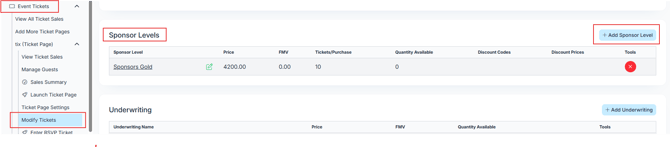
Go to Event Tickets from your ClickBid admin dashboard.
2. Click Modify Tickets, Add Sponsor Level
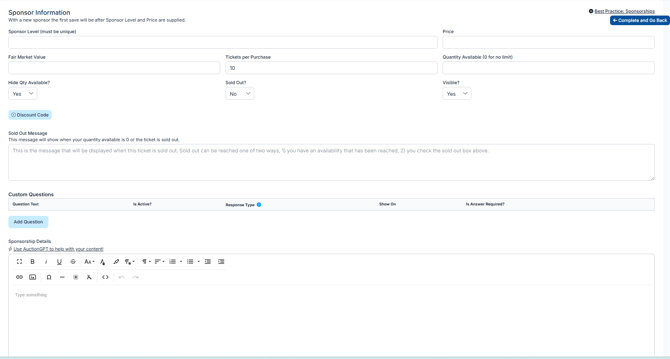
3. Enter the Name of the Sponsorship
4. Enter the Price Per Package
Add the total cost a purchaser will pay for this sponsorship level.
5. Set the Fair Market Value
This helps identify the tax-deductible amount for donors.
6. Specify Tickets per Purchase
Indicate how many admission tickets come with the sponsorship.
7. Set Availability or # of Purchases Allowed
Enter the total number of sponsorships available:
-
Enter 0 for unlimited
-
The system will automatically prevent overselling
ℹ️ Info: If 10 are sold with 15 available, the ticket page will show:
(5 of 15 Available)
8. Customize the Sold-Out Message
Optionally, enter a custom message to show when this sponsor level sells out.
(Leave blank if you don’t need a message.)
9. (Optional) Use Discount Code Field
Enter codes if offering discounts to select sponsors.
10. Control When "Sold Out" is Triggered
Sold out status can be activated:
-
When the availability reaches 0
-
Or if you manually set Sold Out = Yes
11. Add Sponsorship Details
Clearly state what the sponsorship level includes. Examples:
-
Table of 8
-
Logo in printed program
-
5-minute speaking opportunity at Gala
🛠️ Admin Tip
To rearrange ticket display order:
-
Right-click/hold the ticket line
-
Drag it to your desired spot within the same section (Tickets, Sponsorships, Underwriting, Selection)
❓ Frequently Asked Questions:
How do I preview changes to my ticket page?
-
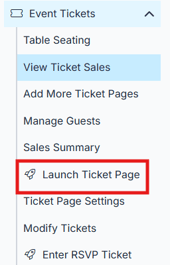
Go to Event Tickets > Launch Ticket Page
You’ll see a live preview of your changes.
Can I do a test purchase?
Yes, and it’s highly recommended! Here’s how:
-
Go to Event Tickets > Ticket Page Settings > Payment Types
-
Set Cash or Check to Yes
-
Go to Event Tickets > Launch Ticket Page and make your purchase
To delete the test:
-
Go to Event Tickets > View Ticket Sales
-
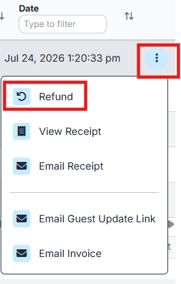
Click the three dots on the right, then click the refund icon
-
check the box under Refund Whole Line Items and click submit
-
Then under view ticket sales check the box next to the name you just refunded.
-
Scroll down, click Delete, and type:
-
deletefor confirmation
-
-
Click Update
-
Don’t forget to revert your Payment Types under Ticket Page Settings> Payment Types!
Can I edit the “Sponsorship Information” banner title?
Yes! Go to: Event Tickets > Ticket Page Settings > Additional Features > Sponsor Title