---
title: 🏆Adding and Managing Your Sponsors
description: Learn how to upload, organize, and display sponsor logos on your ClickBid landing page and auction site to boost visibility and sponsor value.
---
[Skip to content](https://support.cbo.io/showcase-sponsors#main-content)

- [Blog](https://blog.cbo.io/)
- [ClickBid Admin](https://cbo.io/admin/login.php)
Open main navigation
Close main navigation
- [Blog](https://blog.cbo.io/)
- [ClickBid Admin](https://cbo.io/admin/login.php)
- [View our Training Videos](https://training.clickbidonline.com/all-courses/)
[View our Training Videos](https://training.clickbidonline.com/all-courses/)
Welcome to ClickBid's Knowledge Base
- There are no suggestions because the search field is empty.
1. [ClickBid How To Articles](https://support.cbo.io/?hsLang=en)
2. [Account & Setup](https://support.cbo.io/account-setup?hsLang=en)
3. [Event Settings](https://support.cbo.io/account-setup?hsLang=en#event-settings)
# 🏆Adding and Managing Your Sponsors
## The Sponsors page lets you upload sponsor logos, create text-based sponsor entries, and organize everything into groups all of which display on your event's auction layout for guests to see.
#### Showcasing sponsor logos on your ClickBid site helps:
- #### Recognize and thank supporters
- #### Drive visibility and brand exposure
- #### Encourage future sponsorships
- #### Make your landing page look polished and professional
💡 Tip: Add clickable logos to drive traffic to sponsor websites!
---
#### ⚙️ Accessing the Sponsors Page
1. Log in to your ClickBid event admin dashboard.
2. In the left-hand navigation, click **Software Settings** to expand the menu.
3. Click **Sponsors**.
---
#### ➕ Adding a Sponsor Logo
You can upload sponsor images directly to your event using the drag-and-drop upload area.
1. Upload a sponsor logo png/jpeg file to 'Drop files to upload'.
1. Logos will show in the **Not Grouped** section.
2. If you want to add the sponsor to a specific group, click and drag it from the '**Not Grouped'** section to the applicable level.
3. Repeat for as many sponsor logos as you need.
4. Optional: Add the sponsors url by clicking on the edit pencil for the logo.
1. This will allow bidders/donors to click on the sponsor logo to be brought to the url entered.
ℹ️ Ideal image dimensions are no larger than **1000 x 1000 pixels**. Uploading multiple copies of the same logo is a great way to give a sponsor extra visibility in your layout.
---
#### ➕ Adding a Text-Based Sponsor
If a sponsor doesn't have a logo, you can create a simple text entry instead.
1. Scroll below the upload area to the text sponsor form.
2. Enter the **Sponsor Name** in the first field.
3. Optional: Enter a **Sponsor URL** to link the sponsor's name to their website.
4. Click **Add Sponsor** to save.
---
#### ⚙️ Creating Sponsor Groups
Sponsor groups let you organize your sponsors into tiers, like Gold Sponsors or VIP Sponsors, and display them separately on your auction layout.
1. Scroll down to the **Sponsors** section on the page.
2. In the **Sponsor Group Name** field, type a name for your new group (for example, "Platinum Sponsors").
3. Click **Create Sponsor Group**.
4. The new group will appear in the list below, ready for sponsors to be added to it.
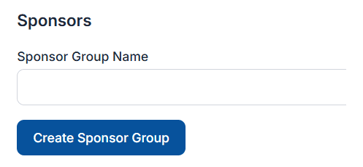
💡Create your sponsor groups before uploading logos so you can assign each sponsor to the right group right from the start
📌 Info: Sponsor group names will appear above the logos on both the landing page and bidding site.
---
#### ⚙️ Managing Existing Sponsors and Groups
Once your sponsors and groups are set up, you can edit, reorder, and remove them as needed.
**To reorder sponsors:**
1. In the **Sponsors** section, locate the sponsor logo you want to move.
2. Click and drag the sponsor logo to a new position within its group.
**To edit a sponsor:**
1. Find the sponsor logo you want to update.
2. Click the **edit icon**  on the sponsor card.
3. In the modal that opens, update the **URL** or **alt text** as needed.
4. Click **Save**.
**To delete a sponsor:**
1. Find the sponsor logo you want to remove.
2. Click the **delete icon**  on the sponsor logo.
3. Confirm the deletion when prompted.
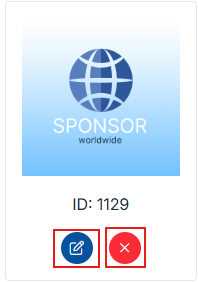
**To edit a sponsor group name:**
1. Find the sponsor group you want to rename.
2. Click the **edit icon**  in the upper right corner of the group header.
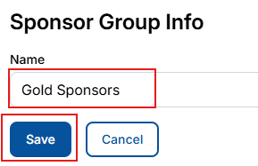
3. Update the **Name** field in the modal.
4. Click **Save**.

**
To delete a sponsor group:**
1. Find the group you want to remove.
2. Click the **delete icon**  in the upper right corner of the group header.
3. Confirm the deletion when prompted.
⚠️Deleting a sponsor group will remove the group. Make sure to move any sponsors you want to keep to another group or the **Not Grouped** section before deleting.
---
#### ✏️ Customize Logos with Text, Alt Tags, and Links
- Click the pencil icon  next to any sponsor to edit
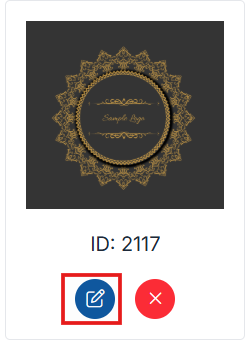
- **Alt Text** for accessibility on sponsor logos
- A **URL** to make the logo clickable
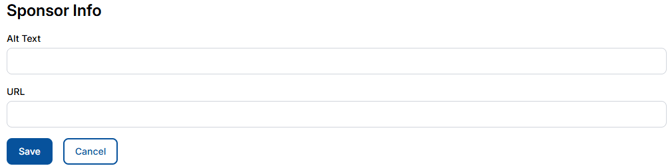
🌐 Tip: When a URL is added, participants can click the logo to visit your sponsor’s website, a great value-add for your partners!
#### 👥 Controlling What Appears in Your Auction Layout
Each sponsor group has a **Show in Auction Layout** checkbox that controls whether that group's sponsors are visible to guests in the bidding site.
1. Locate the sponsor group you want to show or hide.
2. Check or uncheck the **Show in Auction Layout** checkbox next to the group name.
3. The change saves automatically.

💡The **Not Grouped** section also has its own **Show in Auction Layout** toggle. If you have sponsors that aren't assigned to a group, make sure this is checked if you want them to appear for guests.
#### 🌐 Where Logos Will Appear
#### Sponsor logos will display in two key areas:
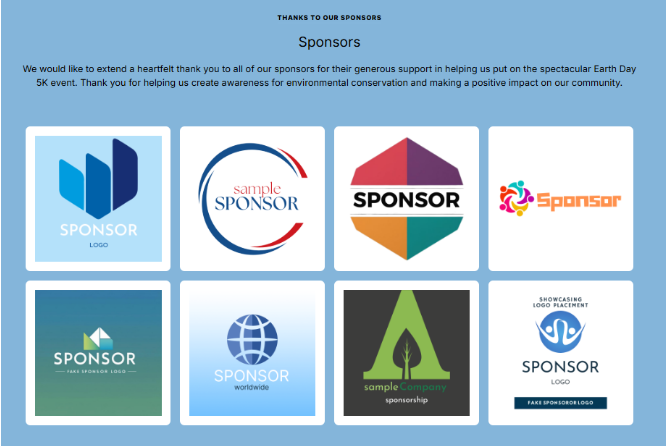
- **Landing Page**: Above or below sections depending on placement after creating a content block by going to Software Settings\>Landing Page Builder\>Content: Type set to Sponsors. For more information see this [how to article](https://support.cbo.io/how-to-use-the-landing-page-builder-in-clickbid?hsLang=en) on the landing page builder.
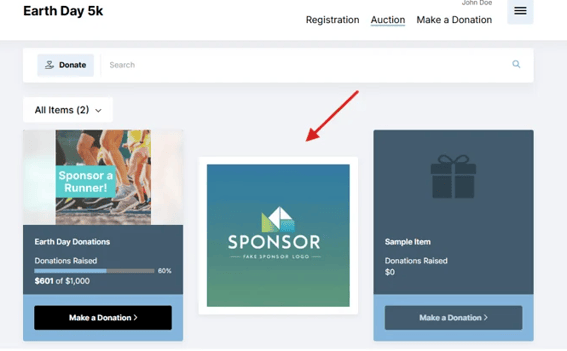
- **Bidding Site:** Intertwined between auction items.
#### 📝 Summary
The Sponsors page gives you full control over how your event's sponsors are presented. Upload logos, create text entries, organize sponsors into named groups, and control exactly what your guests see on the auction layout. Drag and drop to reorder at any time, and use the Show in Auction Layout toggle to manage visibility without deleting anything.
- [Account & Setup](https://support.cbo.io/account-setup?hsLang=en#main-content)
- [Users & Logging In](https://support.cbo.io/account-setup?hsLang=en#users-logging-in)
- [Billing/Renewal](https://support.cbo.io/account-setup?hsLang=en#billing-renewal)
- [Organization Account](https://support.cbo.io/account-setup?hsLang=en#organization-account)
- [Event Settings](https://support.cbo.io/account-setup?hsLang=en#event-settings)
- [Auction Settings](https://support.cbo.io/account-setup?hsLang=en#auction-settings)
- [Welcome Page](https://support.cbo.io/account-setup?hsLang=en#welcome-page)
- [Get Started](https://support.cbo.io/get-started?hsLang=en#main-content)
- [Pre-Event Prep](https://support.cbo.io/get-started?hsLang=en#pre-event-prep)
- [Creating a New Event](https://support.cbo.io/get-started?hsLang=en#creating-a-new-event)
- [Event Day Toolkit](https://support.cbo.io/event-day-toolkit?hsLang=en#main-content)
- [Paddle Raise](https://support.cbo.io/event-day-toolkit?hsLang=en#paddle-raise)
- [Live Auction](https://support.cbo.io/event-day-toolkit?hsLang=en#live-auction)
- [Silent Auction](https://support.cbo.io/event-day-toolkit?hsLang=en#silent-auction)
- [Butler](https://support.cbo.io/event-day-toolkit?hsLang=en#butler)
- [Volunteer Training](https://support.cbo.io/event-day-toolkit?hsLang=en#volunteer-training)
- [Messaging](https://support.cbo.io/messaging?hsLang=en#main-content)
- [Text & Emails](https://support.cbo.io/messaging?hsLang=en#text-emails)
- [Chat Bidders](https://support.cbo.io/messaging?hsLang=en#chat-bidders)
- [Welcome Text, Text Bidders, & Email Bidders](https://support.cbo.io/messaging?hsLang=en#welcome-text-text-bidders-email-bidders)
- [Tickets & Sponsorships](https://support.cbo.io/tickets-sponsorships?hsLang=en#main-content)
- [Tickets, Sponsorships & Underwriting Overview](https://support.cbo.io/tickets-sponsorships?hsLang=en#tickets-sponsorships-underwriting-overview)
- [Reporting & Data](https://support.cbo.io/tickets-sponsorships?hsLang=en#reporting-data)
- [Manage Ticketed Guests](https://support.cbo.io/tickets-sponsorships?hsLang=en#manage-ticketed-guests)
- [RSVP & Invoicing](https://support.cbo.io/tickets-sponsorships?hsLang=en#rsvp-invoicing)
- [Items](https://support.cbo.io/items?hsLang=en#main-content)
- [Items Overview & Setup](https://support.cbo.io/items?hsLang=en#items-overview-setup)
- [Quantity Items / E-Commerce](https://support.cbo.io/items?hsLang=en#quantity-items-e-commerce)
- [Item Donation Form and Donors](https://support.cbo.io/items?hsLang=en#item-donation-form-and-donors)
- [FMV & Tax](https://support.cbo.io/items?hsLang=en#fmv-tax)
- [Peer to Peer and Donation Campaigns](https://support.cbo.io/peer-to-peer-and-donation-campaigns?hsLang=en#main-content)
- [Peer to Peer and Donation Setup](https://support.cbo.io/peer-to-peer-and-donation-campaigns?hsLang=en#peer-to-peer-and-donation-setup)
- [Recurring Donations](https://support.cbo.io/peer-to-peer-and-donation-campaigns?hsLang=en#recurring-donations)
- [Text to Give](https://support.cbo.io/peer-to-peer-and-donation-campaigns?hsLang=en#text-to-give)
- [Embed Your Donation Form](https://support.cbo.io/peer-to-peer-and-donation-campaigns?hsLang=en#embed-your-donation-form)
- [Appeal Display](https://support.cbo.io/peer-to-peer-and-donation-campaigns?hsLang=en#appeal-display)
- [Bidders](https://support.cbo.io/bidders?hsLang=en#main-content)
- [Bidder Setup](https://support.cbo.io/bidders?hsLang=en#bidder-setup)
- [Donor Thank You Letters](https://support.cbo.io/bidders?hsLang=en#donor-thank-you-letters)
- [Bidder Registration Custom Questions](https://support.cbo.io/bidders?hsLang=en#bidder-registration-custom-questions)
- [Reporting & Data](https://support.cbo.io/reporting-data?hsLang=en#main-content)
- [Event Reporting](https://support.cbo.io/reporting-data?hsLang=en#event-reporting)
- [Credit Card Processing & Payments](https://support.cbo.io/credit-card-processing-payments?hsLang=en#main-content)
- [Credit Card Processing & Payments](https://support.cbo.io/credit-card-processing-payments?hsLang=en#credit-card-processing-payments)
- [FAQs](https://support.cbo.io/credit-card-processing-payments?hsLang=en#faqs)
- [Merchant Account & Merchant Report](https://support.cbo.io/credit-card-processing-payments?hsLang=en#merchant-account-merchant-report)
- [Web Content / Event Landing Pages](https://support.cbo.io/web-content-event-landing-pages?hsLang=en#main-content)
- [Design & Customization](https://support.cbo.io/web-content-event-landing-pages?hsLang=en#design-customization)
- [Accepting Donations From Your Landing Page](https://support.cbo.io/web-content-event-landing-pages?hsLang=en#accepting-donations-from-your-landing-page)
- [EventStream Video Streaming](https://support.cbo.io/eventstream-video-streaming?hsLang=en#main-content)
- [Virtual Live Auction and Paddle Raise](https://support.cbo.io/eventstream-video-streaming?hsLang=en#virtual-live-auction-and-paddle-raise)
- [EventStream FAQ](https://support.cbo.io/eventstream-video-streaming?hsLang=en#eventstream-faq)
- [Integrations + Partners](https://support.cbo.io/integrations-partners?hsLang=en#main-content)
- [Neon One](https://support.cbo.io/integrations-partners?hsLang=en#neon-one)
- [Raiser's Edge NXT](https://support.cbo.io/integrations-partners?hsLang=en#raisers-edge-nxt)
- [Bloomerang](https://support.cbo.io/integrations-partners?hsLang=en#bloomerang)
- [Salesforce for Nonprofits](https://support.cbo.io/integrations-partners?hsLang=en#salesforce-for-nonprofits)
- [Charityproud](https://support.cbo.io/integrations-partners?hsLang=en#charityproud)
- [Classy](https://support.cbo.io/integrations-partners?hsLang=en#classy)
- [TravelPledge](https://support.cbo.io/integrations-partners?hsLang=en#travelpledge)
- [Double the Donation](https://support.cbo.io/integrations-partners?hsLang=en#double-the-donation)
- [HGA Fundraising](https://support.cbo.io/integrations-partners?hsLang=en#hga-fundraising)
- [Public API](https://support.cbo.io/integrations-partners?hsLang=en#public-api)
- [Zapier](https://support.cbo.io/integrations-partners?hsLang=en#zapier)
- [Virtuous](https://support.cbo.io/integrations-partners?hsLang=en#virtuous)
- [Charity Experiences](https://support.cbo.io/integrations-partners?hsLang=en#charity-experiences)
- [Donorperfect](https://support.cbo.io/integrations-partners?hsLang=en#donorperfect)
- [Little Green Light](https://support.cbo.io/integrations-partners?hsLang=en#little-green-light)
- [FAQs](https://support.cbo.io/faqs?hsLang=en#main-content)
- [FAQs](https://support.cbo.io/faqs?hsLang=en#faqs)
[](https://try.cbo.io)
ClickBid Training Hub
Copyright © 2026, ClickBid Event Fundraising
```json
{
"@context" : "https://schema.org",
"@type" : "VideoObject",
"caption" : {
"@type" : "MediaObject",
"contentUrl" : "https://support.cbo.io/media-transcripts/215570987582/en.vtt",
"inLanguage" : "en",
"name" : "en Captions"
},
"contentUrl" : "https://22025730.fs1.hubspotusercontent-na1.net/hubfs/22025730/video_assets/215570987582/inherited/web_optimized.mp4",
"dateModified" : "2026-06-22T14:46:58.097Z",
"duration" : "PT4M53S",
"height" : 1080,
"name" : "Adding and Managing Sponsors",
"thumbnailUrl" : "https://22025730.fs1.hubspotusercontent-na1.net/hubfs/22025730/Adding%20and%20Managing%20Sponsors.mp4/medium.jpg",
"uploadDate" : "2026-06-22T14:46:01.889Z",
"width" : 1920
}
```