
ClickBid now allows you to schedule text and email messages in advance with the Mass Messaging feature! Whether you're preparing for a fundraiser, gala, or campaign kickoff, this tool helps you coordinate your pre-, mid-, and post-event communications with ease.
Let’s walk through how to get started. 📅📲
💡Step 1: Navigate to the Messaging Area
-
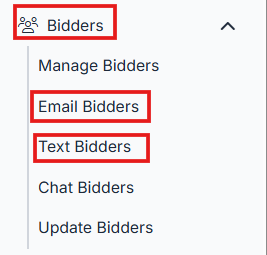
Go to Bidders > Email/Text Bidders in your ClickBid admin dashboard.
-
This section supports both email and text messages.
-
This guide focuses on text messages, but the process is identical for emails.
💡 Tip: You can mix scheduled and manual messages, perfect for last-minute updates!
👤 Step 2: Set Up a Notification Contact
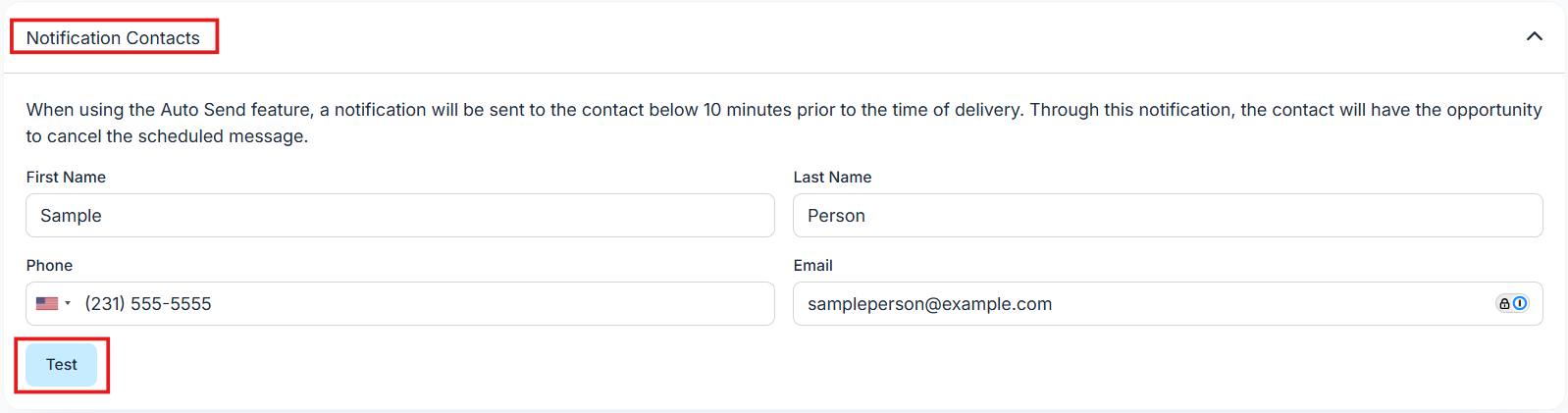
You'll notice a new tab: Notification Contact.
-
This must be completed to use the auto-send feature.
-
The contact entered here will receive:
-
A text and email alert 10 minutes before any scheduled message goes out.
-
A reminder and chance to cancel the outgoing message.
-
You can also send a test alert to confirm it's working.
🟦 Info: This person acts as your final checkpoint, make sure it’s someone with decision-making authority!
📲 Example Notification Alerts
Here’s what the reminder message looks like for the Notification Contact:
"Heads up! Your scheduled message will send in 10 minutes. You can cancel it if needed."
This gives you a final window to make changes before the message is released.
✍️ Step 3: Compose and Schedule Your Message
-
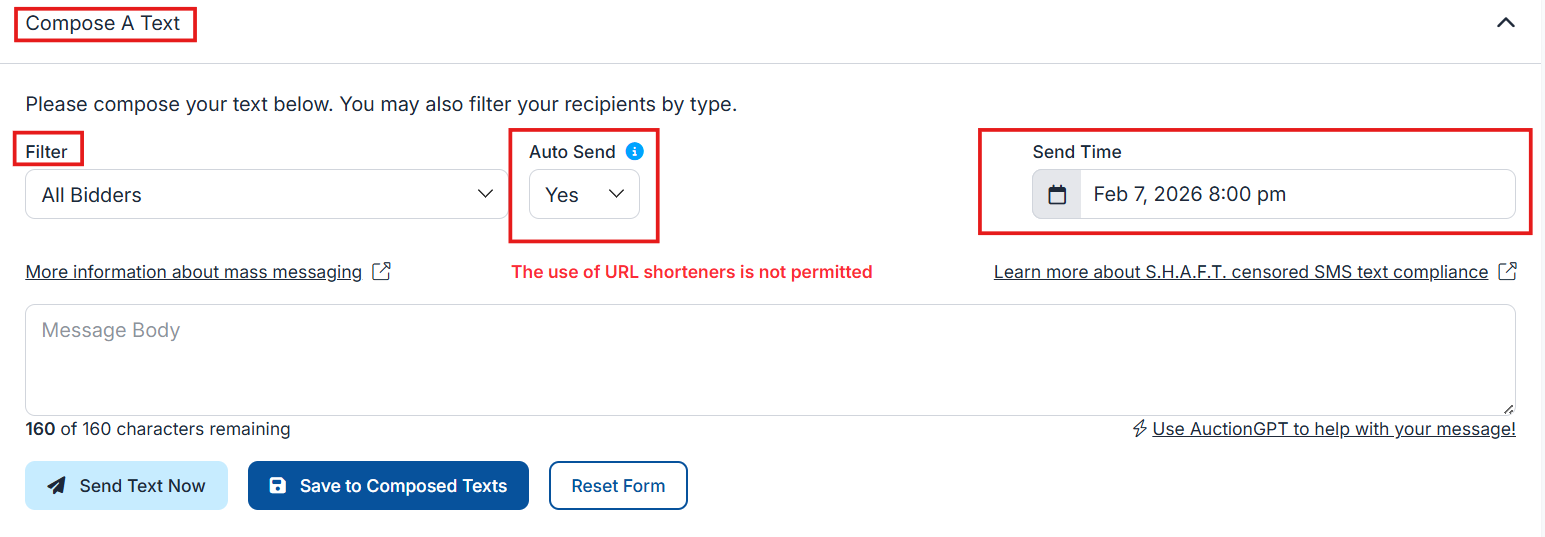
In the Compose a Text section, you'll see a Send Automatically dropdown.
-
To schedule the message:
-
Set Send Automatically to Yes
-
Choose a Send Time at least 10 minutes in the future
-
-
If you're not auto-sending, still set a desired time to save the message.
⚠️ Warning: You cannot auto-send messages within 10 minutes of creation or within 10 minutes of another auto message. Use manual send for anything urgent.
🗂️ Step 4: Track Your Messages in the Library
In the Composed Texts/Emails tab:
-
Yellow highlight = Message is set to send automatically
-
Gray = Message is not scheduled for auto-send
-
Canceled messages are labeled with the cancel time
To resend a canceled message:
-
Click Copy next to the canceled message.
-
Set a new time and decide if it will go out manually or automatically.
🟢 Tip: This creates a new version of the message, so you’ll retain a full record of the original and canceled versions.
🏁 You're Ready to Start Scheduling!
With these tools, you can stay ahead of the game by preparing your messaging strategy in advance. From reminders and updates to post-event thank-you's, ClickBid’s Mass Messaging keeps you in control, even when the event day gets busy.