
Raffles are a fun and effective way to raise additional funds at your event. ClickBid gives you several ways to sell raffle tickets depending on how your event is structured.
⚠️ Raffle laws vary by state. Always check your local and state regulations before selling raffle tickets at your event.
🧾 Step 1: Create Your Raffle Item
- Go to Items > Manage Items.
- Click Add Item.
- Enter the item name, description, and category.
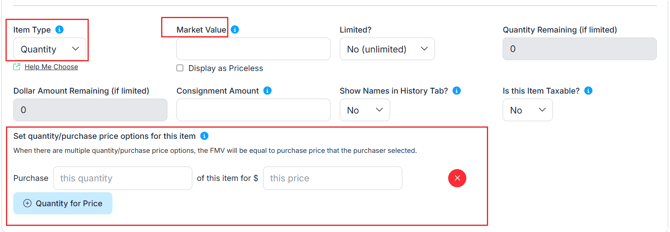
- Set the Item Type to Quantity.
- Set the Fair Market Value (FMV) to match the single ticket price.
- Under Set Quantity/Purchase Price Options, click Quantity for Price to add your ticket pricing tiers. For example: 1 for $50, 3 for $100, 5 for $150.
ℹ️ If you offer multiple pricing tiers, the FMV will default to the price of the first tier entered. Make sure that first tier reflects the per-ticket value.
💡 Raffle ticket purchases are not tax-deductible per IRS guidelines. Always set the FMV equal to the ticket price so the software does not display a deductible amount on receipts.
🛍️ Step 2: Choose a Way to Sell Raffle Tickets
You have three options depending on your event type and goals
🧑💻 Option A: Sell In-Person via the Butler
Best for in-person events where volunteers or staff are selling tickets at the event.
- Go to Items > Manage Items and set your raffle item's Status to Invisible so guests cannot purchase it online.
- Launch the Butler from Event Central > Butler, or share the volunteer link from Software Settings > Auction Settings > Butler Settings.
- Volunteers log into Butler, search for the bidder, and use Add a Bid / Multi-Sale or Multi-Sale - Quick Entry to sell tickets.
- The purchase is added to the bidders cart for checkout later.
💳 To Add a Purchase and Check Out at the Same Time
If you want to sell a raffle ticket and collect payment in the same step:
- In the Butler, go to Bidder Lookup and enter the bidder's last name.
- Locate the bidder in the results.
- to the far right of the results click Select an Action, then choose Quick Buy.
- Enter the quantity being purchased and click Continue.
- Review the order and click Confirm.
- You will be redirected to the checkout page where you select the payment type and complete the transaction.
ℹ️Quantity items can be sold through the Butler even after the item's closing time has passed.
🔒
To Mark a Raffle as Sold Out
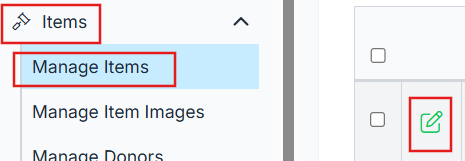
- Go to Items > Manage Items and click the edit icon next to your raffle item.
- Set Limited? to Quantity.
- Set Quantity Remaining to 0.

🌐 Option B: Sell Online
Best for virtual or hybrid events where guests purchase tickets from their own devices.
- Go to Items > Manage Items.
- Set your raffle item's Status to Active.
- Guests can now purchase tickets directly from the bidding site on their phones or computers.
🎫 Option C: Sell via the Ticket Page (Quantity Items)
Best when you want raffle tickets to appear alongside event registration on your ticket page.
- Go to Items > Manage Items and confirm your raffle item is set up as a Quantity type item.
- Go to Event Tickets > Ticket Page Settings.
- Expand the Additional Features section.
- Find the Quantity Items field and select your raffle item from the list. Use Ctrl-click to select multiple items.
- Data has been Saved will display in the upper right corner of the screen.
The raffle item will now appear as a purchasable option on your ticket page.
🎫 Option D: Sell via Underwriting on the Ticket Page
Best for bundling raffle tickets with event registration as an add-on purchase.
- Go to Event Tickets > Modify Tickets.
- Click Add Underwriting.
- Fill in the following fields:
- Name: enter your raffle ticket name
- Price: set the per-entry cost
- Fair Market Value: match it to the price
- Description: add a short description of the raffle
- Availability: set a ticket limit, or 0 for unlimited
- Hide Availability: choose Yes if you want to hide how many tickets remain
⚠️ The FMV must match the Raffle ticket price. A mismatch could indicate a tax-deductible amount, which is not accurate for raffle tickets.
To View Underwriting Sales
- Go to Event Tickets > View Ticket Sales.
- Toggle Show All at the top left.
- Click the arrow next to Underwriting to bring all Underwriting sales to the top and in a row.
- Click the CSV button to download the full sales report.
🏆 Step 3: Pull Raffle Entry Data and Choose a Winner
This process works for tickets sold via Butler, online, or through Quantity Items on the ticket page. It does not apply to Underwriting sales.
- Go to Items > Manage Items.
- Click the Has Bids tag next to your raffle item to filter by purchasers.
- Click Download Qty Purchases to export a spreadsheet.
- Each row in the spreadsheet represents one raffle entry. Bidders who purchased multiple tickets will appear on multiple rows.
- Use a random number generator, such as Google’s Random Number Generator, to pick a winning row number.
- Match the winning number to the corresponding entry in the spreadsheet.
⚠️ If you are running multiple raffles, repeat this process separately for each item.
🎉 Fun Ways to Announce the Winner
Make it engaging, especially for virtual events:
-
✉️ Reveal the winner from a sealed envelope during a livestream
-
📢 Post the winner's name on your Landing Page
-
📩 Use Mass Messaging to notify all bidders
-
🌀 Use a tool like Wheel of Names for a visual announcement
📊 Step 4: View Raffle Sales Reports
Find raffle ticket sales in the following reports:
- Reports > Sales Data: Quantity Sales Data
- Reports > Non Silent Items
- Reports > Event Sales
- Reports > Post Event Data
💡Use these reports for reconciling sales or preparing for prize distribution.