---
title: "📊 Post Event Data Report: How to Analyze and Export Event Results"
description: Managing your event’s data after a fundraiser is crucial for reconciliation, reporting accuracy, and future planning. ClickBid’s Post Event Data Report organizes essential metrics into easy-to-use tab
---
[Skip to content](https://support.cbo.io/post-event-data-report#main-content)

- [Blog](https://blog.cbo.io/)
- [ClickBid Admin](https://cbo.io/admin/login.php)
Open main navigation
Close main navigation
- [Blog](https://blog.cbo.io/)
- [ClickBid Admin](https://cbo.io/admin/login.php)
- [View our Training Videos](https://training.clickbidonline.com/all-courses/)
[View our Training Videos](https://training.clickbidonline.com/all-courses/)
Welcome to ClickBid's Knowledge Base
- There are no suggestions because the search field is empty.
1. [ClickBid How To Articles](https://support.cbo.io/?hsLang=en)
2. [Reporting & Data](https://support.cbo.io/reporting-data?hsLang=en)
3. [Event Reporting](https://support.cbo.io/reporting-data?hsLang=en#event-reporting)
# 📊 Post Event Data Report: How to Analyze and Export Event Results
Managing your event’s data after a fundraiser is crucial for **reconciliation, reporting accuracy, and future planning**. ClickBid’s **Post Event Data Report** organizes essential metrics into **easy-to-use tabs**, all accessible in real time.
Here’s a step-by-step guide to navigating and using these reports effectively.
Please note that some areas in the video appear blurred, this is intentional, as the demonstration includes live data. There is nothing wrong with your video.
### **Quick Overview/Tutorial 🎥 ⬇️:**
---
#### 📊 How to Use the Post Event Data Report in ClickBid
The Post Event Data Report is your central hub for reviewing, analyzing, and exporting your event's results. It organizes all essential metrics into easy-to-navigate tabs and pulls live data so you always see the most up-to-date numbers. Whether you are reconciling payments, identifying your top-performing items, or preparing donor follow-up communications, this report has everything you need in one place.
💡The Post Event Data Report is best used after your event once payments and bidding are finalized. You can access it in real time at any point, but the data will be most complete and accurate once all checkouts are processed.
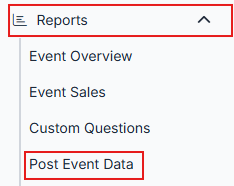
#### 🔍 How to Access the Post Event Data Report
1. Log in to your event admin.
2. In the left-hand navigation, click **Reports**.
3. Select **Post Event Data**.
****
---
### 🗂️ Understanding the Report Structure
The report is organized into eight tabs across the top of the page: **Summary**, **Ticket Sales**, **Event Payments**, **Processing Report**, **Bids**, **Items**, **Bidders**, and **Donations**.
On the left side of each tab you will find a **Tab Contents** section that lists all the individual reports available within that tab. Click any item in the Tab Contents list to jump directly to that section of the report.

---
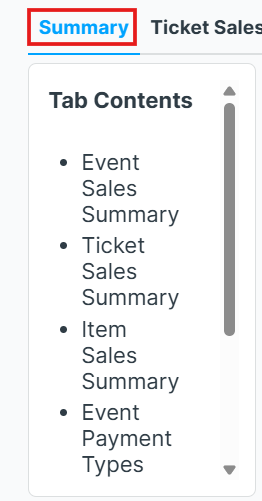
### 📈 Summary Tab Overview
The Summary tab provides a high-level snapshot of your event's overall activity. It is the best starting point for quickly reviewing event performance without digging into detailed transaction data.
**Tab Contents:**
- Event Sales Summary
- Ticket Sales Summary
- Item Sales Summary
- Event Payment Types
- Event Checkout Methods
- Bid Summary
- Bidder Stats
- Donations
****
💡 This tab is ideal for quickly reviewing event performance without digging into detailed transaction data.
---
#### 🎟️ Ticket Sales
The **Ticket Sales** tab breaks down all activity related to tickets, sponsorships, underwriting, and ticket page purchases.
**Tab Contents:**
- Ticket Sales Summary (net of refunds)
- Discounts (discount code usage and totals)
- Ticket Sales by ticket type (net of refunds)
- Sponsor Sales (net of refunds)
- Underwriting Sales
- Ticket Page Purchases
- Ticket Sales Details
- Sponsor Purchases
💡Use this tab when reconciling ticket revenue or reviewing attendance-related data. It helps you track ticket type performance, discount usage, RSVP selections, refunded ticket activity, and sponsorship and underwriting purchases.
---
#### 💳 Event Payments Tab
The Event Payments tab focuses on checkout activity and payment records.
**Tab Contents:**
- Checkout Summary
- Unpaid Summary
- Payments
- Individual Line Items
- Unpaid Items
- Payment Summaries
- Legacy TTG/OD
💡 Use this tab to review completed checkouts, identify unpaid balances, see payment methods used, analyze checkout types, and break down payments by item type. This tab is especially helpful for finance reconciliation and tracking any unpaid items after the event.
---
### 💳 Deep Dive: Processing Report
The **Processing Report** gives you transaction-level detail for financial reconciliation:
**Tab Contents:**
- Sum of Transactions
- Percent of Fees Paid
- CC Transaction Details
- Transactions
- This report includes:
- Shows **total fees** and **% of fees covered by donors**
- Top section includes **summary stats**
- Lower section shows **individual transactions**, including:
- Amount processed via **merchant transactions**
- **Processed Fees**
- Portion of fees covered by donor
- **Net deposit** to your organization

💡 *Tip:* This report is essential for **reconciliation** and understanding **donor fee coverage behavior**. For example, you can see what percent of fees were covered, typically ~80% is a healthy benchmark. Rows highlighted in yellow indicate admin fees that were donated.
---
### 🕵️ Analyzing Bids Over Time
The Bids tab gives insight into auction activity and bidder engagement throughout your event.
**Tab Contents:**
- Bids Over Time
- Bids by Type
- Silent Bids by Bid Type
- Silent Bid Stats
- Top Silent Bidding Wars
- Top Silent Items by Bids
- Top Watched Silent Items
- Items Watched by Bidder
- Quantity Item Sales
- Quantity Item Stats
- Bid History
Use this tab to analyze bidding trends, identify your most competitive and most watched items, review bid frequency, and evaluate quantity item performance. The full bid history at the bottom of the tab allows for deep analysis of individual bidding activity.
📊 Use the Bids tab for future planning, trend insights, and donor engagement strategy. Knowing which items generated the most bidding activity helps you curate a stronger auction next year
---
#### 📦 Items Tab
The Items tab provides reporting based on item setup, sales, and status.
**Tab Contents:**
- Items by Type Summary
- Item Sales Total by Type
- Items by Category Summary
- Item Sales Total by Category
- Total FMV
- Items with No FMV Set
- Items with No Bids
- Silent Items Won
- Live Items Won
💡 Use this tab to identify unsold items, find items missing a fair market value, review winning bid data, and analyze performance by category or item type. This is a great tool for post-event evaluation and future auction planning.
---
#### 👥 Bidders
The Bidders tab summarizes registration and participation activity across your event.
**Tab Contents:**
- Bidder Summary
- Bidders with Tags
- Silent Auction Bidders
- Quantity Item Bidders
- Donation Item Bidders
- Bidder List
This report allows you to:
- Review total bidders
- See bidding participation levels
- Analyze engagement by item type
- Filter bidders by tags
💡 Use this tab to review total bidder counts, see participation levels, analyze engagement by item type, and filter bidders by tags. This tab is especially useful when evaluating guest participation or preparing follow-up communications after your event.
---
#### 🎁 Donations
The Donations tab focuses specifically on donation performance across your event.
**Tab Contents:**
- - Donation Totals by Item
- Donation Stats
- Donations by Giving Level
- Top Ranked Donors
- Donations by Item
- Donations by Category
- Multiple Donations to Same Item
- Donations by Table
- Bidders Donating to Multiple Items
- Donations by Bidder Tag
- Text to Give and Online Donations (includes custom question answers and comments)
💡 Use this tab to measure overall donation activity, identify multi-item donors, analyze giving levels, and review donation trends by item or category. This tab is especially helpful for Paddle Raise and Fund-a-Need analysis.
---
### 📥 Exporting Reports
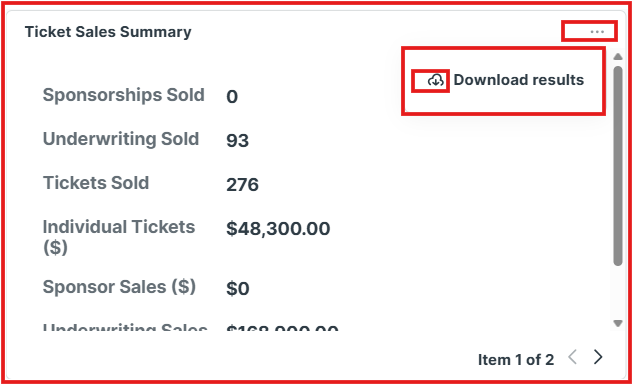
Every report block in the Post Event Data Report can be exported for use in Excel, Google Sheets, or an external CRM.
1. Move your cursor to the **top-right corner** of any report block.
2. Click the 3 dots (...)
3. Select **“Download Results" 
**
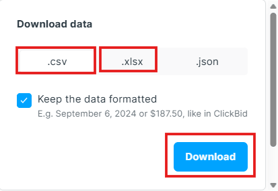
4. Choose between **CSV** or **XLSX** formats.
---
#### 🔄 Real-Time Data
All reports in the Post Event Data Report are powered by live data. Any changes made after your event: such as late payments, refunds, or manual adjustments, are reflected immediately without needing to refresh the page.
💡 Check back after processing batch payments or issuing refunds to confirm your totals are accurate before finalizing your reconciliation.
---
### ❓ Need Help?
If you have questions:
- Click on a tab
- Use the **Tab Contents** panel to explore detailed reports
- Contact our support team, **we’re always here to help**
---
### ✅ Summary
ClickBid’s **Post Event Data Reporting** tools provide a powerful way to **analyze, export, and act** on your event’s data. Whether you're reconciling payments or identifying your most popular auction items, these tools provide a reliable, user-friendly experience.
- [Account & Setup](https://support.cbo.io/account-setup?hsLang=en#main-content)
- [Users & Logging In](https://support.cbo.io/account-setup?hsLang=en#users-logging-in)
- [Billing/Renewal](https://support.cbo.io/account-setup?hsLang=en#billing-renewal)
- [Organization Account](https://support.cbo.io/account-setup?hsLang=en#organization-account)
- [Event Settings](https://support.cbo.io/account-setup?hsLang=en#event-settings)
- [Auction Settings](https://support.cbo.io/account-setup?hsLang=en#auction-settings)
- [Welcome Page](https://support.cbo.io/account-setup?hsLang=en#welcome-page)
- [Get Started](https://support.cbo.io/get-started?hsLang=en#main-content)
- [Pre-Event Prep](https://support.cbo.io/get-started?hsLang=en#pre-event-prep)
- [Creating a New Event](https://support.cbo.io/get-started?hsLang=en#creating-a-new-event)
- [Event Day Toolkit](https://support.cbo.io/event-day-toolkit?hsLang=en#main-content)
- [Paddle Raise](https://support.cbo.io/event-day-toolkit?hsLang=en#paddle-raise)
- [Live Auction](https://support.cbo.io/event-day-toolkit?hsLang=en#live-auction)
- [Silent Auction](https://support.cbo.io/event-day-toolkit?hsLang=en#silent-auction)
- [Butler](https://support.cbo.io/event-day-toolkit?hsLang=en#butler)
- [Volunteer Training](https://support.cbo.io/event-day-toolkit?hsLang=en#volunteer-training)
- [Messaging](https://support.cbo.io/messaging?hsLang=en#main-content)
- [Text & Emails](https://support.cbo.io/messaging?hsLang=en#text-emails)
- [Chat Bidders](https://support.cbo.io/messaging?hsLang=en#chat-bidders)
- [Welcome Text, Text Bidders, & Email Bidders](https://support.cbo.io/messaging?hsLang=en#welcome-text-text-bidders-email-bidders)
- [Tickets & Sponsorships](https://support.cbo.io/tickets-sponsorships?hsLang=en#main-content)
- [Tickets, Sponsorships & Underwriting Overview](https://support.cbo.io/tickets-sponsorships?hsLang=en#tickets-sponsorships-underwriting-overview)
- [Reporting & Data](https://support.cbo.io/tickets-sponsorships?hsLang=en#reporting-data)
- [Manage Ticketed Guests](https://support.cbo.io/tickets-sponsorships?hsLang=en#manage-ticketed-guests)
- [RSVP & Invoicing](https://support.cbo.io/tickets-sponsorships?hsLang=en#rsvp-invoicing)
- [Items](https://support.cbo.io/items?hsLang=en#main-content)
- [Items Overview & Setup](https://support.cbo.io/items?hsLang=en#items-overview-setup)
- [Quantity Items / E-Commerce](https://support.cbo.io/items?hsLang=en#quantity-items-e-commerce)
- [Item Donation Form and Donors](https://support.cbo.io/items?hsLang=en#item-donation-form-and-donors)
- [FMV & Tax](https://support.cbo.io/items?hsLang=en#fmv-tax)
- [Peer to Peer and Donation Campaigns](https://support.cbo.io/peer-to-peer-and-donation-campaigns?hsLang=en#main-content)
- [Peer to Peer and Donation Setup](https://support.cbo.io/peer-to-peer-and-donation-campaigns?hsLang=en#peer-to-peer-and-donation-setup)
- [Recurring Donations](https://support.cbo.io/peer-to-peer-and-donation-campaigns?hsLang=en#recurring-donations)
- [Text to Give](https://support.cbo.io/peer-to-peer-and-donation-campaigns?hsLang=en#text-to-give)
- [Embed Your Donation Form](https://support.cbo.io/peer-to-peer-and-donation-campaigns?hsLang=en#embed-your-donation-form)
- [Appeal Display](https://support.cbo.io/peer-to-peer-and-donation-campaigns?hsLang=en#appeal-display)
- [Bidders](https://support.cbo.io/bidders?hsLang=en#main-content)
- [Bidder Setup](https://support.cbo.io/bidders?hsLang=en#bidder-setup)
- [Donor Thank You Letters](https://support.cbo.io/bidders?hsLang=en#donor-thank-you-letters)
- [Bidder Registration Custom Questions](https://support.cbo.io/bidders?hsLang=en#bidder-registration-custom-questions)
- [Reporting & Data](https://support.cbo.io/reporting-data?hsLang=en#main-content)
- [Event Reporting](https://support.cbo.io/reporting-data?hsLang=en#event-reporting)
- [Credit Card Processing & Payments](https://support.cbo.io/credit-card-processing-payments?hsLang=en#main-content)
- [Credit Card Processing & Payments](https://support.cbo.io/credit-card-processing-payments?hsLang=en#credit-card-processing-payments)
- [FAQs](https://support.cbo.io/credit-card-processing-payments?hsLang=en#faqs)
- [Merchant Account & Merchant Report](https://support.cbo.io/credit-card-processing-payments?hsLang=en#merchant-account-merchant-report)
- [Web Content / Event Landing Pages](https://support.cbo.io/web-content-event-landing-pages?hsLang=en#main-content)
- [Design & Customization](https://support.cbo.io/web-content-event-landing-pages?hsLang=en#design-customization)
- [Accepting Donations From Your Landing Page](https://support.cbo.io/web-content-event-landing-pages?hsLang=en#accepting-donations-from-your-landing-page)
- [EventStream Video Streaming](https://support.cbo.io/eventstream-video-streaming?hsLang=en#main-content)
- [Virtual Live Auction and Paddle Raise](https://support.cbo.io/eventstream-video-streaming?hsLang=en#virtual-live-auction-and-paddle-raise)
- [EventStream FAQ](https://support.cbo.io/eventstream-video-streaming?hsLang=en#eventstream-faq)
- [Integrations + Partners](https://support.cbo.io/integrations-partners?hsLang=en#main-content)
- [Neon One](https://support.cbo.io/integrations-partners?hsLang=en#neon-one)
- [Raiser's Edge NXT](https://support.cbo.io/integrations-partners?hsLang=en#raisers-edge-nxt)
- [Bloomerang](https://support.cbo.io/integrations-partners?hsLang=en#bloomerang)
- [Salesforce for Nonprofits](https://support.cbo.io/integrations-partners?hsLang=en#salesforce-for-nonprofits)
- [Charityproud](https://support.cbo.io/integrations-partners?hsLang=en#charityproud)
- [Classy](https://support.cbo.io/integrations-partners?hsLang=en#classy)
- [TravelPledge](https://support.cbo.io/integrations-partners?hsLang=en#travelpledge)
- [Double the Donation](https://support.cbo.io/integrations-partners?hsLang=en#double-the-donation)
- [HGA Fundraising](https://support.cbo.io/integrations-partners?hsLang=en#hga-fundraising)
- [Public API](https://support.cbo.io/integrations-partners?hsLang=en#public-api)
- [Zapier](https://support.cbo.io/integrations-partners?hsLang=en#zapier)
- [Virtuous](https://support.cbo.io/integrations-partners?hsLang=en#virtuous)
- [Charity Experiences](https://support.cbo.io/integrations-partners?hsLang=en#charity-experiences)
- [Donorperfect](https://support.cbo.io/integrations-partners?hsLang=en#donorperfect)
- [Little Green Light](https://support.cbo.io/integrations-partners?hsLang=en#little-green-light)
- [FAQs](https://support.cbo.io/faqs?hsLang=en#main-content)
- [FAQs](https://support.cbo.io/faqs?hsLang=en#faqs)
[](https://try.cbo.io)
ClickBid Training Hub
Copyright © 2026, ClickBid Event Fundraising
```json
{
"@context" : "https://schema.org",
"@type" : "VideoObject",
"caption" : {
"@type" : "MediaObject",
"contentUrl" : "https://support.cbo.io/media-transcripts/194152805752/en.vtt",
"inLanguage" : "en",
"name" : "en Captions"
},
"contentUrl" : "https://stream.mux.com/ZO1PK8yaDisOnSu9701o0200Soyaluc4EQzXe6n300jGFk00/capped-1080p.mp4",
"dateModified" : "2025-08-08T18:40:22.782Z",
"duration" : "PT5M34S",
"height" : 720,
"name" : "ClickBid_ Post Event Reporting Update",
"thumbnailUrl" : "https://22025730.fs1.hubspotusercontent-na1.net/hubfs/22025730/ClickBid_%20Post%20Event%20Reporting%20Update.mp4/medium.jpg",
"uploadDate" : "2025-08-08T18:39:52.061Z",
"width" : 1154
}
```