---
title: Set Up and Manage Peer-to-Peer Campaigns
description: Boost donations with peer-to-peer campaigns. Empower supporters to fundraise on your behalf and expand your reach effortlessly.
---
[Skip to content](https://support.cbo.io/peer-to-peer-fundraising#main-content)

- [Blog](https://blog.cbo.io/)
- [ClickBid Admin](https://cbo.io/admin/login.php)
Open main navigation
Close main navigation
- [Blog](https://blog.cbo.io/)
- [ClickBid Admin](https://cbo.io/admin/login.php)
- [View our Training Videos](https://training.clickbidonline.com/all-courses/)
[View our Training Videos](https://training.clickbidonline.com/all-courses/)
Welcome to ClickBid's Knowledge Base
- There are no suggestions because the search field is empty.
1. [ClickBid How To Articles](https://support.cbo.io/?hsLang=en)
2. [Peer to Peer and Donation Campaigns](https://support.cbo.io/peer-to-peer-and-donation-campaigns?hsLang=en)
3. [Peer to Peer and Donation Setup](https://support.cbo.io/peer-to-peer-and-donation-campaigns?hsLang=en#peer-to-peer-and-donation-setup)
# Set Up and Manage Peer-to-Peer Campaigns
Peer-to-peer campaigns allow supporters to fundraise on behalf of your organization by creating their own donation pages. By adding the campaign block to your landing page, reviewing submitted campaigns, and activating them for sharing, you can expand your fundraising reach while empowering supporters to advocate for your mission.
### **Quick Overview/Tutorial 🎥 ⬇️: **
#### ⚙️ Step 1: Add the Peer-to-Peer Campaign Button to Your Landing Page
To allow supporters to create their own campaigns, you must first add the **Peer-to-Peer Campaign content block** to your landing page.
1. Go to **Software Settings \> Landing Page Builder**.
2. Scroll down and click **Add Content Block**.
3. In the **Type** dropdown, select **Start a P2P Campaign**.
4. Enter the following required information:
- **Title**
- **Header**
5. Configure the display settings:
- **Show Block**
- Select **Yes** to display it on the landing page.
- Select **No** if you want to build it first without showing it publicly.
- **Show Title / Show Header**
- Toggle these options if you want the title or header hidden on the page.
- Title will display in the Menu as well as on the landing page.
- Header will only display on the landing page.
- **Background Color**
- **Alignment** (Left or Center)
- **Campaign Form Title**
- For example, the Campaign Form Title might say something like:
- **Start Your Fundraising Campaign**
- **Create Your Classroom Fundraiser**
- **Launch Your Personal Giving Page**
Supporters will see this title above the fields where they enter information such as their campaign name, description, goal, and image.
- **Ask users to select a category? Yes/No**
- This allows you to set up categories in advance and limit the campaign captain (the person creating the peer-to-peer campaign from the landing page), to selecting only from your predefined list of campaigns.
- To set up categories go to Items\>Manage Categories
6. Click **Save**.
Place the Peer-to-Peer block near the top of your landing page so supporters can easily find the **Create a Campaign** button.
---
#### 📝 Step 2: How Supporters Create Their Campaign Page
Once the campaign block is visible on your landing page, supporters can create their own fundraising campaign.
1. On the landing page, supporters click **Create a Campaign**.
2. A form appears where they enter:
- **Campaign Title**
- **Description**
- **Personal Fundraising Goal (optional)**
- **Name**
- **Email**
- **Phone Number (optional)**
- **Address (optional)**
- **Select a Primary Color**
- **Image Upload**
- **Up to 10 images**
3. They click **Submit** to send their campaign for approval.
After submitting the form, supporters receive an email confirming their campaign was submitted for review.
### ✉️ How to Customize the Peer-to-Peer Campaign Email
You can customize the email that is sent to supporters after they create a new peer-to-peer campaign.
1. Go to **Software Settings \> Auction Settings \> Peer To Peer Settings**.
2. Locate the **email content section**.
3. Enter your custom message for campaign creators.
4. Click **Save**.
If this section is left blank, ClickBid will automatically send a default message to the campaign creator. (see below)
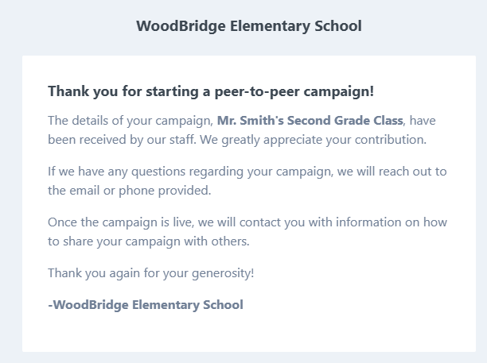
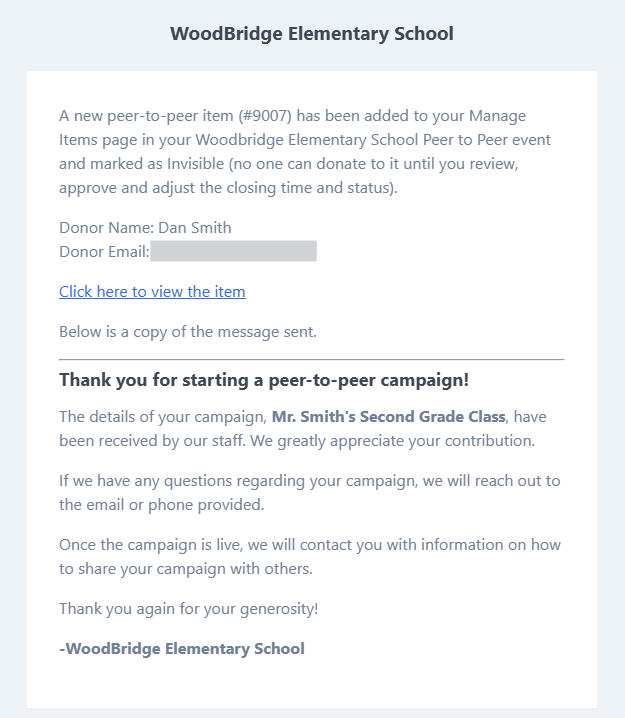
Your organization will receive an email notification for the peer-to-peer item, including the message that was sent to the campaign manager.
---
#### 🧾 Step 3: Reviewing Submitted Campaigns
When a supporter submits a campaign:
- A **new donation item** is automatically created in **Manage Items**.
- The item is tagged as **p2p**.
- p2p = Peer to Peer
- The item status is set to **Invisible** so admins can review it before publishing.
To review the campaign:
1. Go to **Manage Items** in your ClickBid admin.
2. Search for the campaign using the **campaign title**.
3. Click the **Edit icon** to open the campaign item.
Here you can review or update:
- Description
- Image
- Fundraising goal
- Item settings
Changes made in **Manage Items** will immediately affect what donors see on the landing page and auction, so review edits carefully before saving when item is active.
---
#### 🚀 Step 4: Approving and Activating the Campaign
Once the campaign looks correct, you can activate it.
1. In the item editor, change the **Item Status** to **Active**.
2. When activating the item, a **email modal** will appear.
3. This modal allows you to send the campaign creator an email that includes:
- Their **campaign donation link**
- A **QR code** for the campaign page
- This allows the campaign creator to view donor comments and activity directly on their fundraising page using their campaign link.
- Suggested promotional content they can share
The suggested message is automatically generated and can be edited before sending.
The generated promotional message is designed to help campaign creators easily share their fundraiser on social media or through email.
Please note that depending on your email provider and settings, these messages may occasionally be delivered to your **Promotions** tab rather than your primary inbox.
---
#### 🔗 Step 5: Sharing the Campaign
Once a campaign is active, the supporter can begin fundraising.
Each campaign has a **unique share link** that donors can use to contribute directly to that fundraiser.
Supporters can share their campaign through:
- Social media posts
- Email messages
- Text messages
- QR codes
All donations made through the campaign are tracked within your event.
---
#### 📊 Tracking Peer-to-Peer Fundraising Results
Peer-to-peer fundraising performance can be monitored through reporting tools.
Post Event Data Report can show:
- Total donations per campaign
- Donation totals by category
- Campaign progress toward fundraising goals
- Giving activity by supporter groups or tags
- Suggested report
These insights help you see which campaigns are gaining momentum and which supporters are driving engagement.
---
#### 📈 Displaying Fundraising Progress on Your Landing Page
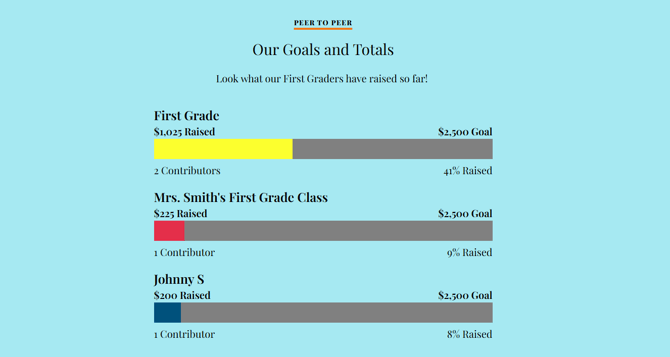
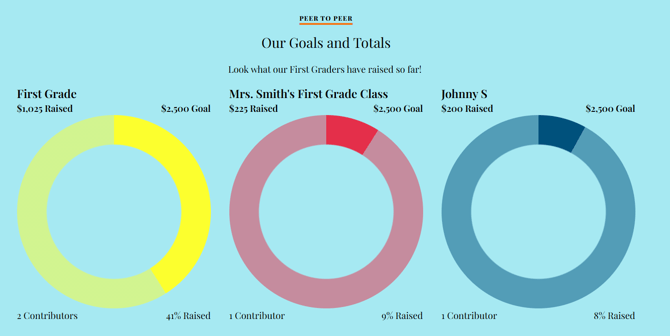
The **Cumulative Total Bar** content block lets you visually display fundraising progress on your landing page. By adding multiple bars, you can track totals for teams, campaigns, or categories while encouraging friendly competition and increased donations.
### 📊 How to Create a Cumulative Total Bar
#### Step 1: Add the Cumulative Total Bar Content Block
1. Go to **Landing Page Builder**.
2. Click **Add Content Block**.
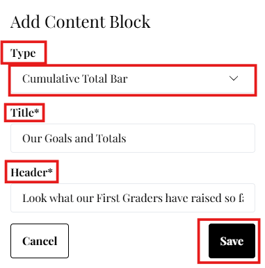
3. Change the **Type** to **Cumulative Total Bar**.
4. Enter a **Title** *(required)*.
- The title appears in the **menu/right-side navigation** and **above the content block** on the landing page.
5. Enter a **Header** *(required)*.
- The header appears **below the title** on the landing page.
6. Click **Save**.
Both the **Title** and **Header** are required to create the content block, but they can be hidden from displaying on the page if desired.
#### 
#### Step 2: Configure Cumulative Total Bar Settings
After saving, configure how the block appears on your landing page.
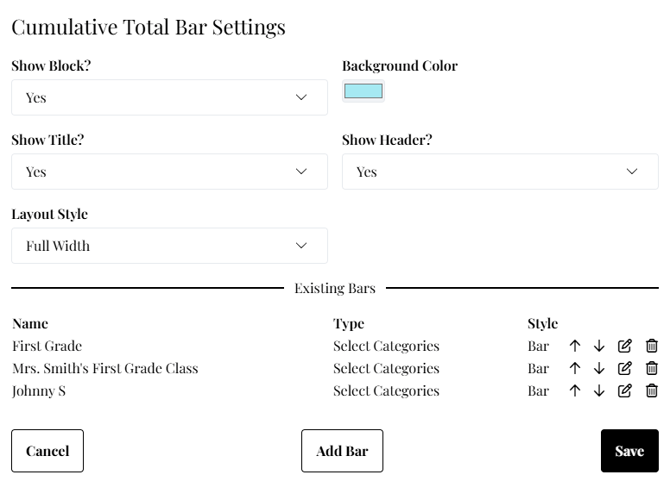
- **Show Block? (Yes/No)**
- Set to **No** if you want to build the page without displaying the block publicly yet.
- **Background**
- Choose a background color for the block.
- **Show Title? (Yes/No)**
- Controls whether the title appears on the landing page and menu area.
- **Show Header? (Yes/No)**
- Controls whether the header appears on the landing page.
- **Layout Style**
- **Full Width** or **Grid**
#### Step 3: Add Progress Bars
You can create multiple progress bars within one content block.
1. Under **Existing Bars**, click **Add Bar**.
2. Enter the **Name** of the bar.
- Example: *First Grade* or *Mr. Smith’s Class*
3. Select the **Bar Style**:
- **Bar**
- **Circle**
4. Choose a **Bar Color**.
Select a bar color that contrasts with the background so the progress bar is easy to see.
1. Enter optional fields:
- **Goal** *(optional)* – Target fundraising goal
- **Buffer** *(optional)* – Extra visual spacing for the progress bar
2. Select the **Type** for what the bar tracks:
- **All**
- **All Donation Items**
- **All Silent Items**
- **All Quantity Items**
- **All Blind Items**
- **Select Categories**
- **Select Individual Items**
3. Click **Update Bar** to save the bar.
Bar Style with full width layout :
Circle Style with Grid layout:
---
#### 🖼️ Adding Photos to Inspire Donors
You can also include a **Photo Gallery content block** on your landing page to highlight your cause and encourage giving.
Features include:
- Upload multiple photos
- Drag and reorder images
- Display the gallery above, below, or beside content
- Add optional titles or descriptions
Visual storytelling can help donors better connect with your mission.
### 🖼️ How to Add an Image Gallery to Your Landing Page
An **Image Gallery** lets you display multiple photos on your landing page to showcase your organization, highlight past events, or visually tell your campaign story.
#### Step 1: Add the Image/Text Split Content Block
1. Go to **Landing Page Builder**.
2. Click **Add Content Block**.
3. In the **Type** dropdown, select **Image/Text Split**.
4. Enter a **Title** *(required)*.
- The title appears in the **menu/right-side navigation** and **above the content block** on the landing page.
5. Enter a **Header** *(required)*.
- The header appears **below the title** on the landing page.
6. Click **Save**.
Both the **Title** and **Header** are required to create the content block, but they can be hidden from displaying on the page if desired.
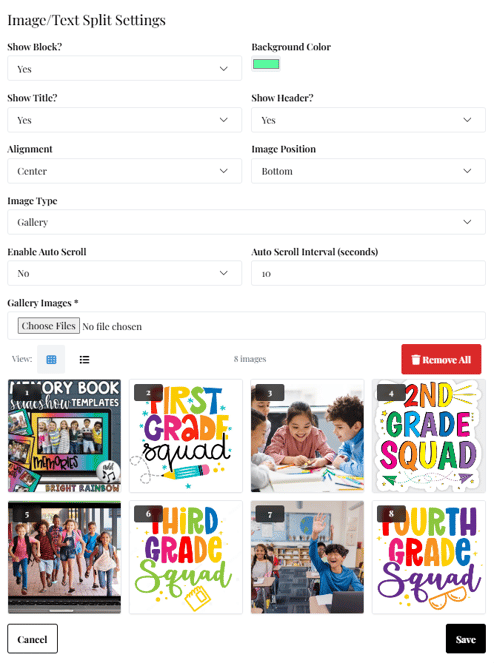
#### Step 2: Configure Image/Text Split Settings
After saving, adjust the display settings for the content block.
1. **Show Block? (Yes/No)**
- Set to **No** if you want to build the page without displaying the block publicly yet.
2. **Background**
- Choose a background color for the block.
3. **Show Title? (Yes/No)**
- Controls whether the title appears on the landing page.
4. **Show Header? (Yes/No)**
- Controls whether the header appears on the landing page.
5. **Alignment**
- Choose **Left** or **Center** alignment.
6. **Image Position**
- **Bottom**
- **Left**
- **Right**
- **Top**
7. **Image Type**
- **Gallery**
8. **Enable Auto Scroll (Yes/No)**
9. Enter a **time interval (in seconds)** for how often images rotate
10. Once **Gallery** is selected as the image type, you can begin adding photos.
11. Upload the images you want to display.
1. Add as many images as you’d like to the gallery.
12. You can manage your images using the following options:
1. **Table View or Grid View** to organize your images
13. Click **Save
**
14. You can then add a description in the content block either by using AuctionGPT or adding your own.
15. To organize your gallery: **Drag and drop** images to reorder them, **or ** Change the **number displayed in the top-left corner** of each image to set the order manually.
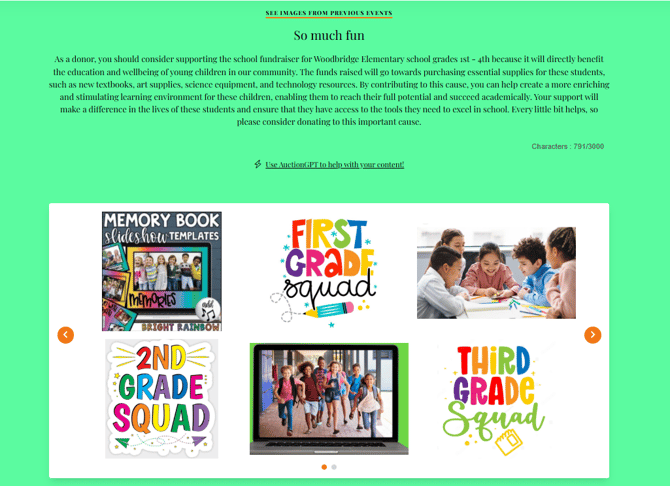
View from Landing page
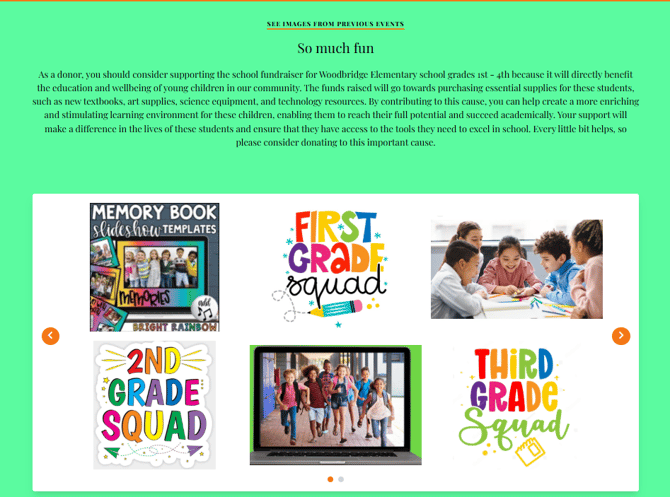
The combined file size of newly uploaded images cannot exceed 20MB prior to saving.
If you want your gallery images to display the same size, make sure you’re using the same image style, either all portrait or all landscape. You can also separate them by page (e.g. portrait on one page, landscape on another). (images above have both Portrait & Landscape on the same page)
---
#### 📧 Messaging Campaign Creators
When communicating with campaign creators:
- Email filters allow you to contact **campaign creators specifically**.
- Messaging tools can include the **campaign share link** automatically.
- Creators can run multiple campaigns if needed.
This helps organizations easily support and motivate their fundraising teams.
### How to Email a Campaign Creator Their Share Link
1. Go to **Bidders \> Email Bidders**.
2. Click **Compose an Email**.
3. Enter your **Subject Line**.
4. Write your message.
5. Click **Send Email Now** or **Saved to Composed** to send at a later date.
When creating the email, you can include these short codes:
- **\[f\]** = First Name
- **\[l\]** = Last Name
- **\[items\]** = Item Name and Item Share Link
Be sure to include the **\[items\]** short code. This automatically adds the campaign item name and its share link, making it easy for the campaign creator to copy the link and share it by email, text, or on social media.
**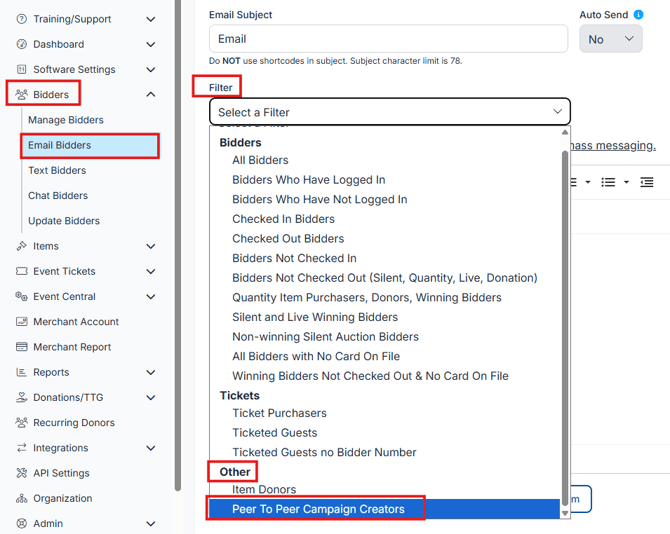**
**Sample email:
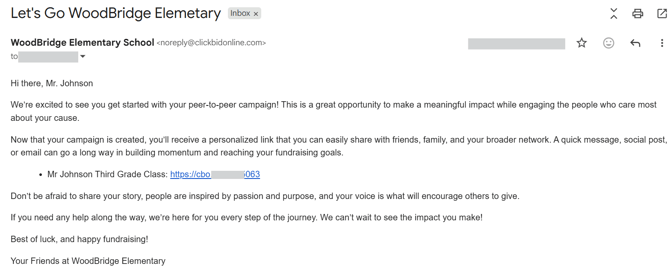**
In order to use Mass Messaging you must have a Full Suite License.
---
### 📊 How to Run Donation Reports (Post Event Data)
To review your donation performance after the event, use the **Post Event Data** reports.
1. Go to **Reports \> Post Event Data**.
2. In the top section, click the **Donations** tab.
Once inside the Donations tab, you’ll see several report options to choose from:
- **Donation Totals by Item**
- Displays item name, item number, total donated, display goal, and progress toward the goal
- **Donation Stats**
- Shows overall donation activity, including total donations, number of donations, and donor participation
- **Top Ranked Donors**
- Highlights top contributors and the items they supported
- **Most Donations to Same Item**
- Identifies donors who contributed multiple times to a single item
- **Bidders Donating to Multiple Items**
- Shows donors who supported multiple donation items
- **Donation Totals by Question Response**
- Breaks down donation totals based on custom question responses
Use these reports together to understand donor behavior, identify top supporters, and evaluate which campaigns or items performed best.
---
#### 🔒 Important Peer-to-Peer Rules
Peer-to-peer campaign items have a few restrictions to keep reporting accurate:
- Campaign items remain **Donation items**.
- Donors cannot be manually linked to campaign items.
- Campaign items cannot be converted into other item types.
These protections ensure peer-to-peer campaigns remain tied to fundraising activity.
- [Account & Setup](https://support.cbo.io/account-setup?hsLang=en#main-content)
- [Users & Logging In](https://support.cbo.io/account-setup?hsLang=en#users-logging-in)
- [Billing/Renewal](https://support.cbo.io/account-setup?hsLang=en#billing-renewal)
- [Organization Account](https://support.cbo.io/account-setup?hsLang=en#organization-account)
- [Event Settings](https://support.cbo.io/account-setup?hsLang=en#event-settings)
- [Auction Settings](https://support.cbo.io/account-setup?hsLang=en#auction-settings)
- [Welcome Page](https://support.cbo.io/account-setup?hsLang=en#welcome-page)
- [Get Started](https://support.cbo.io/get-started?hsLang=en#main-content)
- [Pre-Event Prep](https://support.cbo.io/get-started?hsLang=en#pre-event-prep)
- [Creating a New Event](https://support.cbo.io/get-started?hsLang=en#creating-a-new-event)
- [Event Day Toolkit](https://support.cbo.io/event-day-toolkit?hsLang=en#main-content)
- [Paddle Raise](https://support.cbo.io/event-day-toolkit?hsLang=en#paddle-raise)
- [Live Auction](https://support.cbo.io/event-day-toolkit?hsLang=en#live-auction)
- [Silent Auction](https://support.cbo.io/event-day-toolkit?hsLang=en#silent-auction)
- [Butler](https://support.cbo.io/event-day-toolkit?hsLang=en#butler)
- [Volunteer Training](https://support.cbo.io/event-day-toolkit?hsLang=en#volunteer-training)
- [Messaging](https://support.cbo.io/messaging?hsLang=en#main-content)
- [Text & Emails](https://support.cbo.io/messaging?hsLang=en#text-emails)
- [Chat Bidders](https://support.cbo.io/messaging?hsLang=en#chat-bidders)
- [Welcome Text, Text Bidders, & Email Bidders](https://support.cbo.io/messaging?hsLang=en#welcome-text-text-bidders-email-bidders)
- [Tickets & Sponsorships](https://support.cbo.io/tickets-sponsorships?hsLang=en#main-content)
- [Tickets, Sponsorships & Underwriting Overview](https://support.cbo.io/tickets-sponsorships?hsLang=en#tickets-sponsorships-underwriting-overview)
- [Reporting & Data](https://support.cbo.io/tickets-sponsorships?hsLang=en#reporting-data)
- [Manage Ticketed Guests](https://support.cbo.io/tickets-sponsorships?hsLang=en#manage-ticketed-guests)
- [RSVP & Invoicing](https://support.cbo.io/tickets-sponsorships?hsLang=en#rsvp-invoicing)
- [Items](https://support.cbo.io/items?hsLang=en#main-content)
- [Items Overview & Setup](https://support.cbo.io/items?hsLang=en#items-overview-setup)
- [Quantity Items / E-Commerce](https://support.cbo.io/items?hsLang=en#quantity-items-e-commerce)
- [Item Donation Form and Donors](https://support.cbo.io/items?hsLang=en#item-donation-form-and-donors)
- [FMV & Tax](https://support.cbo.io/items?hsLang=en#fmv-tax)
- [Peer to Peer and Donation Campaigns](https://support.cbo.io/peer-to-peer-and-donation-campaigns?hsLang=en#main-content)
- [Peer to Peer and Donation Setup](https://support.cbo.io/peer-to-peer-and-donation-campaigns?hsLang=en#peer-to-peer-and-donation-setup)
- [Recurring Donations](https://support.cbo.io/peer-to-peer-and-donation-campaigns?hsLang=en#recurring-donations)
- [Text to Give](https://support.cbo.io/peer-to-peer-and-donation-campaigns?hsLang=en#text-to-give)
- [Embed Your Donation Form](https://support.cbo.io/peer-to-peer-and-donation-campaigns?hsLang=en#embed-your-donation-form)
- [Appeal Display](https://support.cbo.io/peer-to-peer-and-donation-campaigns?hsLang=en#appeal-display)
- [Bidders](https://support.cbo.io/bidders?hsLang=en#main-content)
- [Bidder Setup](https://support.cbo.io/bidders?hsLang=en#bidder-setup)
- [Donor Thank You Letters](https://support.cbo.io/bidders?hsLang=en#donor-thank-you-letters)
- [Bidder Registration Custom Questions](https://support.cbo.io/bidders?hsLang=en#bidder-registration-custom-questions)
- [Reporting & Data](https://support.cbo.io/reporting-data?hsLang=en#main-content)
- [Event Reporting](https://support.cbo.io/reporting-data?hsLang=en#event-reporting)
- [Credit Card Processing & Payments](https://support.cbo.io/credit-card-processing-payments?hsLang=en#main-content)
- [Credit Card Processing & Payments](https://support.cbo.io/credit-card-processing-payments?hsLang=en#credit-card-processing-payments)
- [FAQs](https://support.cbo.io/credit-card-processing-payments?hsLang=en#faqs)
- [Merchant Account & Merchant Report](https://support.cbo.io/credit-card-processing-payments?hsLang=en#merchant-account-merchant-report)
- [Web Content / Event Landing Pages](https://support.cbo.io/web-content-event-landing-pages?hsLang=en#main-content)
- [Design & Customization](https://support.cbo.io/web-content-event-landing-pages?hsLang=en#design-customization)
- [Accepting Donations From Your Landing Page](https://support.cbo.io/web-content-event-landing-pages?hsLang=en#accepting-donations-from-your-landing-page)
- [EventStream Video Streaming](https://support.cbo.io/eventstream-video-streaming?hsLang=en#main-content)
- [Virtual Live Auction and Paddle Raise](https://support.cbo.io/eventstream-video-streaming?hsLang=en#virtual-live-auction-and-paddle-raise)
- [EventStream FAQ](https://support.cbo.io/eventstream-video-streaming?hsLang=en#eventstream-faq)
- [Integrations + Partners](https://support.cbo.io/integrations-partners?hsLang=en#main-content)
- [Neon One](https://support.cbo.io/integrations-partners?hsLang=en#neon-one)
- [Raiser's Edge NXT](https://support.cbo.io/integrations-partners?hsLang=en#raisers-edge-nxt)
- [Bloomerang](https://support.cbo.io/integrations-partners?hsLang=en#bloomerang)
- [Salesforce for Nonprofits](https://support.cbo.io/integrations-partners?hsLang=en#salesforce-for-nonprofits)
- [Charityproud](https://support.cbo.io/integrations-partners?hsLang=en#charityproud)
- [Classy](https://support.cbo.io/integrations-partners?hsLang=en#classy)
- [TravelPledge](https://support.cbo.io/integrations-partners?hsLang=en#travelpledge)
- [Double the Donation](https://support.cbo.io/integrations-partners?hsLang=en#double-the-donation)
- [HGA Fundraising](https://support.cbo.io/integrations-partners?hsLang=en#hga-fundraising)
- [Public API](https://support.cbo.io/integrations-partners?hsLang=en#public-api)
- [Zapier](https://support.cbo.io/integrations-partners?hsLang=en#zapier)
- [Virtuous](https://support.cbo.io/integrations-partners?hsLang=en#virtuous)
- [Charity Experiences](https://support.cbo.io/integrations-partners?hsLang=en#charity-experiences)
- [Donorperfect](https://support.cbo.io/integrations-partners?hsLang=en#donorperfect)
- [FAQs](https://support.cbo.io/faqs?hsLang=en#main-content)
- [FAQs](https://support.cbo.io/faqs?hsLang=en#faqs)
[](https://try.cbo.io)
ClickBid Training Hub
Copyright © 2026, ClickBid Event Fundraising
```json
{
"@context" : "https://schema.org",
"@type" : "VideoObject",
"caption" : {
"@type" : "MediaObject",
"contentUrl" : "https://support.cbo.io/media-transcripts/210085068900/en.vtt",
"inLanguage" : "en",
"name" : "en Captions"
},
"contentUrl" : "https://22025730.fs1.hubspotusercontent-na1.net/hubfs/22025730/video_assets/210085068900/inherited/web_optimized.mp4",
"dateModified" : "2026-03-27T21:12:13.413Z",
"duration" : "PT6M25.333S",
"height" : 1080,
"name" : "Peer-To-Peer",
"thumbnailUrl" : "https://22025730.fs1.hubspotusercontent-na1.net/hubfs/22025730/Training%20Hub%20Videos/Peer-To-Peer.mp4/medium.jpg",
"uploadDate" : "2026-03-27T21:09:43.704Z",
"width" : 1920
}
```