
🔗 Connection
To connect a ClickBid event to your Neon CRM account, go to Integrations > Dashboard. You will see a Neon logo and a Connect button to start the process.
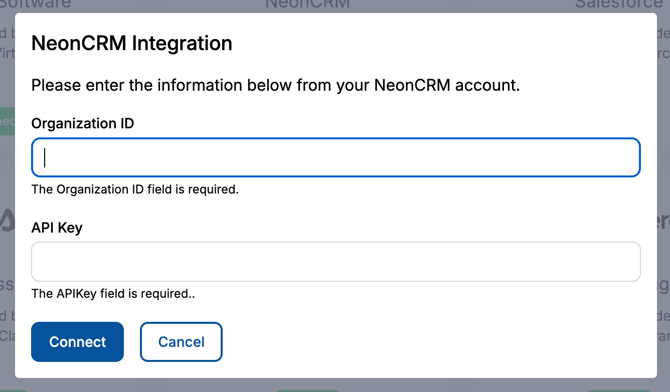
You will need your Neon API key and Organization ID to complete the connection. Your API key is located in your Neon account under the Gear icon (upper right menu) > User Management. This User Management page will list your users. Choose your user account by clicking on your name. You will see a section called API Access. Switch it on and you will see your API Key.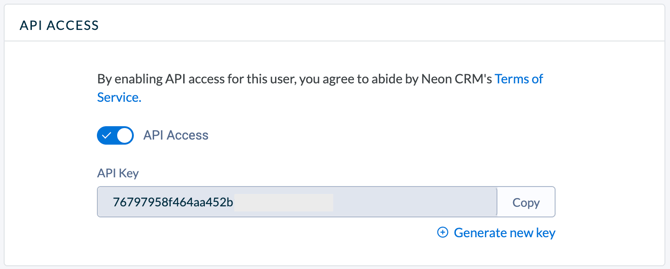
To find your Organization ID, simply look in your browser’s URL bar to locate it. It should be the first element in the URL or the sub-domain.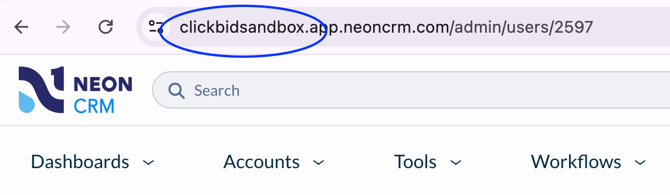
Once you have that information, press Connect. You will then see a blue button labeled Connected. You can press that button to remove the link between ClickBid and Neon CRM at any time.
⚙️ Settings
This is your starting point for the integration, configure how and when data flows between ClickBid and Neon CRM.
Go to Integrations > Neon CRM > Settings.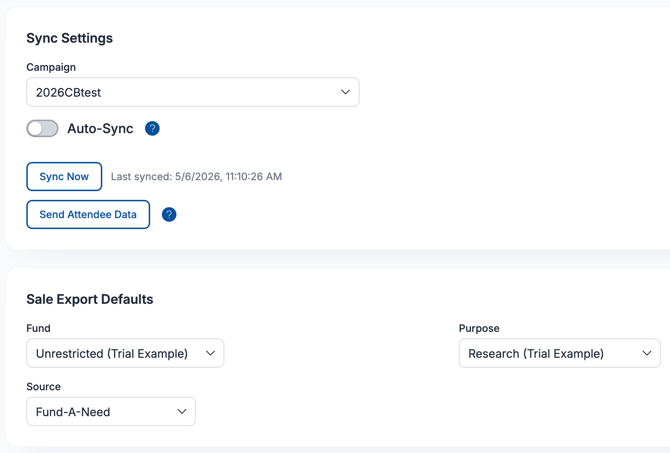
Sync Settings
- Campaign: Select which Neon CRM campaign this event is tied to. Sales and bidder data will be associated with this campaign when exported.
- Auto-Sync: When enabled, guest and sales data exports to Neon CRM automatically every 5 minutes. This is useful for keeping your records current during a live event without manual effort.
- Sync Now: Triggers a manual sync immediately. Use this if you need to push data right away rather than waiting for the next auto-sync cycle.
- Send Attendee Data: Sends bidder activity and summaries to the ClickBid Attendee custom object in Neon CRM.
⚠️ Warning: Do not use Send Attendee Data until your event has ended and all auction item and donation checkouts are fully complete. Running this too early may result in incomplete records in Neon CRM.
Sale Export Defaults
These settings pre-fill the Fund, Purpose, and Source fields on all sales exported to Neon CRM. Setting defaults here saves you from having to select these values individually for each sale.
- Fund: The Neon CRM fund to apply to exported sales (e.g., Restricted, Unrestricted).
- Purpose: The designated purpose of the funds (e.g., Scholarship, Research).
- Source: Where the sale came from (e.g., Silent, Fund-A-Need, Multi-Sale).
💡 Set your Sale Export Defaults before your event begins so exports are categorized correctly in Neon CRM from the start.
🗺️ Data Mappings
Data Mappings control exactly where your ClickBid data lands inside Neon CRM when exported.
Go to Integrations > Neon CRM > Data Mappings.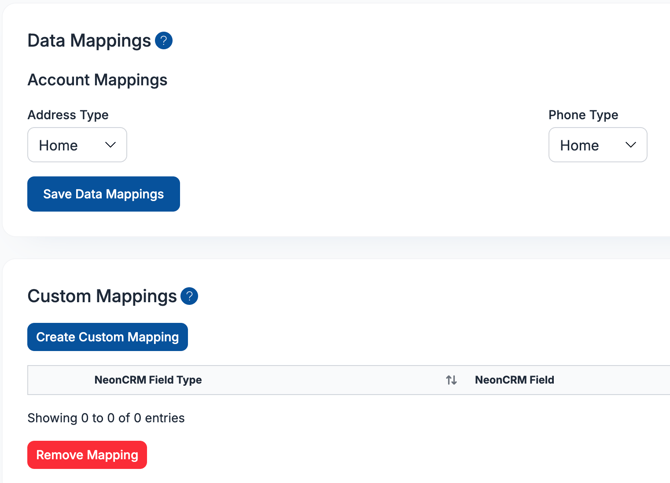
Account Mappings
These settings tell Neon CRM which account fields to populate with ClickBid bidder data.
- Address Type: Choose how bidder addresses are saved in Neon CRM: Home, Work, School, or Other.
- Phone Type: Choose how bidder phone numbers are saved: Home, Work, Mobile, or Other.
Click Save Data Mappings after making any changes.
Custom Mappings
Custom Mappings let you route event data to specific custom fields that already exist in your Neon CRM account. For example, you could map a ClickBid bidder field to a custom Neon CRM account field.
To create a custom mapping, click Create Custom Mapping and choose the NeonCRM Field Type, NeonCRM Field, and the corresponding ClickBid Field. To remove a mapping, select it and click Remove Mapping.
ℹ️ Info: Custom fields must already exist in Neon CRM before you can map to them. Set up any needed custom fields in Neon CRM first, then return here to create the mapping.
📥 Import Bidders
Import Bidders lets you pull your existing Neon CRM donors into ClickBid as bidders so they don't have to register themselves.
Go to Integrations > Neon CRM > Import Bidders.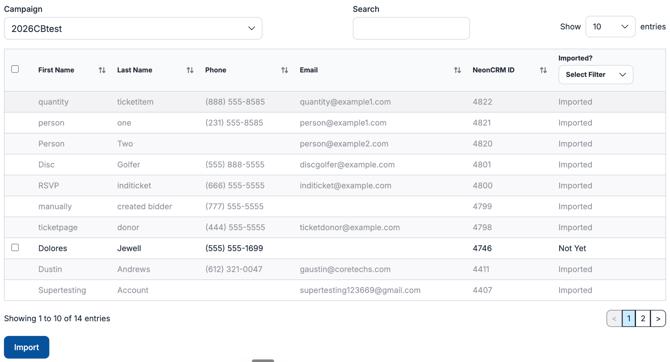
ClickBid displays all donors from your connected Neon CRM account. You can filter by campaign and search by name or email to find specific donors.
- Select the Campaign you want to pull donors from using the dropdown.
- Use the Search field to filter the list if needed.
- Check the box next to each donor you want to import.
- Click Import.
ℹ️The Imported? column shows which donors have already been brought into ClickBid, so you can avoid creating duplicates.
📤 Export Bidders
Export Bidders sends your ClickBid bidder records to Neon CRM, either as new contacts or linked to existing ones.
Go to Integrations > Neon CRM > Export Bidders.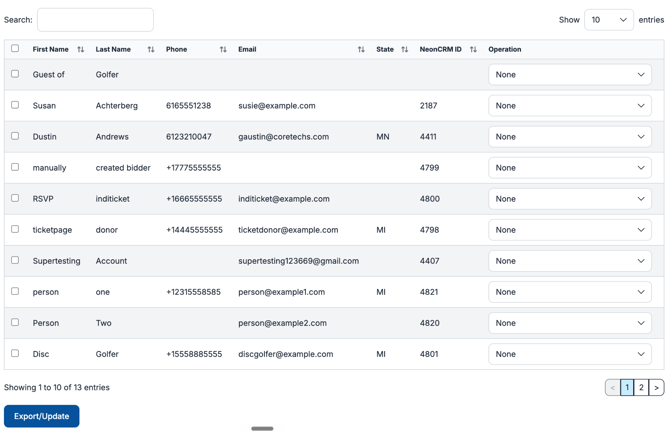
ClickBid lists all bidders in your event. For each bidder, use the Operation dropdown to choose what action to take:
- Add New Contact in NeonCRM: Creates a brand-new donor record in Neon CRM using the bidder's information.
- Link to Existing NeonCRM Contact: Connects this bidder to a donor record that already exists in Neon CRM.
- Update NeonCRM Contact Email: Updates the email address on the linked Neon CRM record with the bidder's current email.
- Update NeonCRM Contact Phone: Updates the phone number on the linked Neon CRM record.
- Update Both Phone & Email: Updates both contact fields at once.
- Remove Link: Disconnects this bidder from their linked Neon CRM record.
Once you've set the operation for each bidder you want to act on, check the boxes next to those rows and click Export/Update.
💡 Bidders who were imported from Neon CRM will already have a NeonCRM ID and won't need to be exported as new contacts.
🪑 Export Guests
Export Guests sends your event ticket holders to Neon CRM as Account records.
Go to Integrations > Neon CRM > Export Guests.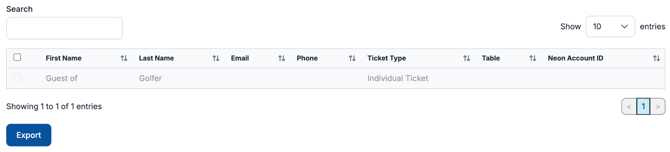
ClickBid displays your event guests with their name, email, phone number, ticket type, and table assignment. Guests are matched to existing Neon CRM accounts by email address. If a matching email is found, the guest will be linked to that account rather than creating a duplicate.
- Check the box next to each guest you want to export.
- Click Export.
ℹ️ Info: This feature is designed for event ticket holders (guests), not bidders. Use Export Bidders for your auction participants. ClickBid will work with Neon’s API to ensure that an exported guest will match with an exported bidder via email matching.
💰 Export Sales
Export Sales sends completed auction sales and donations from ClickBid into Neon CRM as transaction records.
Go to Integrations > Neon CRM > Export Sales.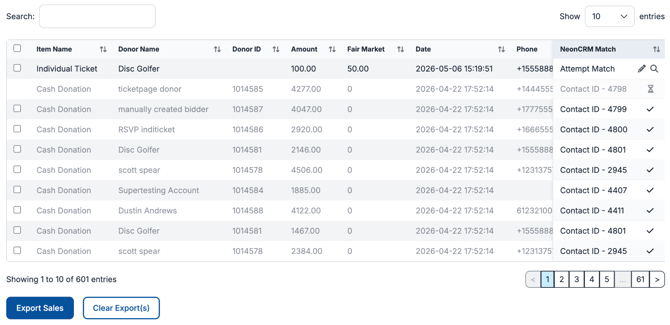
ClickBid lists all sales from your event, including the item name, donor name, amount, fair market value, date, and payment type. The NeonCRM Match column shows whether a Neon CRM account has been identified for that donor.
- Review the NeonCRM Match column. If an existing Neon CRM account is shown, the sale will be added to that record. If no match is found, ClickBid will create a new Neon CRM account for that donor.
- Check the box next to each sale you want to export.
- Click Export Sales.
To reset previously exported sales so they can be exported again, click Clear Export(s).
💡 Tip: Any defaults you set under Settings > Sale Export Defaults (Fund, Purpose, Source) will be applied automatically to each sale you export here.
⚠️ Warning: After exporting, use the Activity Log to confirm all records were processed successfully before closing out your event.
📋 Activity Log
The Activity Log gives you a complete record of everything that has been sent to Neon CRM from ClickBid.
Go to Integrations > Neon CRM > Activity Log.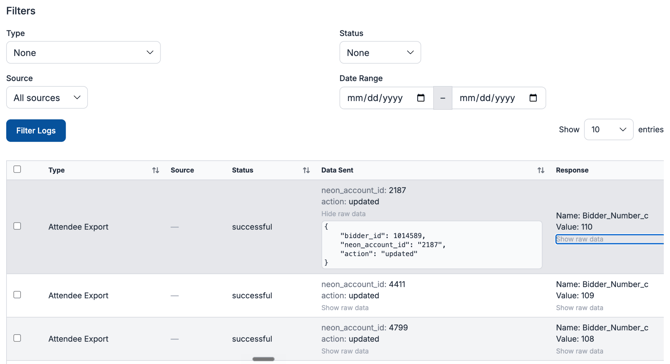
Each entry shows the type of action (Sale Export, Bidder Export, Attendee Export, etc.), whether it came from an Auto Sync or a manual export, the status (Successful, Failure, or Pending), the data that was sent, and Neon CRM's response. You can filter log entries by Type, Status, Source, and Date Range to quickly find what you're looking for.
Log entries are kept for 3 months and then removed automatically. You can also remove entries manually by selecting them and clicking Remove Log.
ℹ️ If an export shows a Failure status, check the Response column for details. Common causes include a missing Neon CRM account match or a required field that wasn't filled in.
6. 🔌 Disconnect from Neon CRM
-
Go to:
Integrations > Dashboard -
Click the Connected button on the Neon card to disconnect
✅ Summary
The Neon CRM integration gives you a complete toolset for connecting your ClickBid event to your donor database, before, during, and after your event. You can import existing donors as bidders, keep records in sync automatically throughout the evening, and push all sales, guest data, and attendee summaries back to Neon CRM when the event wraps up. The Activity Log makes it easy to verify that everything transferred correctly.