
Keep your guests informed and engaged throughout your event with Mass Messaging. This feature lets you send texts and emails to groups of bidders at once, whether it's a welcome message, a bidding reminder, or a final call to check out. You can target messages using specific filters, or custom bidder tags.
Where to Find It
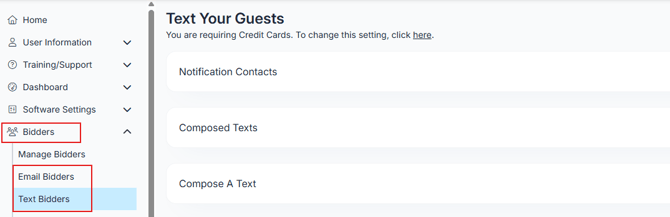
Mass Messaging lives under Bidders > Text Bidders or Bidders > Email Bidders in your admin dashboard. Both pages work the same way, this article covers both.
ℹ️ Note: Guests cannot reply to mass messages, and responses will not be received.
How Messages Are Delivered:
-
Texts (US & Canada) can come from:
855-800-4975 & 844-339-6509 -
Emails are sent from:
no_reply@clickbidonline.com
Display name: Your Organization's Name
Access & Licensing
Mass Messaging is available to events with the following license:
- ✅ Full Suite
To confirm your access or purchase the feature:
-
Go to Dashboard > Organization Page > Account
-
Review your license details
URL shorteners are not permitted in text messages due to spam filtering risks.
Step 1: Set Up a Notification Contact
Before scheduling messages, add a Notification Contact. This person receives an alert 10 minutes before any scheduled message goes out, giving them a final chance to cancel it if needed.
- Go to Bidders > Manage Bidders > Text/Email Bidders
- Expand the Notification Contacts section at the top of the page.
- Enter the contact's first name, last name, phone number, and email.
- Click Test to confirm the contact is set up correctly.
✍️ Step 2: Compose Your Text
- Go to Bidders > Text Bidders.
- Expand the Compose a Text section.
- Select a Filter to choose who receives the message.
- Write your message in the body field. You have 160 characters.
- Use shortcodes to personalize your message.
Available shortcodes for text:
- [f]: First name (up to 38 characters)
- [l]: Last name (up to 47 characters)
- [b]: Bidder number (7 characters)
- [u]: Personal bidding URL (21 characters)
- [p]: Direct link to the payment page (24 characters)
- [t]: Table assignment — displays as "You are seated at table NN" (30 characters)
- [bdr]: Guest to bidder link (21 characters)
- [gqr]: Guest QR code (21 characters)
ℹ️ Shortcodes count toward your 160-character limit. For best results, do not end your message with [u]. Place at least one character after the link, for example: "Tap here [u] to start bidding!"
⚠️ URL shorteners are not permitted in text messages due to spam filtering risks.
Filter: "Silent and Live Winning Bidders" - Items must have a status set to closed in order to use this filter.
Step 3: Schedule or Send Your Text
To send immediately, click Send Text Now.
To schedule your text for later:
- Set Auto Send to Yes.
- Set a Desired Send Time at least 10 minutes in the future.
- Click Save to Composed Texts.
Click here to learn more about Auto Send Messages.
To save without scheduling:
- Leave Auto Send set to No.
- Enter a Desired Send Time for your reference.
- Click Save to Composed Texts. Click Send manually when you are ready.
⚠️ Auto Send messages cannot be scheduled within 10 minutes of creation or within 10 minutes of another scheduled Auto Send message. Use Send Text Now for anything urgent.
💡 Use Send a Single Text at the bottom of the Compose section to test your message with a specific bidder before sending to everyone.
Step 4: Track Your Texts
All saved and sent texts appear in the Composed Texts section.
- Yellow highlight: Auto Send is enabled and the message is scheduled
- Red highlight: Auto Send was canceled
- No highlight: Manual send; click Send when ready
- Grayed-out Send button: Message has already been sent but can be resent
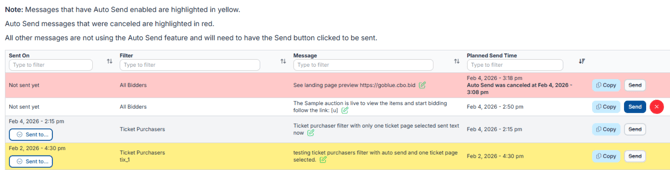
Click Sent to... on any message to see exactly who received it. To reuse a canceled or sent message, click Copy to create a new version you can edit or reschedule.
💬 Sample Text Messages
"{Event Name} Auction is now open! Tap the link to start bidding: [u] Enjoy!"
"Sign in here [u] and go to All Items > No Bid Items to find great deals!"
"Auction closes at XX:XX tonight! Get your final bids in: [u]"
"Auction is now over! Tap here [p] to check out or see a volunteer."
📧 How to Email Your Guests
✍️ Step 2: Compose Your Email
- Go to Bidders > Email Bidders.
- Expand the Compose an Email section.
- Enter a Subject Line (up to 78 characters).
- Select a Filter to choose who receives the message.
- Write your message in the body field.
- Use shortcodes to personalize your email.
Available shortcodes for email:
- [f] First name
- [l] Last name
- [b] Bidder number
- [u] Personal bidding URL
- [p] Direct link to the payment page
- [t] Table assignment: default displays as "You are seated at table NN"
- [bdr] Guest to bidder link
- [gqr] Guest QR code
- [items] Item names and FMVs of items donated by the donor based on email address
⚠️ Do not use shortcodes in the email subject line. They are only supported in the message body.
ℹ️ An unsubscribe link is automatically added to the bottom of every email to comply with email marketing guidelines.
⏱️ Step 3: Schedule or Send Your Email
To send immediately, click Send Email Now.
To schedule your email for later:
- Set Auto Send to Yes.
- Set a Desired Send Time at least 10 minutes in the future.
- Click Save to Composed Emails.
Click here to learn more about Auto Send Messages.
To save without scheduling:
- Leave Auto Send set to No.
- Enter a Desired Send Time for your reference.
- Click Save to Composed Emails. Click Send manually when you are ready.
⚠️ Auto Send messages cannot be scheduled within 10 minutes of creation or within 10 minutes of another scheduled Auto Send message. Use Send Email Now for anything urgent.
💡 Use Send a Single Email at the bottom of the Compose section to test your message with a specific bidder before sending to everyone.
Step 4: Track Your Emails
All saved and sent emails appear in the Composed Emails section.
- Yellow highlight: Auto Send is enabled and the message is scheduled
- Red highlight: Auto Send was canceled
- No highlight: Manual send; click Send when ready
- Grayed-out Send button: Message has already been sent but can be resent
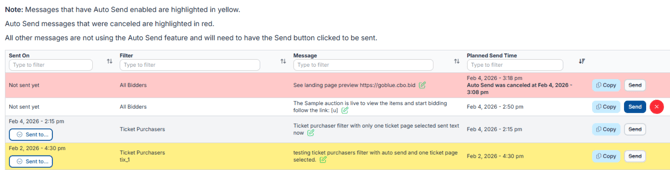
Click Sent to... on any message to see exactly who received it. To reuse a canceled or sent message, click Copy to create a new version you can edit or reschedule.
📧 Sample Email Messages
Auction Open
Subject: The Auction is Live!
Dear [f], our auction is officially open! Browse incredible items and start bidding now: [u] Thank you for supporting our cause!
Welcome Email
Subject: Welcome to {Event Name}!
Dear [f], we are so glad you are here! Visit our event page and browse items ahead of time: [u]. We will see you soon!
Checkout Reminder
Subject: Time to Check Out!
Dear [f], the auction has closed. Tap here to check out and complete your purchase: [p]
Thank you for your support!
📲 Using Bidder Tags to Send Targeted Messages
This function is only available if you have access to our Mass Messaging feature which is included in the Full Suite license.
You can filter and message specific groups based on the tags you’ve assigned. This applies to both the Text Bidders and Email Bidders features. For this example, we'll walk through Text Bidders.
- Go to Bidders >Text Bidders.
- Click Compose a Text.
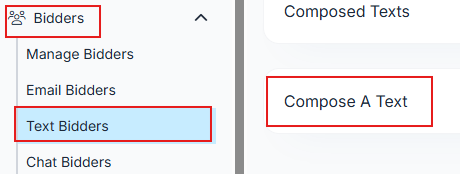
- Click Select a Filter.
- Choose Bidder Tags from the dropdown.
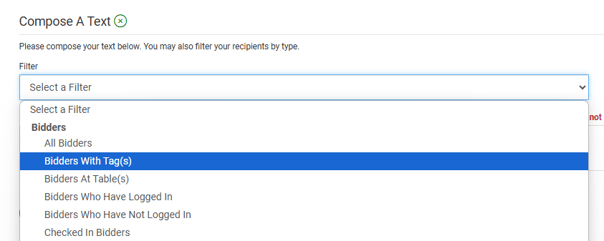
- If only one tag exists, it will automatically populate.
- If multiple tags exist, you'll see a list to choose from.Select the tags you want to message.
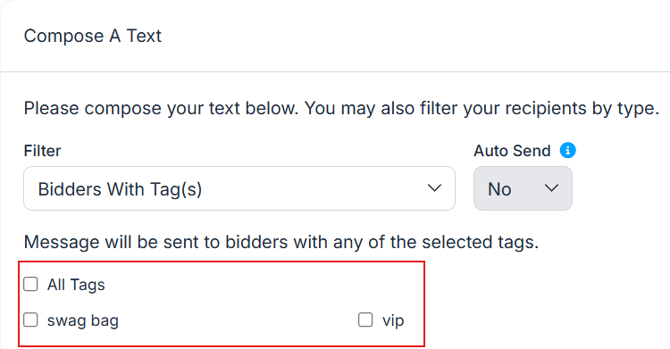
- Compose your message and click Send Text Now, or click Save to Composed Texts to either send later, or schedule to go out automatically at a later date.
Use bidder tags to remind VIPs about perks, confirm meal selections, or reach past participants with a personalized note.
✅ Best Practices for Mass Messaging
- Send important reminders across multiple channels, text plus a host announcement for anything critical.
- Give at least 10 minutes for a mass message to fully send before following up.
- Avoid phrases like "X minutes left", use exact closing times instead.
- Do not over-message your guests. Too many texts can lead to opt-outs or spam reports.
- Never rely on a mass message alone for mission-critical information.
⚠️ If a bidder has merged contacts (multiple emails or phone numbers on file), all associated contacts will receive the message.