
Volunteer Training Guide for the Butler & BidKit App
The Butler is a dedicated interface volunteers can use to help with guest check-in, check-out, bidding support, and more, without needing full access to the admin dashboard. This guide will walk you through how to create volunteer logins, train your team, and use the Butler on event night
The BidKit Payments app is the same, simple Butler interface in the version of a downloadable app and can be used with Tap to Pay functionalityon compatible devices.
💡 If you plan to use Tap to Pay, you will need to download the BidKit Payments app.
⚙️ Creating a Volunteer User Account
To get your volunteers started, you'll need to create a login they can use to access the Butler/BidKit Payments.
-
Go to your ClickBid Admin Dashboard.
-
Navigate to Software Settings > Users.
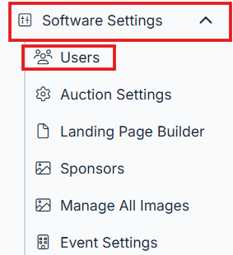
3. Click Create New User.
4. Set the password that your volunteers will use.
ℹ️Info: The password can be created once the setup email is received at the provided address
5. Assign Butler-only access to restrict them from viewing admin pages.
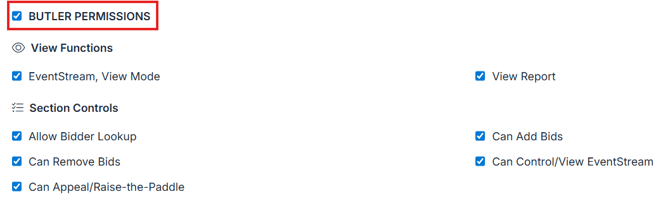
6. Share the login credentials and Butler URL or BidKit Payments App info with your volunteers:
-
Butler URL: http://cbo.io/butler
- BidKit Payments app information:
-
Volunteers logging in through cbo.io/butler or the BidKit app will only see the Butler interface. There is no 2FA required at login this way.
-
If they access Butler through Event Central > Butler, you can adjust the user permissions to ensure they only have access to the areas you want them to see. This method does require 2FA upon login.
💡Tip: Write the login credentials on paper or sticky notes to hand out on-site. This makes it easy for volunteers to log back in if they get logged out.
📝 Pre-Event Training Tips
Help your volunteers feel confident before the event starts.
-
Email the downloadable training sheets and videos (linked below) ahead of time.
-
Do a quick overview of Check-In and Check-Out processes with your volunteers about an hour before your event begins.
-
Reinforce best practices, like verifying contact info and ensuring payment methods are on file.
ℹ️Info: Volunteers logged in directly via cbo.io/butler will stay logged in for up to 4 hours of inactivity, great for uninterrupted check-in support.
🎟️ Downloadable Training Sheets
These guides help your volunteers handle real-time tasks with confidence:
- Check In
- Check Out
- Updating Contact Information
- Concierge Bidding
- Adding Live Winning Bidders
- Adding Raise The Paddle or Fund a Need Donations
🎥 Training Videos
Send these videos to your volunteers or review them together during your training session.
👥 How to Check In Guests
-
Go to Event Central > Butler or visit cbo.io/butler directly.
-
Log in with your username (email) and password.
-
Click into Bidder Lookup and type the bidder's last name or number.
-
You can also search by phone number, table, company, email, or tag.
-
Review the bidder's profile to confirm key details:
-
Phone number (for text bidding access)
-
Email address (for receipts)
-
Credit card status
-
Ticket type and table number
-
-
Click Check Bidder In to send the welcome text and complete check-in.
-
To make edits, click the pencil icon next to their name.
-
Use Tap to Add Credit Card to manually enter card details if needed.
-
If the Accepts Texts box isn’t highlighted, notify the guest they won’t receive updates.
-
Add or update phone and email if necessary.
-
Click Complete to save everything and finish check-in.
ℹ️Info: Verifying contact info ensures guests get bidding notifications and receipts.
💳 How to Check Out Guests
-
Go to Event Central > Butler or log in to your event in the BidKit app.
-
Look up the bidder by name or number.
-
You can also search with just partial info (e.g., only first name).
-
-
If the bidder has items to pay for, you’ll see a red Checkout! button.
-
Select a payment type (credit card, cash, check, or other).
-
Make sure an email address is on file and click Submit.
-
Once paid, the Checkout! button disappears and is replaced by Paid Items.
-
Click Paid Items to view a full list of what the bidder purchased.
📝Note: If you see the message “There was an error processing your card: Your card's security code is incorrect,” this response is generated by the payment processor (Stripe) or the cardholder’s bank, not ClickBid. Due to recent banking security updates, some transactions may be declined if card details do not exactly match the bank’s security checks. If this occurs, ask the cardholder to verify their card information or contact their bank.
💡Tip: To pre-organize items for winning bidders, use the Current Winning Bids report under Event Central. Sort by bidder name or number to streamline pick-up.
🔁 Quick Recap & Helpful Resources
-
✅ Create a dedicated Butler user account for volunteers.
-
📝 Train your team with downloadable guides and videos.
-
🎟️ Use Butler to streamline check-in and check-out on event night.
-
💡 Keep volunteer login info handy on printed handouts.
-
📋 Use the Current Winning Bids report to organize auction items for pick-up.