
⚙️ Accessing the Merchant Report
- Log in to your ClickBid event admin dashboard.
- In the left-hand navigation, click Merchant Report.
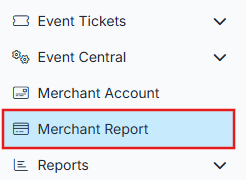
- The page will load your Merchant Transactions, showing both unreconciled and reconciled transactions.
⚙️ Understanding Instant Payouts
Before requesting an Instant Payout, here are a few things to know:
- A 1% fee is applied to the total payout amount. You will be asked to review and confirm this before the payout is processed.
- The daily maximum for Instant Payouts is $10,000. This resets at midnight CT and is shared across all events connected to the same bank account.
- Only card payments (credit, debit, or prepaid) are eligible for Instant Payouts. Crypto transactions are not included.
- Instant Payouts cannot be reversed once confirmed.
- The Instant Payout option will only appear if your connected bank account is eligible. If you do not see it, your current payout account may not support instant transfers.
ℹ️ The Available for Instant Payout amount shown on the page reflects the total of eligible unreconciled transactions, up to your daily maximum. This amount will never be negative, if refunds or dispute fees exist, they are factored in before the available amount is displayed.
📝If you do not have any unreconciled transactions you will not see the instant payout options.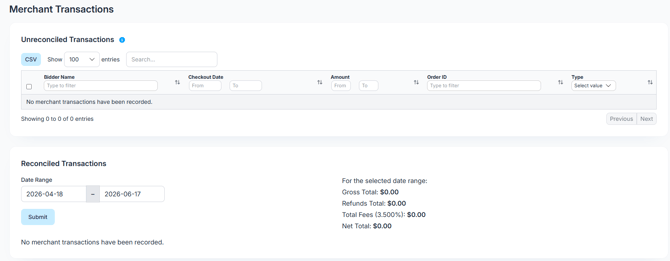
➕ Step 1: Select Transactions for Your Instant Payout
- On the Merchant Report page, locate the Unreconciled Transactions section.
- You will see the Available for Instant Payout amount and a Selected for Instant Payout amount, along with a Request Instant Payout button.

- Use the checkboxes next to individual transactions to select which ones you want to include in the payout. Use the select all checkbox to select all eligible transactions at once.
- As you select transactions, the Selected for Instant Payout amount will update to reflect your selection.
- The Request Instant Payout button will become active once at least one transaction is selected.
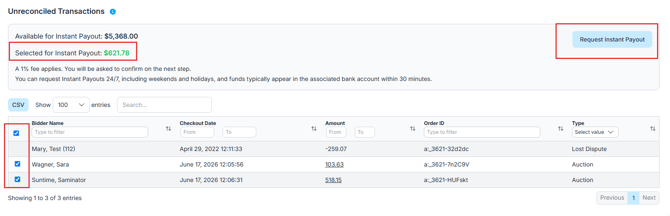
ℹ️ Only transactions with a checkbox are eligible for Instant Payout. Transactions that are already pending an Instant Payout will appear grayed out with a note indicating they are pending, they cannot be selected again until the payout is complete.
⚠️ Refunds and dispute fees are not eligible for Instant Payout and will not appear as selectable transactions. They are already accounted for in your Available for Instant Payout total.
➕ Step 2: Review and Confirm the Payout
- Once your transactions are selected, click Request Instant Payout.
- A confirmation modal will open showing a full breakdown of your payout:
- Selected Payout Amount: the total of your selected transactions.
- Fees: your standard BidKit Payments processing fee percentage applied to the selected amount.
- 1% Instant Payout Fee: calculated on the gross payout amount before fees.
- Expected Deposit: what will actually be deposited after all fees are deducted.
- Account on file: the bank name and last four digits of the account that will receive the funds.
- Review all details carefully.
- Enter your password in the confirmation field to authorize the payout. This is required for security purposes.
- Click Request Payout to submit.
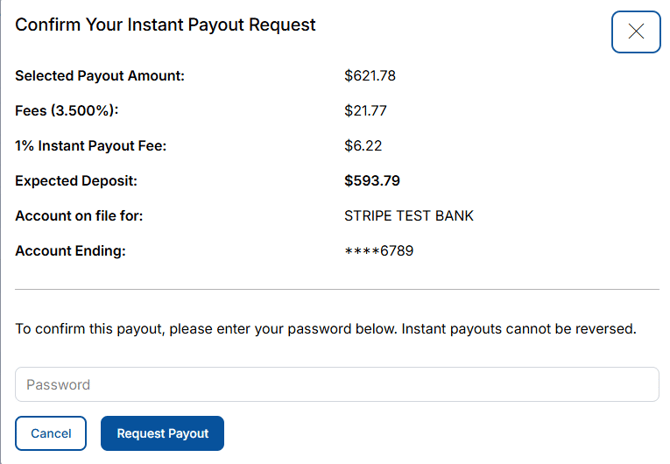
⚠️ Instant Payouts cannot be reversed once submitted. Double-check your selected transactions and expected deposit amount before entering your password and confirming.
✅ What Happens After You Submit
Once your Instant Payout is submitted:
- Once a transaction has been selected it will appear as pending in the Unreconciled Transactions table. The checkbox will no longer be available and if you attempt to select it you will see the message "Transaction is pending instant payout." It will become available again once the payout is complete.
- Funds typically arrive in your bank account within 30 minutes.
- When the payout is confirmed by Stripe, the transactions will move from unreconciled to the Reconciled Transactions section, tagged as an Instant Payout.
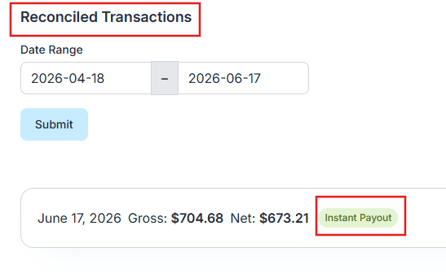
- You will receive a payout email with an Instant Payout fee line item and an adjusted total.
- If the payout fails for any reason, the transactions will be returned to their unreconciled state and become available for standard or instant payout again.
ℹ️ Reconciled Instant Payout groups are identified in the Reconciled Transactions section with an Instant Payout label, along with the date and time of the request and the name of the user who submitted it.
⚙️ Daily Limit and Shared Accounts
The daily Instant Payout limit of $10,000 applies at the connected bank account level, not at the individual event level. If your organization runs multiple events that share the same connected bank account, the daily limit is shared across all of them. For example, if one event requests an $8,000 Instant Payout, the remaining $2,000 of the daily limit is available across all other events tied to that same account for the rest of that day.
ℹ️The daily limit resets at midnight CT each day.
📝 Summary
Instant Payouts give you same-day access to your event funds without waiting for the standard weekly payout cycle. Select eligible unreconciled transactions, review the 1% fee and expected deposit, confirm with your password, and funds are on their way. The feature is available 24/7 and is a great option when you need quick access to event proceeds after a busy event night.