
utler's Multi-Sale Quick Entry feature gives event staff a fast, intuitive way to sell and assign quantity-based items directly from Butler, built for speed, just like the Appeal feature.
⚙️ Butler Updates
The Butler landing page has been updated to support the new Quick Entry for quantity items.
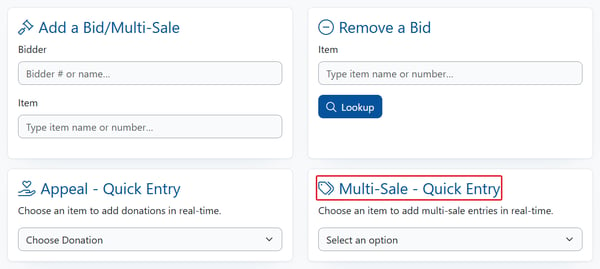
- Locate the Multi-Sale - Quick Entry section on the Butler main page.
- Located next to the Appeal Section when on a laptop, smaller devices it will appear below the Appeal Section.
- Click the Multi-Sale - Quick Entry dropdown to choose which items to work with:
- All Items appears first and loads every quantity-based item at once.
- Individual items are listed one-by-one below that option.
🕶️Access to Multi-Sale Quick Entry is permission-based. Staff must have the Can Add Bids permission enabled to use this feature.
➕ Adding a Purchase
- Find the item and the price tier you want to sell (e.g., 1 for $25.00 or 3 for $60.00).
- If the item has a quantity limit, adjust the Qty field to the number of sets the bidder is purchasing.
- In the Bidder field, type the bidder's number or start typing their first or last name to search.
- Select the correct bidder from the dropdown that appears.
- Click Save to record the purchase.
🪑 Adding a Placeholder
- Find the item and price tier you want to hold a spot for.
- Click the Placeholder button to record the purchase without assigning a bidder.
- Placeholder entries are marked with a yellow PH badge in the purchases table.
- You can come back and assign a bidder to the placeholder entry later.
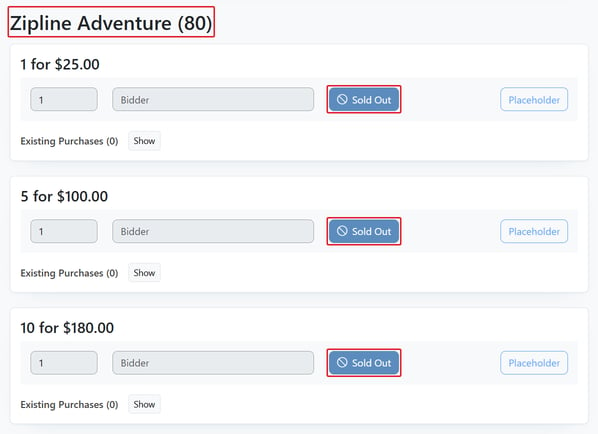
If an item is sold out, the Bidder field and Save button will be disabled and will display Sold Out. No new purchases can be added until availability opens up.
📋 Viewing Existing Purchases
- Find the item and price tier you want to review.
- Click Show next to Existing Purchases to expand the purchases table.

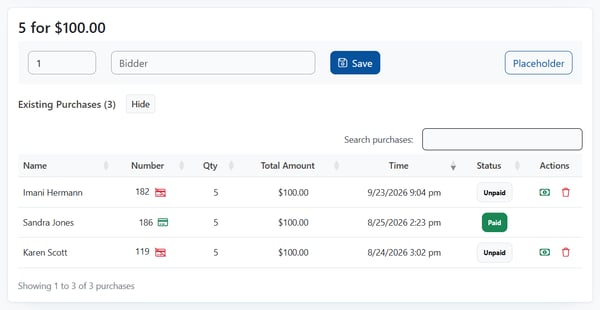
Each row in the table displays:
- Name: Bidder name (First &Last)
- Number: Bidder number & has a credit card on file or does not.
- Green card = Card on file
- Red card = No card on file
- Qty: Quantity purchased
- Total amount: Total dollar amount
- Time: This is the time the purchase was added
- Status: Unpaid or Paid
- Actions: Can quick checkout with cash option or delete the bid if unpaid.
- Dollar Icon is quick checkout with cash
- Trash Can icon allows the purchase to be removed but only for unpaid items
- To remove a purchase that has been paid you need to go to Event Central>Paid checkouts and refund the purchase, then you can remove the bid.
💳For bidders without a card on file: A red crossed-out credit card icon next to a bidder's number means they have no card on file. You may need to collect payment manually.
💵 Managing Unpaid Purchases
- Expand the Existing Purchases table for the item you want to manage.
- Look for entries with an Unpaid badge, these will have action icons on the right.
- Use the action icons to manage the purchase:
- Green dollar icon: Click to mark the purchase as paid in cash.
- Red trash icon: Click to delete the purchase.
⚠️ Deleting a purchase cannot be undone. Make sure you're removing the correct entry before clicking the trash icon.
When a Quantity item sells out:
- The Save button on that pricing tile will become inactive and display Sold Out.
📊 Quick Entry for All Quantity Items
Choosing All Items from the Multi-Sale - Quick Entry dropdown works exactly like the single-item Quick Entry page, with one key difference.
- Instead of a single item's pricing tiles, all quantity items are displayed together, grouped in blocks by item.
- Each item's pricing options appear within its own block, keeping things organized even when many items are active.
👥 Quick Buy During Bidder Check-In
Volunteers can now initiate a quick purchase directly from the bidder search during check-in.
- In the Bidder Lookup search field, type a last name or partial last name (e.g., "Burn") and select the correct bidder from the results.
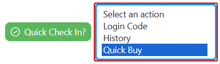
- Click the Select an Action dropdown next to the bidder and select Quick Buy.
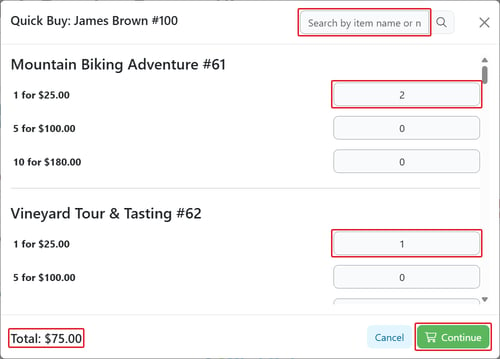
- A modal will open displaying:
- The bidder's name at the top
- A list of all available quantity items with their price options
- Qty dropdowns for each item so the volunteer can select how many of each the bidder wants
- When a limited amount is set in Manage Items and that limit has been reached under the item's option a "No quantities available for this item" displays.
- A total footer that updates in real time as selections are made
- Review the total, then click Continue
- The Confirm Quick Buy popup asks how you would like to handle the purchase:
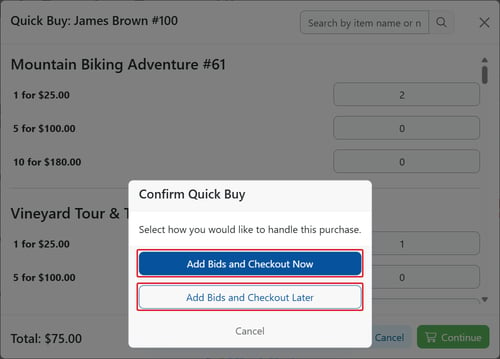
- Add Bids and Checkout Now places the bids and takes you to the Butler checkout page to complete payment using the normal flow.
- Add Bids and Checkout Later places the bids and keeps you on Bidder Lookup. A Success message confirms the bids were added and can be checked out later. Click Close to continue.
- Cancel closes the popup and returns you to Quick Buy with your selections intact. No bids are placed.
- Clicking Cancel on the Quick Buy screen returns the volunteer to the bidder search results.
Quick Buy is only available if at least one quantity item has prices configured. If no qualifying items exist, the Quick Buy option will not appear in the Actions dropdown.
If you choose Add Bids and Checkout Later, those items will still need to be paid for by the bidder at a later time. They will be waiting on the bidder's checkout page.
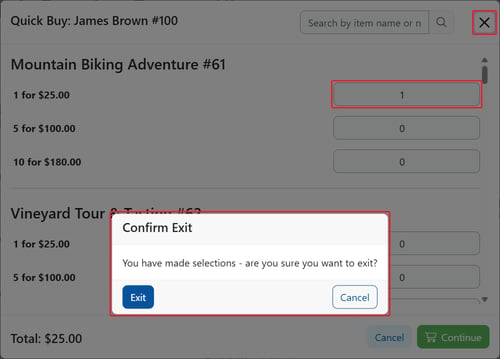
If the volunteer needs to exit the purchase mid-selection:
- Click the X in the upper right corner.
- If any quantities have been selected, a prompt will appear: "You have made selections, are you sure you want to exit?"
- Choose Exit to discard selections or Cancel to go back and continue.
🔁 Last Bidder
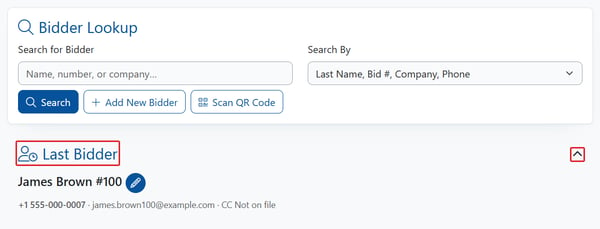
After completing a check-in, checkout, or edit, the volunteer no longer loses track of who they were just working with.
- The most recently accessed bidder's name and information will display below the Bidder Lookup field.
- This allows the volunteer to quickly re-modify the bidder's record or add Quick Buy options without searching again.
- The Last Bidder field can be minimized by clicking the drop down arrow on the right side of the card.
📝 Summary
Multi-Sale Quick Entry brings Appeal-style speed to quantity item sales across Butler. Volunteers can sell, check out, and assign quantity items in just a few taps, with live bid tracking, built-in cash checkout, and automatic sold-out handling. The Last Bidder Add-On keeps workflows smooth by surfacing the most recently accessed bidder for quick follow-up actions.