
Want to check your bidding site before your event goes live? Previewing lets you view your auction items and bidding experience exactly as your guests will see them, helping you catch issues early and feel confident before launch.
⚙️ Step 1: Set Items to Active or Closed
Items must be set to Active or Closed to appear on your bidding site preview.
-
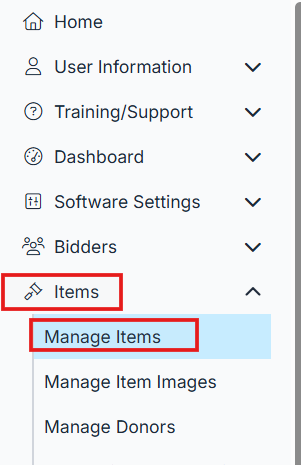
Go to Items > Manage Items.
-
Set each item's Status to Active or Closed.
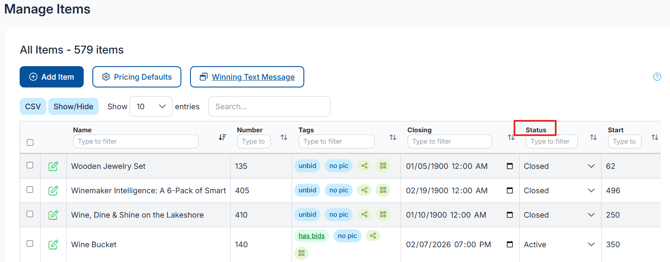
ℹ️ Items marked as Invisible won’t appear during preview. Active items are ready to allow bidding. Closed items are for viewing only, not bids can be placed on a closed item. Live item types do now allow online bidding unless you use EventStream.
🎛️ Step 2: Open the Auction for Preview
Next, temporarily open your auction early so you can access the site.
- Go to Software Settings > Landing Page Builder.
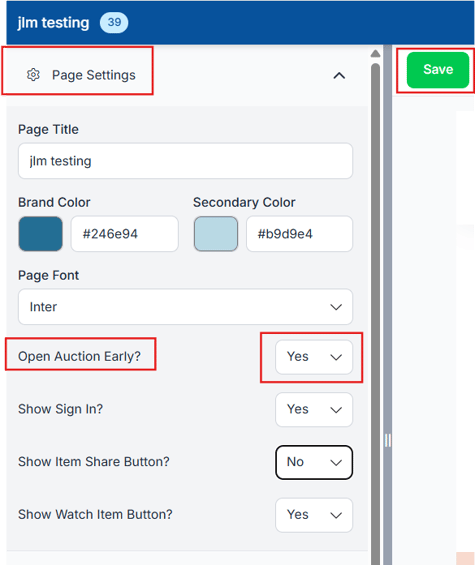
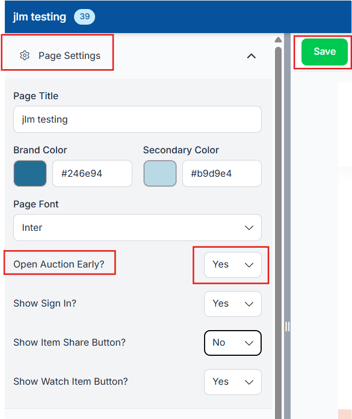
- Click Page Settings in the left panel.
- Set Open Auction Early? to Yes.
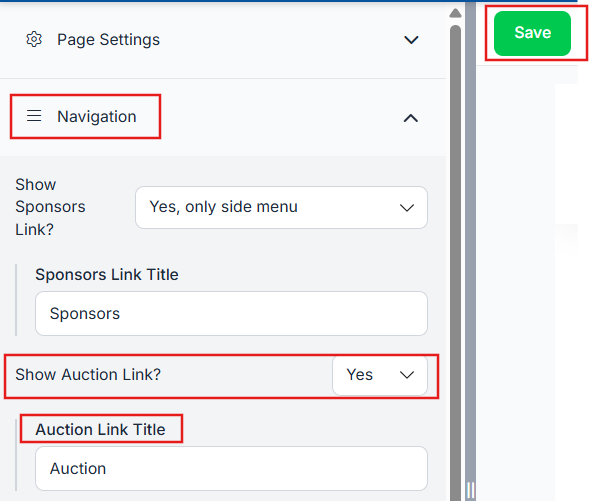
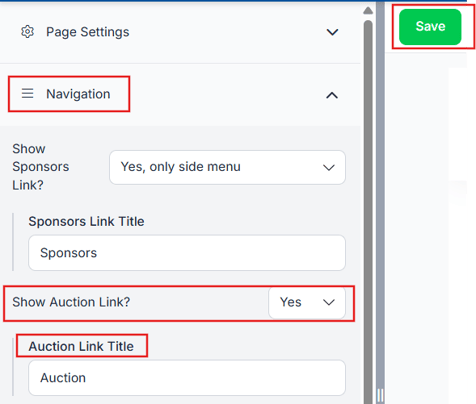
- Click Navigation in the left panel.
- Set Show Auction Link? to Yes.
- Add Auction Link Title
- Click Save.
Page Settings:
Navigation:
👀 Step 3: Preview the Bidding Site
- Click the external link icon at the top of the Landing Page Builder to open your live landing page in a new tab.

- From the landing page click Auction link in the navigation bar or menu depending on the device you are using to log in with.
- Browse your site the way a bidder would, check items, images, descriptions, and bidding buttons.
🛑 Step 4: Close the Auction When Done
When you’re done previewing, don’t forget to close the site to prevent early access by guests.
- Return to Software Settings > Landing Page Builder > Page Settings.
- Set Open Auction Early? back to No.
- Click Save
- Click Navigation in the left panel.
- Set Show Auction Link? to No.
- Click Save
⚠️ Leaving Open Auction Early set to Yes allows bidders to access your site before you are ready. Always reset this when you are done previewing.