---
title: 📦How to Package Items in ClickBid
description: Learn how to package auction items in ClickBid. Combine individual items into a single package, set a value, and get them ready for bidding in just a few steps.
---
[Skip to content](https://support.cbo.io/how-to-package-items-in-clickbid#main-content)

- [Blog](https://blog.cbo.io/)
- [ClickBid Admin](https://cbo.io/admin/login.php)
Open main navigation
Close main navigation
- [Blog](https://blog.cbo.io/)
- [ClickBid Admin](https://cbo.io/admin/login.php)
- [View our Training Videos](https://training.clickbidonline.com/all-courses/)
[View our Training Videos](https://training.clickbidonline.com/all-courses/)
Welcome to ClickBid's Knowledge Base
- There are no suggestions because the search field is empty.
1. [ClickBid How To Articles](https://support.cbo.io/?hsLang=en)
2. [Items](https://support.cbo.io/items?hsLang=en)
3. [Items Overview & Setup](https://support.cbo.io/items?hsLang=en#items-overview-setup)
# 📦How to Package Items in ClickBid
## Item Packaging lets you combine two or more individual silent or live auction items into a single, bundled package that bidders can bid on as one lot. It's a great way to group donated items from multiple donors into a more exciting auction offering without losing the original item records.
#### ⚙️ Before You Start
A few important things to know before packaging items:
- Packaging is only available for **Silent and Live items with no bids**.
- You must select **at least two items** to create a package. There is no upper limit.
- Once an item is linked to a package, the original item **cannot be edited** until it is unlinked.
- TravelPledge items cannot be packaged.
- Packaged items will be tagged automatically with the system tag **"packaged"**.
ℹ️ Items linked to a package are assigned item numbers in the 9000 range and are given a **Linked** status, meaning they become invisible on the bidding site and cannot receive bids or be deleted while linked.
---
#### ⚙️ Accessing Manage Items
1. Log in to your ClickBid event admin dashboard.
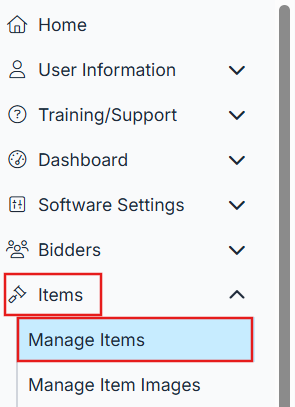
2. In the left-hand navigation, click **Items** to expand the menu.
3. Click **Manage Items**.
---
#### ➕ Step 1: Select Items to Package
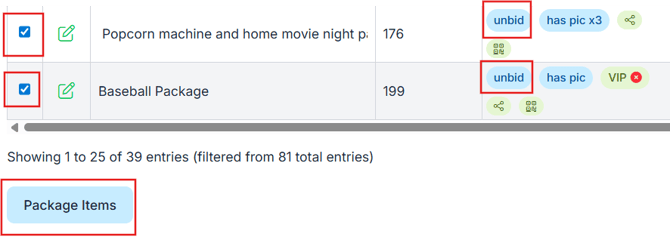
1. In the **All Items** table, locate the items you want to combine into a package.
2. Check the checkbox next to each item you want to include. You must select at least two items.
3. Once two or more items are selected, the **Package Items** button at the bottom of the table will become active.
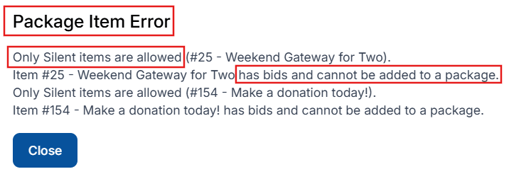
⚠️ If any of the items you selected already have bids, the system will display a message indicating those items cannot be packaged. You will need to deselect them before proceeding.
Also note that only Silent and Live items are eligible for packaging. If a non Silent or Live item is selected, the system will display a message letting you know it cannot be included in the package.
Items can only be packaged with other items of the same type. Silent items can only be packaged with Silent items, and Live items can only be packaged with Live items.
If you want to package a Silent item with a Live item, you'll first need to change one of the items so they are both the same type.
---
#### ➕ Step 2: Build the Package
After clicking **Package Items**, the **Build Package** page will load with two panels: **Linked Items** on the left and **Package Details** on the right.

**Reviewing Linked Items (left panel)**
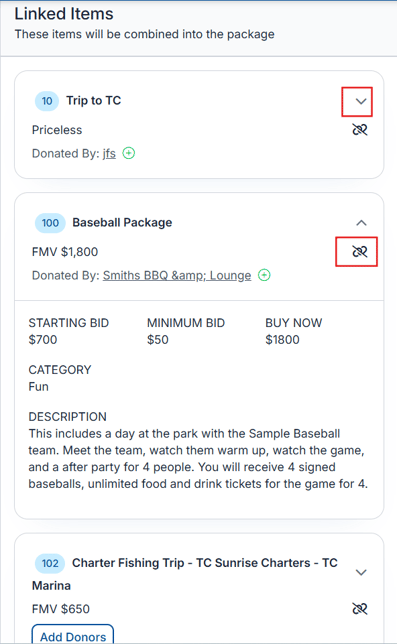
The items you selected will appear as cards in the **Linked Items** section. Each card shows the item name, number, FMV, and donor information. You can:
- Click the **expand arrow** on each card to view additional details like FMV, starting bid, and bid increment. No editing is allowed at this level.
- Use the **Add Item** search box below the linked items to search for and add additional silent items to the package.
- Click the **unlink icon** on any card to remove an item from the package before finishing.
**
Completing Package Details (right panel)**
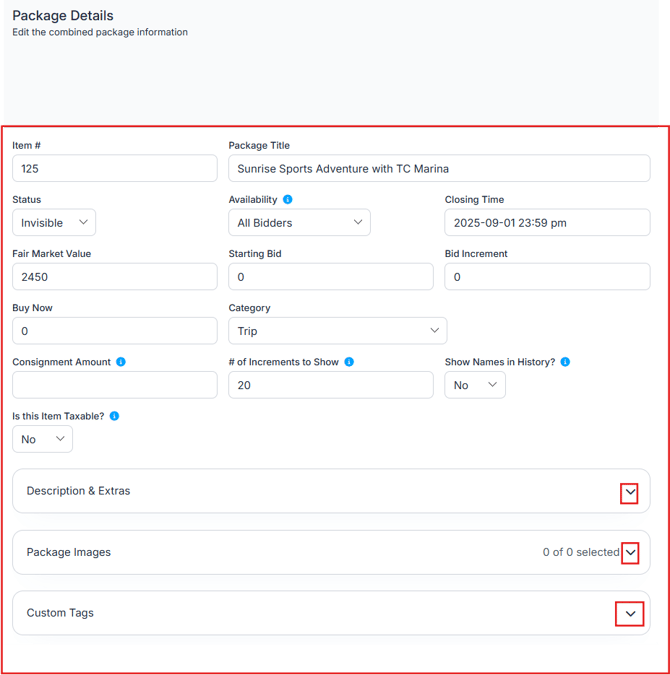
Fill in or review the following fields for the new package item:
1. **Item #**: A new item number will be suggested automatically. You can change it if needed.
2. **Package Title**: AuctionGPT will generate a suggested title by combining the individual item names.
3. **Status**: Defaults to **Invisible**. Change this to **Active** when you're ready for bidders to see it.
4. **Availability**: Choose **All Bidders** or **Checked In Bidders**.
5. **Closing Time**: Set the date and time bidding will close for this package.
6. **Fair Market Value**: Automatically summed from all linked items. Review and adjust if needed.
7. **Starting Bid**: Auto-calculated based on your Pricing Defaults. Edit as needed.
8. **Bid Increment**: Auto-calculated. Edit as needed.
9. **Buy Now**: Enter a buy now price if applicable.
10. **Category**: Assign the package to a category.
11. **Consignment Amount**: Enter if applicable.
12. **# of Increments to Show**: Defaults to 20. Adjust as needed.
13. **Show Names in History?**: Choose Yes or No.
14. **Is this Item Taxable?**: Choose Yes or No.
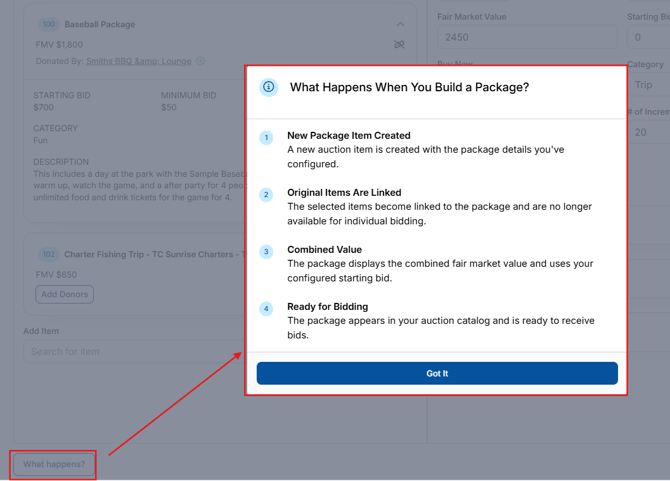
ℹ️Click  in the bottom left corner of the page for a summary of what will occur when you finish building the package, including how linked items are handled and what the new packaged item will look like.
****
**Description and Extras**
1. Expand the **Description & Extras** section.
2. A description will be auto-generated by AuctionGPT, combining the individual item descriptions into one concise write-up. You can also toggle to use the **Combined Original Descriptions** instead.
AuctionGPT:
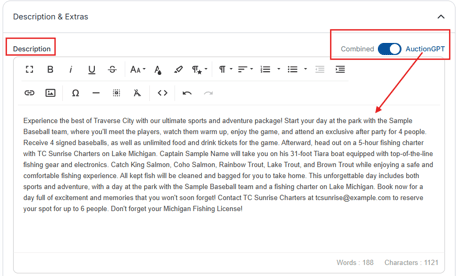
Combined: Will separate the descriptions by a horizontal line.
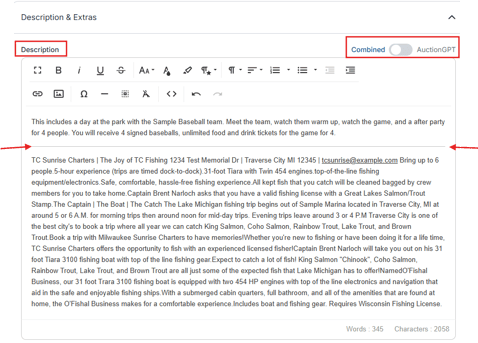
3. Review and edit the description as needed using the full text editor.
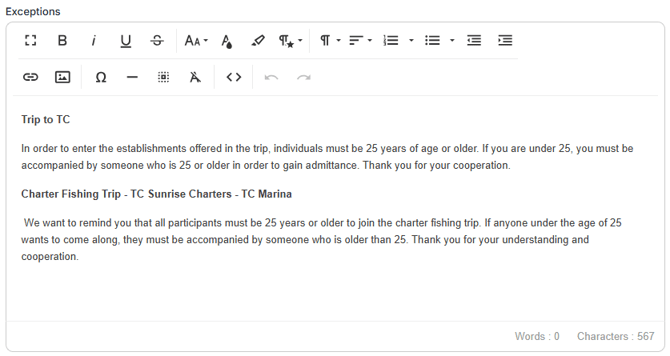
4. Exceptions from linked items will be listed by item name for easy review. Edit as needed.
**Package Images**
1. Expand the **Package Images** section.
2. Select images from the linked items to include in the package. Up to 10 images can be selected total.
3. You can also upload new images directly. The combined total of selected and uploaded images cannot exceed 10.
**Custom Tags**
1. Expand the **Custom Tags** section if you want to assign any custom tags to the package.
---
#### ✅ Step 3: Finish the Package
1. Review all details on both panels.
2. When everything looks correct, click the **Finish** button in the bottom right corner.
3. Confirm when prompted.
Once confirmed, the following will happen automatically:
- The linked items will be moved to the 9000 item number range and assigned a **Linked** status, invisible to bidders and locked from editing.
- A new packaged item is created with the details you configured.
- The new item is tagged **"packaged"** automatically.
- Donors from all linked items are added to the new packaged item.
To cancel without creating the package, click the **Cancel** button. All selected items will remain exactly as they were.
---
#### 🔁 How to Unpackage or Modify a Package
You can unlink items from a package at any time, as long as the packaged item has no bids.
1. On the **Manage Items** page, click the **+** icon next to the packaged item to expand it.
2. Click the **broken link icon** next to any linked item you want to remove.
3. The Build Package form will reopen showing the remaining items. You can choose to rebuild the package details or keep them as-is.
4. If removing an item leaves only one linked item in the package, a popup will warn you that the package will be deleted and the remaining linked items will be reinstated as **Invisible**.
⚠️ Item numbers will not be reset if a package is deleted. Linked items reinstated after unpackaging will retain their numbers in the 9000 range. You also cannot remove a linked item from a package using the Batch Update tool.
---
#### 🔁 Viewing Packaged Items in Manage Items
After packaging, the Manage Items table will display the new packaged item with a **+ icon** next to it.
- Click the **+** to expand and see all linked items nested beneath it.
- If you prefer to view all items without nesting, look for the option to **turn off grouping** at the top of the items table.
ℹ️The **Group Packaged Items** checkbox at the top of the All Items section controls whether linked items are nested under their package. Uncheck it to display all items in a flat list.
---
#### 📊 How Packaged and Linked Items Appear in a Downloaded CSV
The items table on the Manage Items page includes a **CSV download** option that exports all of your items. When your event includes packaged items, both the package itself and its linked items will be included in the export. Here is what to expect.
**Downloading the CSV**
1. On the **Manage Items** page, locate the **All Items** table.
2. Use the table's export or download option to save the CSV to your computer.
3. Open the file in Excel, Google Sheets, or any spreadsheet application.
**How packaged items appear**
Each packaged item exports as its own row with the item details you configured in the Build Package form. You will recognize a packaged item in the CSV by its **Tags** column, which will include the system tag **packaged**. The **Status** column for packaged items will show **Invisible**, since packages are not visible on the bidding site until you change the status to Active.
**How linked items appear**
Each linked item also exports as its own row. You will recognize linked items by two things: their item number will be in the **9000 range**, and the **Status** column will show **Linked to Package (#XXX)**, where XXX is the item number of the package they belong to. This makes it easy to see exactly which package each linked item is associated with.
ℹ️Linked items will show a status of **Linked to Package (#XXX)** in the CSV, not Active, Closed, or Invisible. This is expected. Linked items are locked from bidding and invisible to guests until they are unlinked from their package.
**What the CSV data tells you**
A few things worth knowing when working with the exported data:
- The **Tags** column on linked items will show their original custom tags as well as system tags like **donated item**, **has pic**, or **no pic**.
- The **FMV**, **Start**, and **Raise** columns on linked items reflect the original values from when the items were created, not the package totals.
- The packaged item's FMV reflects the combined total set during the packaging process.
- Linked items retain their original item names in the **Name** column, making it easy to identify them even after packaging.
ℹ️ Use the **Status** column to quickly filter your CSV for all linked items at once. Any row showing "Linked to Package" is a linked item. Any row with the tag "packaged" is the parent package item.
#### 🖨️ Display Cards and Packaged Items
Display Cards are printable cards you can place next to items at your event. When your event includes packaged items, here is how packaging affects what prints.
**Accessing Display Cards**
1. In the left-hand navigation, click **Items** to expand the menu.
2. Click **Display Cards**.
**What prints for packaged items**
When you generate display cards, the **packaged item** will print as its own card using the package title, item number, description, FMV, starting bid, and any images you selected during the Build Package process. This is the card you would place at your event next to the bundled lot.
Linked items, the original items that were combined into the package, will **not** print when generating display cards, even when **All** is selected in the **Items to Display/Print** field. Because linked items have a status of **Invisible** and item numbers in the 9000 range, they are excluded from the print output automatically. You only need to worry about printing cards for your active packaged items.
**Printing only the items you want**
1. On the **Display Cards** page, locate the **Items to Display/Print** field.
2. Leave it set to **All** to print cards for all active items, or enter specific item numbers separated by commas to print a targeted set.
3. Click **Make Displays** to generate the print-ready cards.
💡You can also enter a range of item numbers in the **Items to Display/Print** field (for example, 111-120) to print a specific range without listing every number individually.
ℹ️ You can customize what appears on each display card, including item image, donor name, category, FMV, starting bid, QR code, and footer text using the **Viewable Elements** settings at the top of the Display Cards page. Choose from three themes: **Classic with Border**, **Modern Bold Title**, or **Bold Number**.
---
**🚨To learn about how to Managing your Donors view this article**: [Managing Item Donors](https://support.cbo.io/managing-item-donors?hsLang=en)
#### 📝 Summary
Item Packaging in ClickBid lets you combine silent, no-bid items into a single auction package, complete with an auto-generated title, combined description, summed FMV, and merged donor records. Linked items stay in the system but become invisible and locked until unlinked. The process is fully reversible as long as the package has no bids.
- [Account & Setup](https://support.cbo.io/account-setup?hsLang=en#main-content)
- [Users & Logging In](https://support.cbo.io/account-setup?hsLang=en#users-logging-in)
- [Billing/Renewal](https://support.cbo.io/account-setup?hsLang=en#billing-renewal)
- [Organization Account](https://support.cbo.io/account-setup?hsLang=en#organization-account)
- [Event Settings](https://support.cbo.io/account-setup?hsLang=en#event-settings)
- [Auction Settings](https://support.cbo.io/account-setup?hsLang=en#auction-settings)
- [Welcome Page](https://support.cbo.io/account-setup?hsLang=en#welcome-page)
- [Get Started](https://support.cbo.io/get-started?hsLang=en#main-content)
- [Pre-Event Prep](https://support.cbo.io/get-started?hsLang=en#pre-event-prep)
- [Creating a New Event](https://support.cbo.io/get-started?hsLang=en#creating-a-new-event)
- [Event Day Toolkit](https://support.cbo.io/event-day-toolkit?hsLang=en#main-content)
- [Paddle Raise](https://support.cbo.io/event-day-toolkit?hsLang=en#paddle-raise)
- [Live Auction](https://support.cbo.io/event-day-toolkit?hsLang=en#live-auction)
- [Silent Auction](https://support.cbo.io/event-day-toolkit?hsLang=en#silent-auction)
- [Butler](https://support.cbo.io/event-day-toolkit?hsLang=en#butler)
- [Volunteer Training](https://support.cbo.io/event-day-toolkit?hsLang=en#volunteer-training)
- [Messaging](https://support.cbo.io/messaging?hsLang=en#main-content)
- [Text & Emails](https://support.cbo.io/messaging?hsLang=en#text-emails)
- [Chat Bidders](https://support.cbo.io/messaging?hsLang=en#chat-bidders)
- [Welcome Text, Text Bidders, & Email Bidders](https://support.cbo.io/messaging?hsLang=en#welcome-text-text-bidders-email-bidders)
- [Tickets & Sponsorships](https://support.cbo.io/tickets-sponsorships?hsLang=en#main-content)
- [Tickets, Sponsorships & Underwriting Overview](https://support.cbo.io/tickets-sponsorships?hsLang=en#tickets-sponsorships-underwriting-overview)
- [Reporting & Data](https://support.cbo.io/tickets-sponsorships?hsLang=en#reporting-data)
- [Manage Ticketed Guests](https://support.cbo.io/tickets-sponsorships?hsLang=en#manage-ticketed-guests)
- [RSVP & Invoicing](https://support.cbo.io/tickets-sponsorships?hsLang=en#rsvp-invoicing)
- [Items](https://support.cbo.io/items?hsLang=en#main-content)
- [Items Overview & Setup](https://support.cbo.io/items?hsLang=en#items-overview-setup)
- [Quantity Items / E-Commerce](https://support.cbo.io/items?hsLang=en#quantity-items-e-commerce)
- [Item Donation Form and Donors](https://support.cbo.io/items?hsLang=en#item-donation-form-and-donors)
- [FMV & Tax](https://support.cbo.io/items?hsLang=en#fmv-tax)
- [Peer to Peer and Donation Campaigns](https://support.cbo.io/peer-to-peer-and-donation-campaigns?hsLang=en#main-content)
- [Peer to Peer and Donation Setup](https://support.cbo.io/peer-to-peer-and-donation-campaigns?hsLang=en#peer-to-peer-and-donation-setup)
- [Recurring Donations](https://support.cbo.io/peer-to-peer-and-donation-campaigns?hsLang=en#recurring-donations)
- [Text to Give](https://support.cbo.io/peer-to-peer-and-donation-campaigns?hsLang=en#text-to-give)
- [Embed Your Donation Form](https://support.cbo.io/peer-to-peer-and-donation-campaigns?hsLang=en#embed-your-donation-form)
- [Appeal Display](https://support.cbo.io/peer-to-peer-and-donation-campaigns?hsLang=en#appeal-display)
- [Bidders](https://support.cbo.io/bidders?hsLang=en#main-content)
- [Bidder Setup](https://support.cbo.io/bidders?hsLang=en#bidder-setup)
- [Donor Thank You Letters](https://support.cbo.io/bidders?hsLang=en#donor-thank-you-letters)
- [Bidder Registration Custom Questions](https://support.cbo.io/bidders?hsLang=en#bidder-registration-custom-questions)
- [Reporting & Data](https://support.cbo.io/reporting-data?hsLang=en#main-content)
- [Event Reporting](https://support.cbo.io/reporting-data?hsLang=en#event-reporting)
- [Credit Card Processing & Payments](https://support.cbo.io/credit-card-processing-payments?hsLang=en#main-content)
- [Credit Card Processing & Payments](https://support.cbo.io/credit-card-processing-payments?hsLang=en#credit-card-processing-payments)
- [FAQs](https://support.cbo.io/credit-card-processing-payments?hsLang=en#faqs)
- [Merchant Account & Merchant Report](https://support.cbo.io/credit-card-processing-payments?hsLang=en#merchant-account-merchant-report)
- [Web Content / Event Landing Pages](https://support.cbo.io/web-content-event-landing-pages?hsLang=en#main-content)
- [Design & Customization](https://support.cbo.io/web-content-event-landing-pages?hsLang=en#design-customization)
- [Accepting Donations From Your Landing Page](https://support.cbo.io/web-content-event-landing-pages?hsLang=en#accepting-donations-from-your-landing-page)
- [EventStream Video Streaming](https://support.cbo.io/eventstream-video-streaming?hsLang=en#main-content)
- [Virtual Live Auction and Paddle Raise](https://support.cbo.io/eventstream-video-streaming?hsLang=en#virtual-live-auction-and-paddle-raise)
- [EventStream FAQ](https://support.cbo.io/eventstream-video-streaming?hsLang=en#eventstream-faq)
- [Integrations + Partners](https://support.cbo.io/integrations-partners?hsLang=en#main-content)
- [Neon One](https://support.cbo.io/integrations-partners?hsLang=en#neon-one)
- [Raiser's Edge NXT](https://support.cbo.io/integrations-partners?hsLang=en#raisers-edge-nxt)
- [Bloomerang](https://support.cbo.io/integrations-partners?hsLang=en#bloomerang)
- [Salesforce for Nonprofits](https://support.cbo.io/integrations-partners?hsLang=en#salesforce-for-nonprofits)
- [Charityproud](https://support.cbo.io/integrations-partners?hsLang=en#charityproud)
- [Classy](https://support.cbo.io/integrations-partners?hsLang=en#classy)
- [TravelPledge](https://support.cbo.io/integrations-partners?hsLang=en#travelpledge)
- [Double the Donation](https://support.cbo.io/integrations-partners?hsLang=en#double-the-donation)
- [HGA Fundraising](https://support.cbo.io/integrations-partners?hsLang=en#hga-fundraising)
- [Public API](https://support.cbo.io/integrations-partners?hsLang=en#public-api)
- [Zapier](https://support.cbo.io/integrations-partners?hsLang=en#zapier)
- [Virtuous](https://support.cbo.io/integrations-partners?hsLang=en#virtuous)
- [Charity Experiences](https://support.cbo.io/integrations-partners?hsLang=en#charity-experiences)
- [Donorperfect](https://support.cbo.io/integrations-partners?hsLang=en#donorperfect)
- [Little Green Light](https://support.cbo.io/integrations-partners?hsLang=en#little-green-light)
- [FAQs](https://support.cbo.io/faqs?hsLang=en#main-content)
- [FAQs](https://support.cbo.io/faqs?hsLang=en#faqs)
[](https://try.cbo.io)
ClickBid Training Hub
Copyright © 2026, ClickBid Event Fundraising
```json
{
"@context" : "https://schema.org",
"@type" : "VideoObject",
"caption" : {
"@type" : "MediaObject",
"contentUrl" : "https://support.cbo.io/media-transcripts/217410094190/en.vtt",
"inLanguage" : "en",
"name" : "en Captions"
},
"contentUrl" : "https://22025730.fs1.hubspotusercontent-na1.net/hubfs/22025730/video_assets/217410094190/inherited/web_optimized.mp4",
"dateModified" : "2026-07-17T23:57:41.353Z",
"duration" : "PT2M27S",
"height" : 1080,
"name" : "item packaging -getting started UPDATED-1",
"thumbnailUrl" : "https://22025730.fs1.hubspotusercontent-na1.net/hubfs/22025730/item%20packaging%20-getting%20started%20UPDATED-1.mp4/medium.jpg",
"uploadDate" : "2026-07-17T23:57:27.637Z",
"width" : 1920
}
```
```json
{
"@context" : "https://schema.org",
"@type" : "VideoObject",
"caption" : {
"@type" : "MediaObject",
"contentUrl" : "https://support.cbo.io/media-transcripts/217410051370/en.vtt",
"inLanguage" : "en",
"name" : "en Captions"
},
"contentUrl" : "https://22025730.fs1.hubspotusercontent-na1.net/hubfs/22025730/video_assets/217410051370/inherited/web_optimized.mp4",
"dateModified" : "2026-07-17T22:35:20.713Z",
"duration" : "PT3M20S",
"height" : 1080,
"name" : "item packaging - building your package UPDATED",
"thumbnailUrl" : "https://22025730.fs1.hubspotusercontent-na1.net/hubfs/22025730/item%20packaging%20-%20building%20your%20package%20UPDATED.mp4/medium.jpg",
"uploadDate" : "2026-07-17T22:34:59.054Z",
"width" : 1920
}
```
```json
{
"@context" : "https://schema.org",
"@type" : "VideoObject",
"caption" : {
"@type" : "MediaObject",
"contentUrl" : "https://support.cbo.io/media-transcripts/217410070641/en.vtt",
"inLanguage" : "en",
"name" : "en Captions"
},
"contentUrl" : "https://22025730.fs1.hubspotusercontent-na1.net/hubfs/22025730/video_assets/217410070641/inherited/web_optimized.mp4",
"dateModified" : "2026-07-17T22:52:54.807Z",
"duration" : "PT2M43S",
"height" : 1080,
"name" : "item packaging - viewing&editing UPDATED",
"thumbnailUrl" : "https://22025730.fs1.hubspotusercontent-na1.net/hubfs/22025730/item%20packaging%20-%20viewing&editing%20UPDATED.mp4/medium.jpg",
"uploadDate" : "2026-07-17T22:52:37.189Z",
"width" : 1920
}
```