Easily organize and view your events with custom sort and table views!
👀🗓️ Two Options to View Events
Option 1: Card View (default)
Option 2: Table/Spreadsheet View
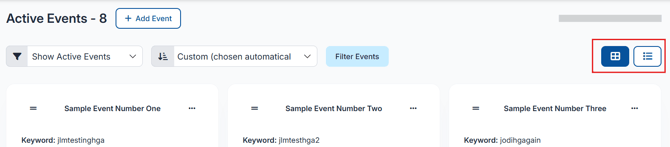
On the right side of the Events Page, you will see two squares to help sort your events.⬇️
📊 Table / Spreadsheet View (Option 1)
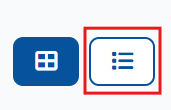
To view the table/spreadsheet style, click this button.
This view is at 100% zoom, and the spreadsheet style shows a scroll for more information.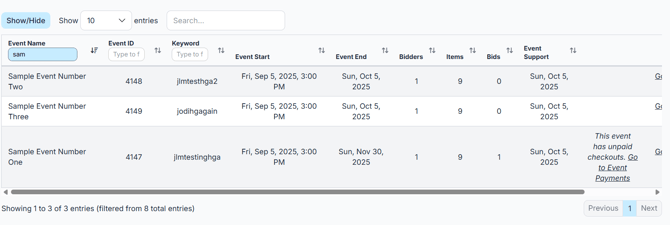
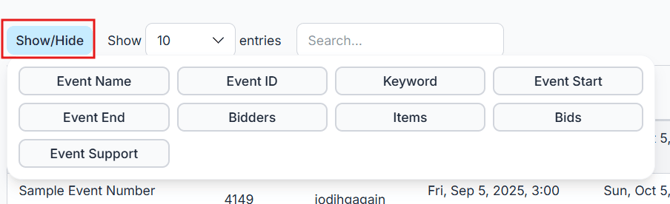
Pro Tip! Use the Show/Hide button to adjust your column data.
Pro Tip! Use the up and down arrows next to the column headers to sort your event data.

🗃️ Card View (Option 2)
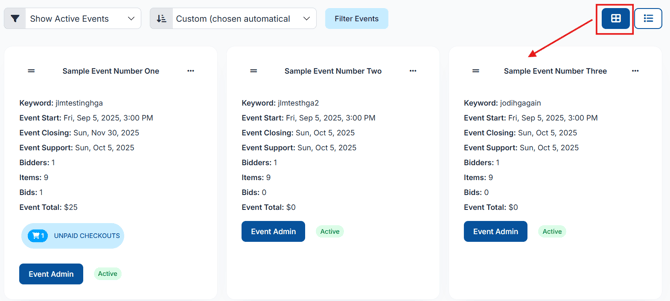
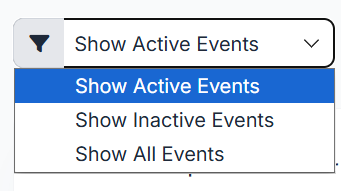
For Card View, go to the 'Status' and choose from the 3 options listed
- Show Active Events - This will display only events that are active
- Show Inactive Events - This will display only events that have been deactivated.
- Show All Events - This will display all active and inactive events.
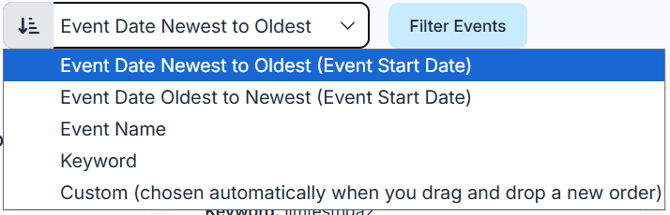
Locate the Sort by filter: Choose to sort by one of the following:
- Event Date Newest to Oldest (Event Start Date) (default)
- Event Date Oldest to Newest (Event Start Date)
- Event Name
- Keyword
- Custom (chosen automatically when you drag and drop a new order)
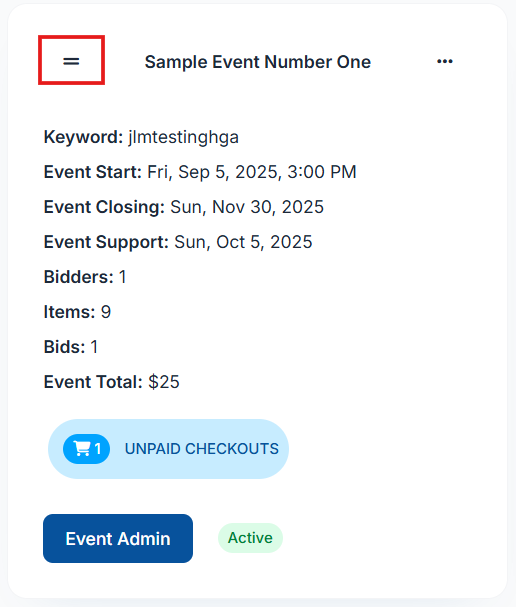
When sorting by card view, use your cursor to hover over the 2 lines in the top left of the event card and drag the event card to the order of your choice.⬇️