
🔍 Step 1: Find Your Donation Settings
- In the left-hand navigation, click Donations/TTG to expand the menu.
- Click Settings.
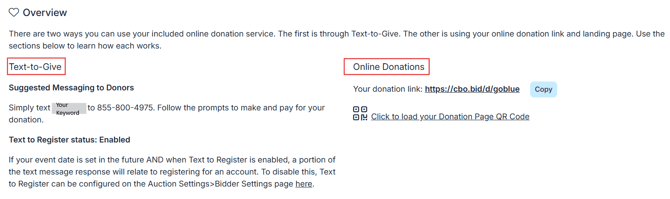
From this page you will find your donation link, Text-to-Give keyword, and QR code, all ready to share with donors.
💡 Share your QR code or donation link during live events or on printed materials to increase participation. You can also click to load your QR code directly from the Settings page.
🌐 Step 2: Embed the Donation Form on Your Website
If you want to collect donations directly from your own website:
- Click Copy Embed Code on the Settings page.
- Paste this code into your website’s HTML or web editor to display the donation form on your page.
- For detailed instructions on embedding the form in specific website platforms, refer to the following support links:
Reach out to your ClickBid Account Manager for extra help embedding your donation form!
🎨 Step 3: Customize Your Donation Page
In the Donation Page Settings section, configure the following to match your event and brand:
Primary Color: controls underlines, outlines, the Donations Raised progress bar, and the Giving Activity icon.
Secondary Color: applies to the top bar of the page, the One Time button, and the dollar amount shown in Giving Activity.
Donation Goal: add a goal amount to display a live progress bar on your donation page.
Donation Buffer: enter any amounts you have received outside of Text-to-Give (cash, check, etc.) so they are reflected in your running total.
Donation Title: appears at the top of your donation page.
Suggested Amounts: add preset donation buttons for donors to choose from. Click the + Denomination button to add an amount, enter the dollar value in the Denomination field, and set the Sort Order to control the sequence the buttons appear in. Repeat for each amount you want to offer. To remove an amount, click the red delete button next to that row.
Reporting Start and End Date: filter which donations appear in your reports based on date range.
Allow Recurring Donations: set to Yes to let donors give on a monthly schedule instead of one time.
Show Double the Donation: allows donors to search for their employer to check if their company matches donations. Requires a separate signup via the Integrations Dashboard.
Show Comments and Activity: set to Yes to let donors see other donors' comments and giving activity on the page.
Include Landing Page Navigation Bar: choose whether to show your event's navigation menu on the donation page or keep it hidden.
Donation Notification Contact: enter the email address(es) that should receive a notification when a new donation comes in. If left blank, ClickBid will send to the address under Event Settings > Event Support Contact.
ℹ️ Use the Donation Description field to add context beneath your title, such as why you are fundraising or where the money goes. This appears directly on the donation page.
🧾 Step 4: Customize Your Donation Receipt Footer
- Scroll down to the Donation Receipt Footer field in the Settings panel.
- Enter the text you want to appear at the bottom of donation receipts, such as your organization's tax ID.
💡 Tip: Including your tax ID in the receipt footer helps donors with tax reporting and builds trust in your organization.
🖼️ Step 5: Add a Donation Image
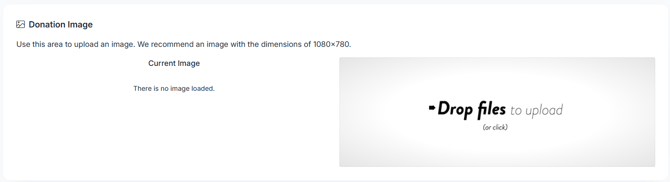
- Scroll down to the Donation Image section on the Settings page.
- Drag and drop your image into the upload area, or click to browse and select a file.
💡We recommend an image sized at 1080x780 for best results.
📝 Step 6: Add Custom Questions (Optional)
If you need to collect additional information from donors, you can add custom questions that appear on the donation form.
- Scroll down to the Custom Questions section on the Settings page.
- Click Add Question.
- Enter your question text, set whether it is active, choose the response type, and set whether it is required.
There are two response types. Text questions let donors type a free-form answer, and Drop Down questions let donors choose from a list of preset options you create. Use text questions for open-ended responses and dropdowns for standardized answers that are easier to report on.
🔗 Step 7: Show the Donate Link on Your Landing Page
To display a Donate link in your event's navigation menu:
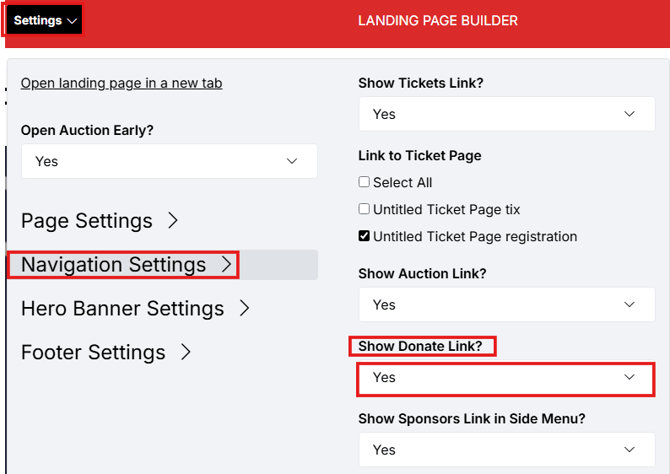
- Go to Software Settings > Landing Page Builder.
- Click Navigation.
- Set Show Donate Link? to Yes.
💸 How to Refund a Donation
- Go to Donations/TTG > Manage Donations.
- Find the donation in the table and click Refund.
- Choose Refund Whole Line Item to refund the full amount, or enter a custom amount in the To Refund box.
- Click Submit.
🗑️ How to Delete a Donation
- Go to Donations/TTG > Manage Donations.
- Check the box next to the donation you want to delete.
- Scroll down to the Batch Update section.
- Check the Delete box and type Delete to confirm.
- Click Process Batch and confirm when prompted.
⚠️ Deleting a donation is permanent and cannot be undone. If you may need to retain records, consider issuing a refund instead.
📱 Enable Text to Register for New Donors (Optional)
This setting lets new donors self-register when they give via text for the first time.
- Go to Software Settings > Auction Settings > Bidder Settings.
- Find Text to Register and set it to Yes.
ℹ️ Enabling this setting will allow donors to register as bidders for your event. Donors do not need to register if they are only giving through Text-to-Give or an online donation link, they can donate without creating a bidder account.