
⚙️ Access the Countdown Clock Settings
To control how (or if) the countdown clock appears on your bidding site:
-
Go to Software Settings> Auction Settings
-
Scroll down to Countdown Clock
🕒 Countdown Clock Display Options
You’ll see three options for how the clock behaves on your public bidding site:
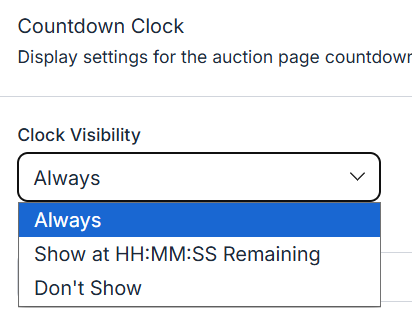
1. ✅ Always
-
The countdown clock is always visible to bidders
-
Counts down to your specified event date/time
2. ⏱️ Show at HH:MM:SS Remaining
-
Allows you to show the clock only once a certain time threshold is met
-
You’ll need to set:
-
Countdown to Date/Time – when the auction ends
-
Show When Time Remains – e.g. show only when there are 6 hours or 30 minutes left
-
💡 Tip: Great for creating urgency right before your auction closes!
3. 🚫 Don’t Show
-
Hides the countdown clock entirely from your bidding site
-
Ideal for casual or open-ended fundraising campaigns
👀 Preview the Countdown Clock
To see how your countdown clock appears to bidders:
-
Go to Event Central
-
Click Landing Page
-
Scroll to your Auction Preview section
-
Click See All Items
-
Look in the top right corner, you’ll see Time Remaining if the clock is enabled
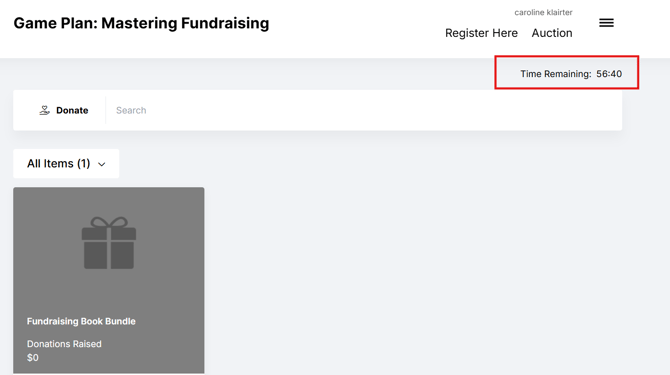
📌 Info: The countdown is only visible if your display setting is configured to show it.
🎯 Why Use the Countdown Clock?
Adding a countdown clock to your bidding site helps:
-
Create urgency and increase final bids
-
Remind remote bidders when the auction will end
-
Drive excitement and engagement during closing hours
💡 Tip: Consider combining the clock with a custom text message to remind bidders that time is running out!