
When a ticket is purchased in ClickBid, confirmation emails and statements are automatically sent to specific contacts. Here's how to manage and customize where those emails go.
Email Types Sent After a Ticket Purchase
-
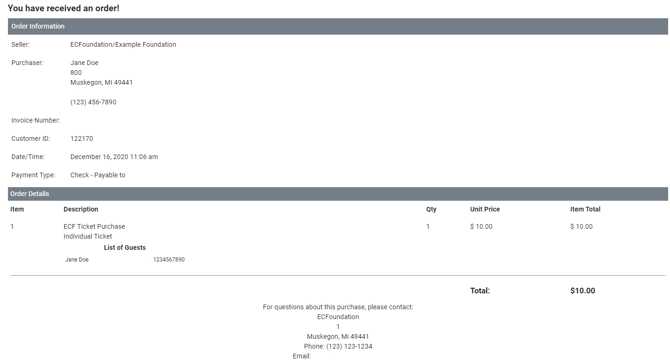
Ticket Purchase Statement
- By default sent to:
The first email listed under Software Settings > Event Settings > Event Support Contact - To add additional emails, you will first go to Software Settings > Event Settings > Event Support Contact to add the applicable emails.
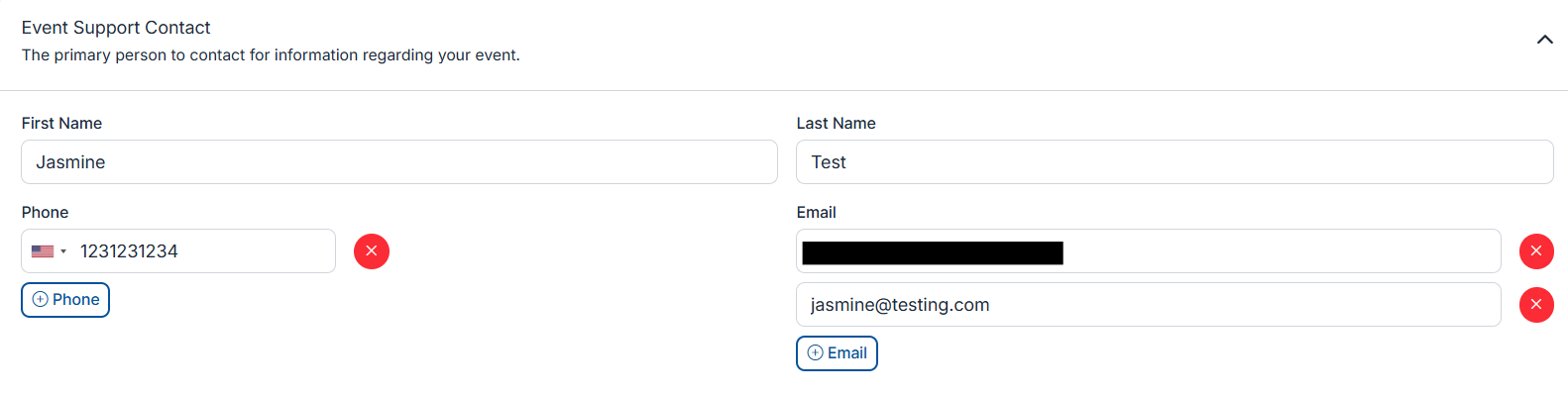
- Next, go to Event Tickets > Ticket Page Settings > General Settings > Receipt Email Addresses. Ctrl and click the additional emails that should receive these notifications.

- By default sent to:
Note: The emails highlighted in gray will be the emails to receive the ticket page notifications.
2. Ticket Purchase Confirmation Email
-
-
Sent to the ticket purchaser and can be customized under Event Tickets > Ticket Page Settings > Customizable Content > Receipt Header.
-
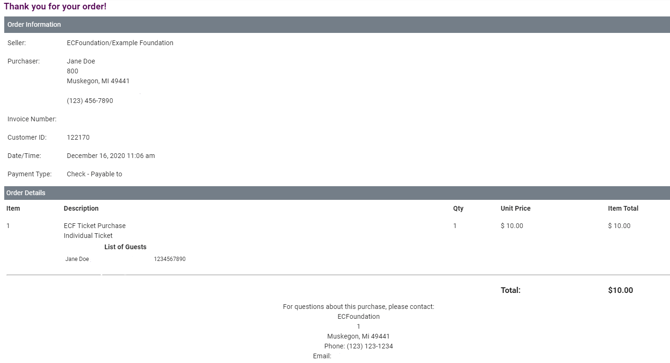
Note: If this field is not customized, by default, the text will read as 'Thank you for your order!'
3. Guest Update Email
-
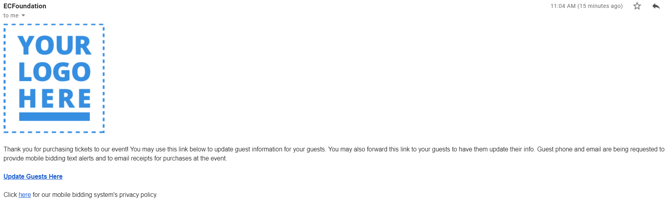
- Sent to the ticket purchaser and can be customized under Event Tickets > Ticket Page Settings > Customizable Content > Guest Update Link Email Message.
How to Change the Confirmation Email Recipient
If you'd like to send confirmation emails to someone else (or remove unnecessary recipients), follow these steps:
-
Go to Event Tickets in your admin menu.
-
Click Ticket Page Settings.
-
Under the General Settings tab, locate the Receipt Email Address field.
-
Select the new email address you'd like to receive confirmation emails. If they are not listed here, you can add them under Software Settings > Event Settings > Event Support Contact.
This will override the default recipients from your Account Settings.