
After your auction closes, batch processing lets you charge all remaining unpaid guests at once. Before you do, there is one important step: turning off mobile checkout to prevent duplicate charges.
🚫 Step 1: Turn Off Mobile Checkout
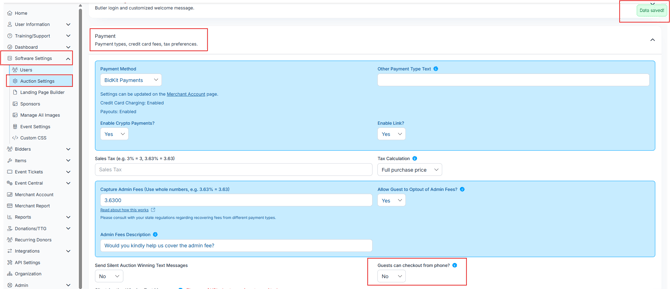
Before processing any payments, disable the option that allows guests to check out from their own phones. This prevents a guest from paying on their device at the same time you are running a batch charge.
🔧 Steps to Turn Off Guest Checkout:
- Go to Software Settings > Auction Settings.
- Click the Payments tab.
- Find the setting Allow Guests to Check Out from Phone.
- Change it to No.
- Changes save automatically, look for the data saved in the upper right of the screen.
⚠️ Warning: If guests can still check out from their phones while you are running a batch process, it could result in duplicate charges. Always disable this setting first.
💳 2. Step 2: Batch Process Unpaid Checkouts
Batch processing allows you to charge all remaining unpaid guests at once, no manual follow-up required unless a card fails.
🔁 Steps for Batch Processing:
-
Go to Event Central > Event Payments.
-
Expand the Unpaid Checkouts section.
- Make sure to Show All entries so you don’t miss anyone
-
Use the checkboxes to select all unpaid bidders. Check the box in the header row to select all at once.
-
Use the checkboxes to select all unpaid bidders
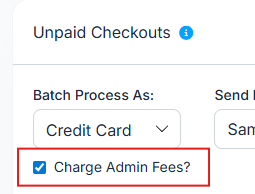
- If you do not want admin fees passed to your donors, uncheck the Charge Admin Fees? box before proceeding.
- Enter the email address where you want the batch results sent in the Send Result To field.
7. Click Batch Process
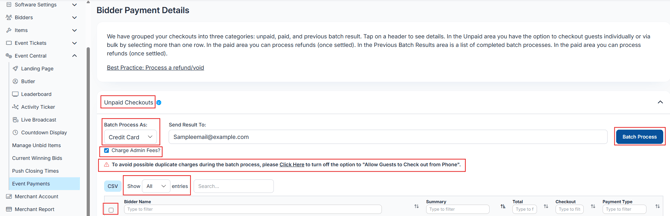
💡Double-check the Batch Process As dropdown before clicking the button. Selecting the wrong payment type means transactions may process incorrectly.
ℹ️ You can also use this page to check out a single bidder. Click the Checkout link next to any individual bidder's name to process their payment on its own.
📊Step 3: Review the Results
Batch processing can take 20 minutes or longer depending on how many guests are being charged. Once complete, you can review the results.
Where to Find Results:
- Expand the Previous Batch Results section on the same page.
- Review the batch summary, which includes the date, total number of transactions, and a breakdown of successful and unsuccessful charges.
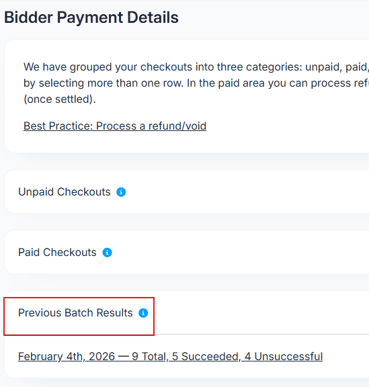
ℹ️ The results are also sent to the email address you entered in Step 2, so you do not need to stay on the page while it processes.
✅ Step 4: Review Paid Checkouts
Once processing is complete, expand the Paid Checkouts section to confirm who has been successfully charged. From here you can also print or email a receipt for any transaction, or process a refund once a charge has settled.
❗ Step 5: Follow Up on Failed Payments
If a bidder still appears in Unpaid Checkouts after 20 minutes, their card was likely declined.
- Reach out to the guest directly and ask them to update their payment method.
- Once they have a valid card on file, you can process their checkout individually using the Checkout link next to their name.
⚠️ Warning: ClickBid cannot automatically retry declined payments. Manual follow-up is required for any failed transactions.
✅ Quick Checklist Before You Batch Process
- Turn off Allow Guests to Check Out from Phone
- Confirm all items are closed
- Select all unpaid bidders
- Confirm Batch Process As is set to Credit Card
- Decide whether to include or exclude admin fees
- Enter your email address to receive the results