Learn how to set up and manage ClickBid's Text to Give feature, including customizing your donation page, enabling donor registration, refunding or deleting donations, and more. Perfect for nonprofits looking to simplify mobile giving.
🛠️ How to Create a Online Donation/Text to Give
-
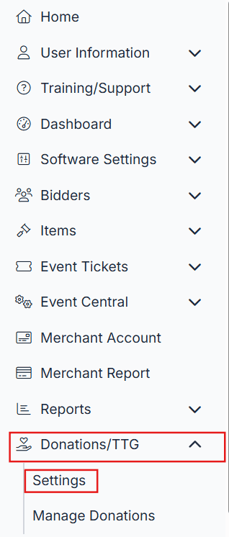
Go to Donations/TTG>Settings
📎 Setup Instructions:
-
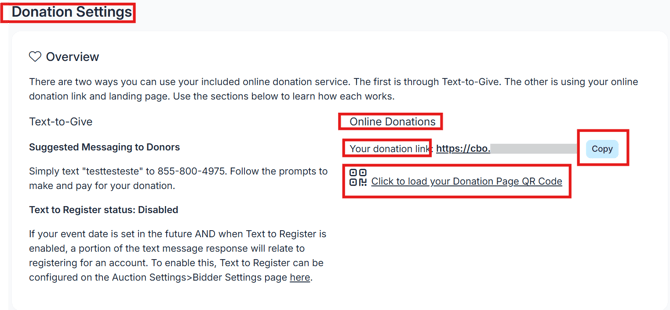
Locate your donate link under Overview. Copy your Donation Link to share directly with supporters via text, email, or website.
-
Click the link to download your Donation QR Code image.
-
Right-click the image to save and print it on flyers, programs, or signage.
-
Donors who scan the QR code will be taken directly to the donation form.
💳 Steps to Refund a Text to Give Payment:
-
Go to Donations/TTG> Manage Donations
-
Locate the donor that needs to be refunded. To the far right click the Refund Icon


-
Add the amount to be refunded. If refunding the full amount click the Refund Whole Line Item box.
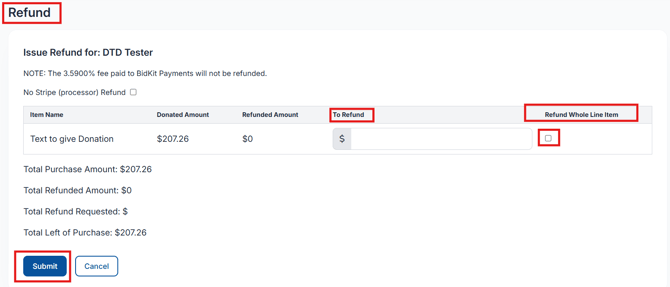
ℹ️ Info: ClickBid does not automatically send a refund receipt.
To send an updated statement manually:
-
Go to Donations/TTG>Manage Donations>locate the person refunded, then click re-email icon.