---
title: 💸 Setting Up Recurring Donations
description: Learn how to set up and manage recurring donations in ClickBid, including enabling monthly giving, managing donor profiles, issuing refunds, and understanding the donor experience. Perfect for nonprofits looking to boost sustainable giving through online and text-to-give campaigns.
---
[Skip to content](https://support.cbo.io/-setting-up-recurring-donations-in-clickbid#main-content)

- [Blog](https://blog.cbo.io/)
- [ClickBid Admin](https://cbo.io/admin/login.php)
Open main navigation
Close main navigation
- [Blog](https://blog.cbo.io/)
- [ClickBid Admin](https://cbo.io/admin/login.php)
- [View our Training Videos](https://training.clickbidonline.com/all-courses/)
[View our Training Videos](https://training.clickbidonline.com/all-courses/)
Welcome to ClickBid's Knowledge Base
- There are no suggestions because the search field is empty.
1. [ClickBid How To Articles](https://support.cbo.io/?hsLang=en)
2. [Peer to Peer and Donation Campaigns](https://support.cbo.io/peer-to-peer-and-donation-campaigns?hsLang=en)
3. [Recurring Donations](https://support.cbo.io/peer-to-peer-and-donation-campaigns?hsLang=en#recurring-donations)
# 💸 Setting Up Recurring Donations
#### Recurring donations help your organization build consistent, year-round support. Once you enable the feature on a donation item, donors can choose to give monthly and manage their giving directly from their Donor Profile.
---
### 🛠️ What is a Recurring Donation?
A recurring donation allows a donor to give on a regular monthly schedule instead of a one-time gift. This helps nonprofits build a more sustainable fundraising model without requiring donors to remember to give each month.
💡 **Tip:** Encourage donors to choose the monthly option by highlighting the long-term impact their ongoing support has on your mission.
### There are 2 different methods for a recurring donation. Through a donation item, and through the Donation/TTG page.
1. #### ⚙️ Step 1: Enable Recurring Donations on a Donation Item
Recurring donations are enabled at the item level. You will need to turn this on for each donation item where you want the option to appear.
1. In the left-hand navigation, click **Items** to expand the menu.
2. Click **Manage Items**.
3. Locate the donation item you want to enable recurring donations for and click the edit icon to open it.
4. Scroll down to the **Essentials** section\> **Item Type**, and check the box labeled **Allow Recurring Donations**.
5. Click **Complete and Go Back**.
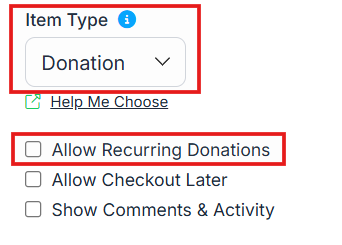
⚠️ If **Allow Recurring Donations** is not checked on the donation item, the monthly giving option will not appear to donors when they go to make a donation.
On the **Manage Items** page, you'll now see a **“recurring” tag** next to any donation items with recurring enabled

#### 📂 Step 2: View and Manage Recurring Donors
Once donors have set up recurring donations, you can monitor and manage them from the Recurring Donors page.
1. In the left-hand navigation, click **Recurring Donors**.
2. View each donor's name, donation amount, next donation date, card on file, status, and the event the donation is tied to.
3. Admin contacts will receive a confirmation email each time a recurring donation is successfully processed.
4. If a donor cancels their recurring donation, the admin contact email listed under **Software Settings \> Event Settings \> Event Support Contact** will be notified.
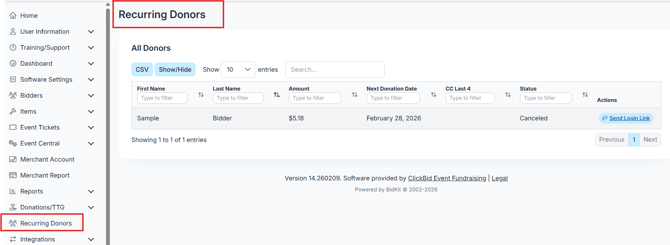
ℹ️The Recurring Donors page is also accessible at the Organization level, where you can view recurring donors across all of your events in one place. Go to **Organization \> Recurring Donors** to access this view.
#### 📬 Step 3: Send a Donor Their Login Link
Donors manage their recurring giving through their Donor Profile. If they need access, you can send them a login link directly from the Recurring Donors page.
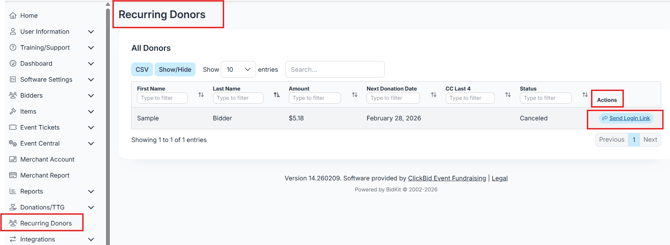
1. On the **Recurring Donors** page, locate the donor.
2. Click **Send Login Link** next to their name.
3. The donor will receive an email with a link to access their Donor Profile.
---
#### 💻 How the Donor Experience Works
**On the bidding site:**
1. The donor selects a Donation Item during the event.
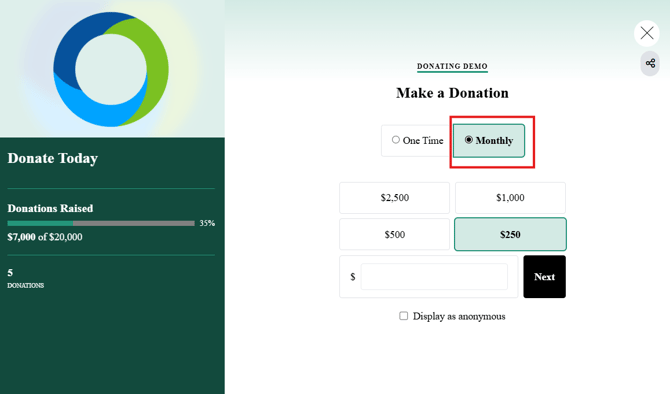
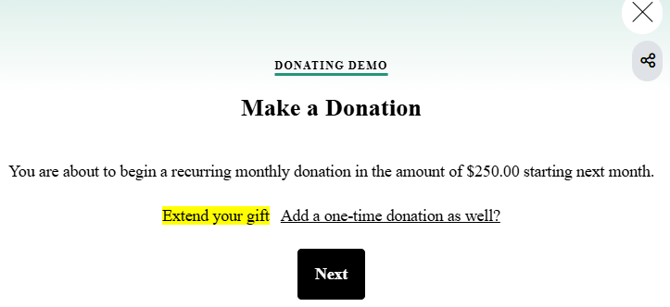
2. A popup appears giving them the option to **Donate Once** or view **Monthly Options**.
3. If they choose monthly, they complete their donation and are enrolled in recurring giving.
**After each donation:**
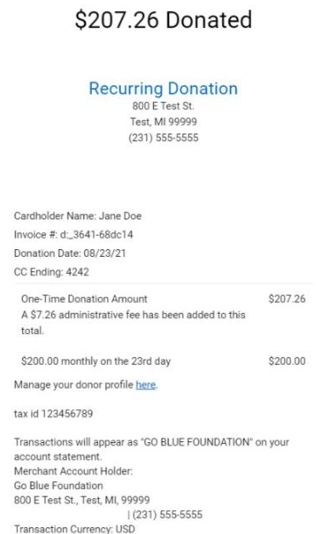
Donors receive a receipt email after every processed recurring donation. The email includes their donation details and a link to access and manage their Donor Profile.
#### 🔐 Step 4: Donor Sets Up Their Profile
The first time a donor accesses their Donor Profile, they will go through a brief setup process.
1. The donor clicks the link in their receipt email.
2. A confirmation message appears prompting them to verify their email address.
3. The donor completes verification and creates a password.
4. They log in and are taken to their Donor Profile.
****
ℹ️ The email verification link expires after 60 minutes. If the donor does not complete verification in time, they can request a new link.
---
#### 👤 What Donors Can Do in Their Profile
Once logged in, donors have access to two main areas.
**Profile tab**
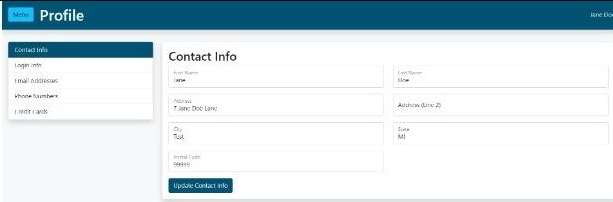
Donors can update their contact information, change their login credentials, manage email addresses on file, and manage phone numbers associated with their account. They can also add or remove payment cards and will see **Expiring Soon** or **Expired** labels on cards that need attention.
**Manage Recurring Donations tab**
Donors can view all upcoming donations, update donation details (amount, date, or card on file), pause or cancel a recurring donation, and view their full donation history. They can also export their donation records from this tab.
💡If a donor wants to pause or cancel their recurring donation and cannot access their profile, see the related article: [**How to Pause or Cancel a Recurring Donation in ClickBid**.](https://support.cbo.io/-how-donors-can-pause-or-cancel-recurring-donations?hsLang=en)
---
#### 💬 Enabling Recurring Donations for Text-to-Give
If you want donors to be able to set up recurring giving through Text-to-Give or your online donation link, you will need to turn on the recurring donations setting in the Donations/TTG settings page. This is separate from enabling recurring donations on a specific donation item.
1. In the left-hand navigation, click **Donations/TTG** to expand the menu.
2. Click **Settings**.
3. On the Donation Settings page, scroll to the **Donation Page Settings** section.
4. Locate the **Allow Recurring Donations?** dropdown.
5. Select **Yes**.
6. Changes save automatically.
ℹ️ This setting controls whether the recurring donation option appears on your Text-to-Give page and online donation link. To allow recurring donations on a specific donation item in your auction, you also need to check **Allow Recurring Donations** on that individual item in Manage Items. Both settings work independently.
**Other Donation/TTG Page Settings worth reviewing while you're here:**
- **Donation Goal:** set a fundraising goal to display a progress bar on your donation page. Leave blank or enter 0 to hide the progress bar.
- **Donation Buffer**: enter any offline donations (cash, check, mail-in) to factor them into the progress bar.
- **Donation Title**: add a short title for your campaign. Your organization name is used by default.
- **Suggested Amounts**: add preset donation amounts that appear as buttons on the donation page. Donors can also enter a custom amount.
- **Receipt Email Addresses**: select which email addresses receive a copy of donation receipts. If none are selected, receipts go to the emails listed under **Event Settings \> Event Support Contact**.
- **Donation Description**: describe what the donation drive is about. This text appears on the donation page where donors enter their gift amount.
- **Donation Receipt Footer**: add custom text that appears at the bottom of every donation receipt.
💡Your donation page also has its own shareable link and QR code, found at the top of the Donation Settings page under **Online Donations**. Share either with donors who want to give outside of the auction itself.
📝 Summary
Recurring donations are a powerful way to grow sustainable support for your cause. Enable the feature on your donation items, share login links with donors when needed, and let donors manage the rest directly from their own profile. Everything stays organized in one place for both you and your donors.
- [Account & Setup](https://support.cbo.io/account-setup?hsLang=en#main-content)
- [Users & Logging In](https://support.cbo.io/account-setup?hsLang=en#users-logging-in)
- [Billing/Renewal](https://support.cbo.io/account-setup?hsLang=en#billing-renewal)
- [Organization Account](https://support.cbo.io/account-setup?hsLang=en#organization-account)
- [Event Settings](https://support.cbo.io/account-setup?hsLang=en#event-settings)
- [Auction Settings](https://support.cbo.io/account-setup?hsLang=en#auction-settings)
- [Welcome Page](https://support.cbo.io/account-setup?hsLang=en#welcome-page)
- [Get Started](https://support.cbo.io/get-started?hsLang=en#main-content)
- [Pre-Event Prep](https://support.cbo.io/get-started?hsLang=en#pre-event-prep)
- [Creating a New Event](https://support.cbo.io/get-started?hsLang=en#creating-a-new-event)
- [Event Day Toolkit](https://support.cbo.io/event-day-toolkit?hsLang=en#main-content)
- [Paddle Raise](https://support.cbo.io/event-day-toolkit?hsLang=en#paddle-raise)
- [Live Auction](https://support.cbo.io/event-day-toolkit?hsLang=en#live-auction)
- [Silent Auction](https://support.cbo.io/event-day-toolkit?hsLang=en#silent-auction)
- [Butler](https://support.cbo.io/event-day-toolkit?hsLang=en#butler)
- [Volunteer Training](https://support.cbo.io/event-day-toolkit?hsLang=en#volunteer-training)
- [Messaging](https://support.cbo.io/messaging?hsLang=en#main-content)
- [Text & Emails](https://support.cbo.io/messaging?hsLang=en#text-emails)
- [Chat Bidders](https://support.cbo.io/messaging?hsLang=en#chat-bidders)
- [Welcome Text, Text Bidders, & Email Bidders](https://support.cbo.io/messaging?hsLang=en#welcome-text-text-bidders-email-bidders)
- [Tickets & Sponsorships](https://support.cbo.io/tickets-sponsorships?hsLang=en#main-content)
- [Tickets, Sponsorships & Underwriting Overview](https://support.cbo.io/tickets-sponsorships?hsLang=en#tickets-sponsorships-underwriting-overview)
- [Reporting & Data](https://support.cbo.io/tickets-sponsorships?hsLang=en#reporting-data)
- [Manage Ticketed Guests](https://support.cbo.io/tickets-sponsorships?hsLang=en#manage-ticketed-guests)
- [RSVP & Invoicing](https://support.cbo.io/tickets-sponsorships?hsLang=en#rsvp-invoicing)
- [Items](https://support.cbo.io/items?hsLang=en#main-content)
- [Items Overview & Setup](https://support.cbo.io/items?hsLang=en#items-overview-setup)
- [Quantity Items / E-Commerce](https://support.cbo.io/items?hsLang=en#quantity-items-e-commerce)
- [Item Donation Form and Donors](https://support.cbo.io/items?hsLang=en#item-donation-form-and-donors)
- [FMV & Tax](https://support.cbo.io/items?hsLang=en#fmv-tax)
- [Peer to Peer and Donation Campaigns](https://support.cbo.io/peer-to-peer-and-donation-campaigns?hsLang=en#main-content)
- [Peer to Peer and Donation Setup](https://support.cbo.io/peer-to-peer-and-donation-campaigns?hsLang=en#peer-to-peer-and-donation-setup)
- [Recurring Donations](https://support.cbo.io/peer-to-peer-and-donation-campaigns?hsLang=en#recurring-donations)
- [Text to Give](https://support.cbo.io/peer-to-peer-and-donation-campaigns?hsLang=en#text-to-give)
- [Embed Your Donation Form](https://support.cbo.io/peer-to-peer-and-donation-campaigns?hsLang=en#embed-your-donation-form)
- [Appeal Display](https://support.cbo.io/peer-to-peer-and-donation-campaigns?hsLang=en#appeal-display)
- [Bidders](https://support.cbo.io/bidders?hsLang=en#main-content)
- [Bidder Setup](https://support.cbo.io/bidders?hsLang=en#bidder-setup)
- [Donor Thank You Letters](https://support.cbo.io/bidders?hsLang=en#donor-thank-you-letters)
- [Bidder Registration Custom Questions](https://support.cbo.io/bidders?hsLang=en#bidder-registration-custom-questions)
- [Reporting & Data](https://support.cbo.io/reporting-data?hsLang=en#main-content)
- [Event Reporting](https://support.cbo.io/reporting-data?hsLang=en#event-reporting)
- [Credit Card Processing & Payments](https://support.cbo.io/credit-card-processing-payments?hsLang=en#main-content)
- [Credit Card Processing & Payments](https://support.cbo.io/credit-card-processing-payments?hsLang=en#credit-card-processing-payments)
- [FAQs](https://support.cbo.io/credit-card-processing-payments?hsLang=en#faqs)
- [Merchant Account & Merchant Report](https://support.cbo.io/credit-card-processing-payments?hsLang=en#merchant-account-merchant-report)
- [Web Content / Event Landing Pages](https://support.cbo.io/web-content-event-landing-pages?hsLang=en#main-content)
- [Design & Customization](https://support.cbo.io/web-content-event-landing-pages?hsLang=en#design-customization)
- [Accepting Donations From Your Landing Page](https://support.cbo.io/web-content-event-landing-pages?hsLang=en#accepting-donations-from-your-landing-page)
- [EventStream Video Streaming](https://support.cbo.io/eventstream-video-streaming?hsLang=en#main-content)
- [Virtual Live Auction and Paddle Raise](https://support.cbo.io/eventstream-video-streaming?hsLang=en#virtual-live-auction-and-paddle-raise)
- [EventStream FAQ](https://support.cbo.io/eventstream-video-streaming?hsLang=en#eventstream-faq)
- [Integrations + Partners](https://support.cbo.io/integrations-partners?hsLang=en#main-content)
- [Neon One](https://support.cbo.io/integrations-partners?hsLang=en#neon-one)
- [Raiser's Edge NXT](https://support.cbo.io/integrations-partners?hsLang=en#raisers-edge-nxt)
- [Bloomerang](https://support.cbo.io/integrations-partners?hsLang=en#bloomerang)
- [Salesforce for Nonprofits](https://support.cbo.io/integrations-partners?hsLang=en#salesforce-for-nonprofits)
- [Charityproud](https://support.cbo.io/integrations-partners?hsLang=en#charityproud)
- [Classy](https://support.cbo.io/integrations-partners?hsLang=en#classy)
- [TravelPledge](https://support.cbo.io/integrations-partners?hsLang=en#travelpledge)
- [Double the Donation](https://support.cbo.io/integrations-partners?hsLang=en#double-the-donation)
- [HGA Fundraising](https://support.cbo.io/integrations-partners?hsLang=en#hga-fundraising)
- [Public API](https://support.cbo.io/integrations-partners?hsLang=en#public-api)
- [Zapier](https://support.cbo.io/integrations-partners?hsLang=en#zapier)
- [Virtuous](https://support.cbo.io/integrations-partners?hsLang=en#virtuous)
- [Charity Experiences](https://support.cbo.io/integrations-partners?hsLang=en#charity-experiences)
- [Donorperfect](https://support.cbo.io/integrations-partners?hsLang=en#donorperfect)
- [Little Green Light](https://support.cbo.io/integrations-partners?hsLang=en#little-green-light)
- [FAQs](https://support.cbo.io/faqs?hsLang=en#main-content)
- [FAQs](https://support.cbo.io/faqs?hsLang=en#faqs)
[](https://try.cbo.io)
ClickBid Training Hub
Copyright © 2026, ClickBid Event Fundraising
```json
{
"@context" : "https://schema.org",
"@type" : "VideoObject",
"caption" : {
"@type" : "MediaObject",
"contentUrl" : "https://support.cbo.io/media-transcripts/215429533505/en.vtt",
"inLanguage" : "en",
"name" : "en Captions"
},
"contentUrl" : "https://22025730.fs1.hubspotusercontent-na1.net/hubfs/22025730/video_assets/215429533505/inherited/web_optimized.mp4",
"dateModified" : "2026-06-19T15:16:04.609Z",
"duration" : "PT2M30S",
"height" : 1080,
"name" : "Enabling Recurring Donations 1",
"thumbnailUrl" : "https://22025730.fs1.hubspotusercontent-na1.net/hubfs/22025730/Enabling%20Recurring%20Donations%201.mp4/medium.jpg",
"uploadDate" : "2026-06-19T15:15:46.065Z",
"width" : 1920
}
```
```json
{
"@context" : "https://schema.org",
"@type" : "VideoObject",
"caption" : {
"@type" : "MediaObject",
"contentUrl" : "https://support.cbo.io/media-transcripts/215421413796/en.vtt",
"inLanguage" : "en",
"name" : "en Captions"
},
"contentUrl" : "https://22025730.fs1.hubspotusercontent-na1.net/hubfs/22025730/video_assets/215421413796/inherited/web_optimized.mp4",
"dateModified" : "2026-06-19T15:16:50.469Z",
"duration" : "PT2M",
"height" : 1080,
"name" : "Managing Recurring Donations 2 recurring donors page",
"thumbnailUrl" : "https://22025730.fs1.hubspotusercontent-na1.net/hubfs/22025730/Managing%20Recurring%20Donations%202%20recurring%20donors%20page.mp4/medium.jpg",
"uploadDate" : "2026-06-19T15:15:40.521Z",
"width" : 1920
}
```
```json
{
"@context" : "https://schema.org",
"@type" : "VideoObject",
"caption" : {
"@type" : "MediaObject",
"contentUrl" : "https://support.cbo.io/media-transcripts/215425268252/en.vtt",
"inLanguage" : "en",
"name" : "en Captions"
},
"contentUrl" : "https://22025730.fs1.hubspotusercontent-na1.net/hubfs/22025730/video_assets/215425268252/inherited/web_optimized.mp4",
"dateModified" : "2026-06-19T15:17:48.962Z",
"duration" : "PT2M46S",
"height" : 1080,
"name" : "The donor Experience 3",
"thumbnailUrl" : "https://22025730.fs1.hubspotusercontent-na1.net/hubfs/22025730/The%20donor%20Experience%203.mp4/medium.jpg",
"uploadDate" : "2026-06-19T15:15:46.026Z",
"width" : 1920
}
```