
Empower your supporters to fundraise on your behalf! Peer-to-peer (P2P) campaigns let individuals create their own donation pages that tie back to your event or organization. Here’s how to get started, how guests can join in, and how to manage campaign pages effectively.
🔧 Step 1: Add the Peer-to-Peer Campaign Button to Your Landing Page
To allow guests to create their own campaigns, you'll first need to add a Peer-to-Peer Campaign content block to your landing page.
-
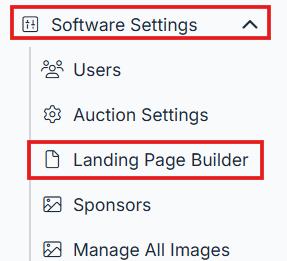
Navigate to Landing Page Builder from the Software Settings menu.
-
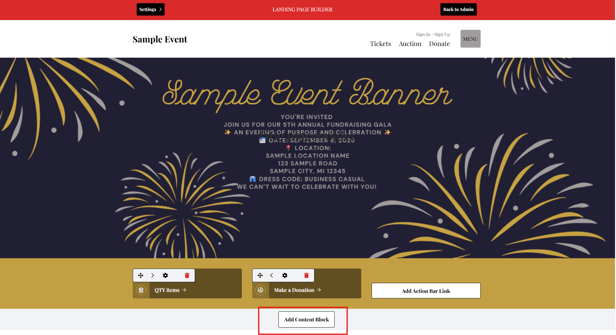
Scroll down and Click Add Content Block.
-
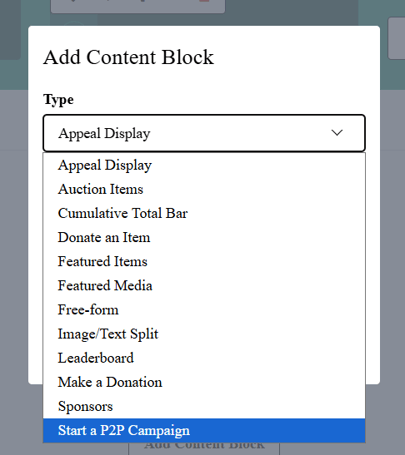
From the dropdown menu, under Type, select Peer to Peer Campaign.
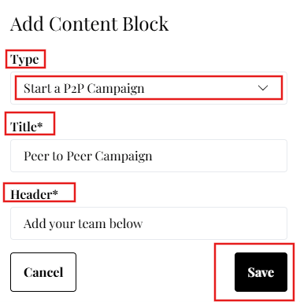
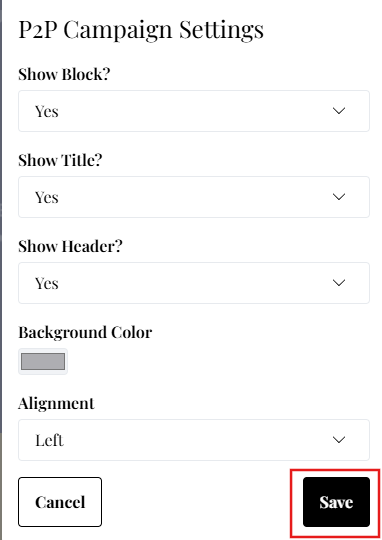
- Enter Title & Header (these are required but can be hidden)
- Show Block
- Set to Yes if you are ready to display on the landing page
- Set this to No to hide the block from the landing page. This is a helpful option while you’re still building the content and don’t want it visible yet.
- Show Title? / Show Header?
Use these options to hide the title or header from the landing page. When set to Yes, the title will appear in the menu and on the content block, making it easy for your team to navigate to this section. - Set a Background color
- Alignment: Left or center.
- Click Save
💡 Tip: Place the campaign block high on your landing page so guests can easily find it and get involved!
📝 Step 2: How Guests Create Their Own Campaign Pages
Once your landing page includes the P2P Campaign block, supporters can click the button to start their own fundraising page.
-
On your landing page, guests will click the Create a Campaign button.
-
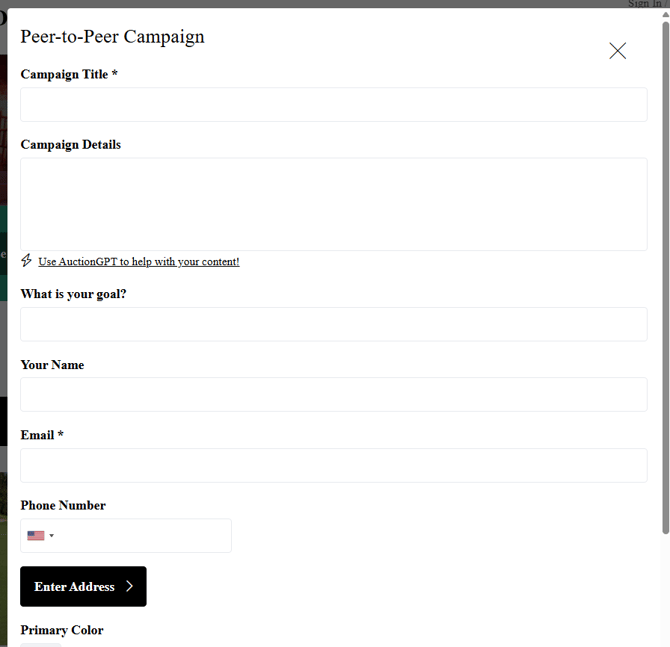
A form will appear asking them to complete:
-
Campaign Title
-
Campaign Details
-
Personal Goal (optional fundraising goal)
- Your Name
-
Image Upload
-
-
After filling in the form, they’ll click Submit to create their campaign page.
🧾 Step 3: What Happens After Submission
Once a guest submits their campaign form:
-
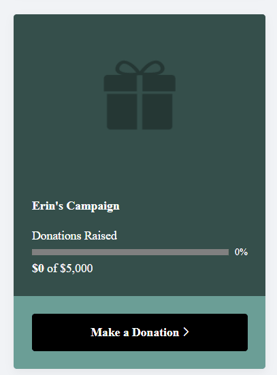
A custom donation item is automatically created in your Items list.
- This item is set to a status of Invisible. This gives you time to approve and set the items to active at once.
-
The item name is based on the Campaign Name.
-
The item includes:
-
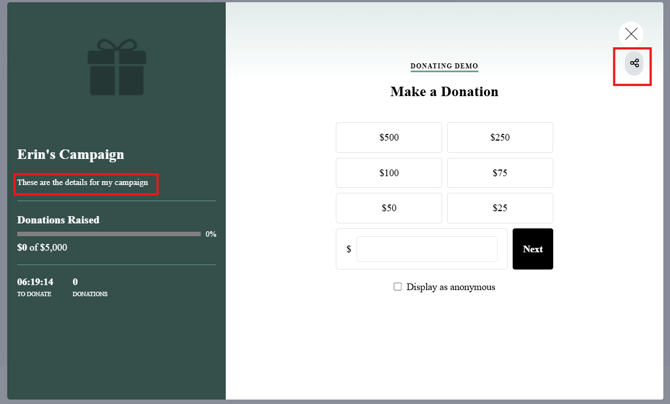
The guest’s custom message
-
Their image, if uploaded
-
A unique donation link specific to their campaign
-
To edit the campaign after submission:
-
Go to Manage Items in your ClickBid admin.
-
Search for the campaign by name.
-
Click the Edit icon to update the message, image, goal, or other details.
- Notice the p2p tag that tells you this is a Peer-to-Peer campaign item.
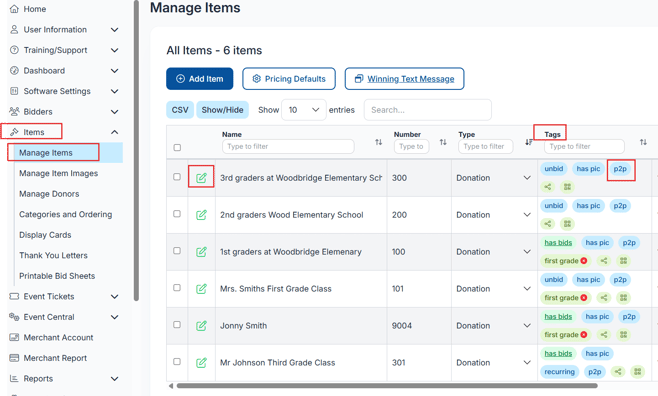
⚠️ Warning: Editing campaign items directly in the Items list will change what’s shown on the guest’s public donation page, double-check changes before saving!
🔗 Step 4: Sharing the Campaign Link for Fundraising
Each guest’s campaign generates a unique link that they can use to fundraise:
-
The guest can check the Auction site to find their campaign and share the link attached to the item.
-
Donations made through their page contribute to your overall campaign but are tracked under their personal campaign.
💬 Tip: Encourage your supporters to post their campaign link on social media, emails, or text to amplify your reach!
You need to let your peer to peer campaign captain know when the Peer to Peer fundraiser is active on the page. You can send them their item share link locating next to the item in manage items under 'tags'.