
Paddle Raise donations can come from both in-person guests and at-home viewers.
This guide walks you through how to present donation amounts to virtual guests using EventStream, while recording in-room paddle raises using the Butler tool, all in real time during your live program.
⚙️ Showing Donation Amounts on EventStream (Virtual Guests)
When you’re ready to prompt virtual attendees to give during your Paddle Raise, you’ll control donation amounts directly in EventStream.
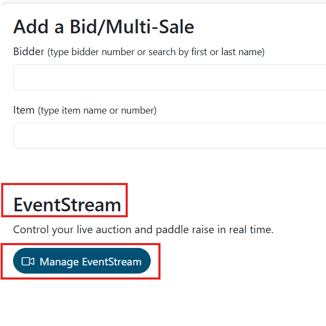
- In the Butler, Locate EventStream
- Click Manage EventStream
- Click on the Paddle Raise donation item
-
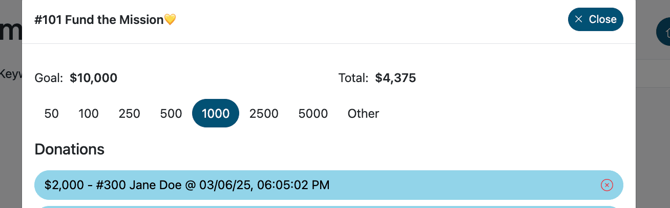
In the EventStream tool, click the next donation amount you want to display (for example, $1,000).
-
The selected amount will appear to remote bidders.
-
The previously displayed amount (for example, $2,500) will automatically be deselected.
-
Virtual guests will only see the current donation level.
-
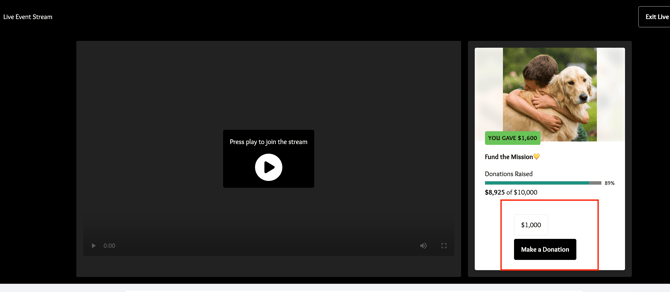
Tip: You can change the donation amount at any time during the Paddle Raise to move through multiple giving levels as your auctioneer prompts the audience.
🧍♂️🧾 Add In-Person Paddle Raise Donations
While EventStream handles virtual giving, the Butler tool is used to quickly enter donations from guests attending in person.
Before you begin:
-
Make sure your in-person guests have physical paddles with their bidder number clearly displayed.
-
On a separate device, go to cbo.io/butler.
-
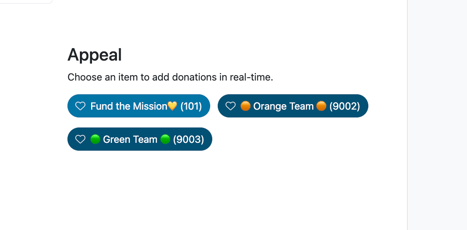
Scroll to the Appeal section (bottom right corner).
-
Click the donation item for the Paddle Raise.
-
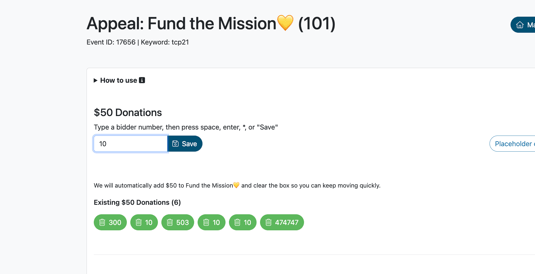
When a guest raises their paddle (e.g., for $2,500), type in the bidder number announced by the auctioneer.
-
Click Enter or Save to add the donation to that bidder's account.
Tip: All donations entered through Butler are automatically added to the bidder’s donation history in ClickBid, no additional syncing is needed.
🛑 Ending the Paddle Raise
Once all donation levels have been completed and no more gifts are being accepted:
-
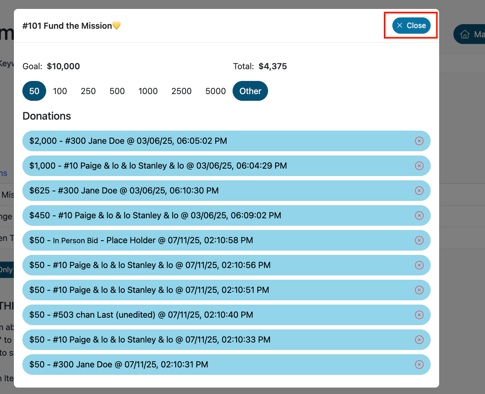
In the EventStream tool, click the Close button.
-
This will end virtual bidding and remove the donation prompt from guests' screens.
Warning: Be sure to only close the item once all virtual and in-person donations are complete, as this action cannot be undone.
✅ Summary
Using EventStream and Butler together allows you to run a smooth Paddle Raise for both virtual and in-person guests. EventStream controls what donation amounts remote attendees see, while Butler lets staff quickly enter live paddle raises from the room. When used together during your program, both audiences can give confidently and in real time.