
Still need to set up your ticket page? View the all-encompassing article, How to Set Up and Manage Your Ticket Page.
If you choose to allow cash, check, or invoice payment options on your ticket page, sales will be manually marked as paid on the back end once payment is received.
When someone selects to pay by cash, check, or generate an invoice, the ticket appears as unpaid until you manually mark that payment was received.
Follow these steps:
- Go to Event Tickets from the admin menu.
- Click View Ticket Sales (or View All Ticket Sales if you have multiple ticket pages).
- Find the appropriate ticket and click the pencil icon to the left of the entry.
- Check the box next to Paid? under Additional Features to mark the check as received.
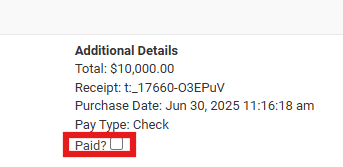
✅ Once the page refreshes, the ticket type will update from Unpaid to Paid.